Legal Disclaimer: The resource assets in this website may include abbreviated and/or legacy terminology for HPE Aruba Networking products. See www.arubanetworks.com for current and complete HPE Aruba Networking product lines and names.
OnGuard Custom Scripts
Policy Manager allows you to configure three types of OnGuard custom scripts, , and. Admin users can create and execute a script on endpoint devices as part of agent enforcement, or query for additional information that is not included in the existing health classes.
The responses to scripts can be used to determine the appropriate health of the endpoint. Admin users can also create remediation scripts to be executed if an endpoint does not pass health check. Custom scripts can be configured to appear to be executed by the current logged-on user, or as the system user with admin rights.
Scripts launched as a user do not support system operations that need root/admin privileges. Note that if a health collection script is launched as a user without privileges to complete the task, the script execution process can return an error code that can put the client in an unverified status for that check.
You can create custom scripts using the following approved language formats. Note that these formats may be platform-dependent based on available system capabilities.
|
PowerShell (PS1) Executable Binary (exe for windows) Visual Basic Script (VBS) JScript (JS) Windows Script File (WSF) PerlScript (PLS) |
PScript (PS) PythonScript (PYS) Bash Python (2.7) Python (3.x) Perl |
PHP AppleScript sh csh SED/AWK Ruby |
Agent Script Enforcement Profile Scripts
Policy Manager can use a custom script in agent script enforcement profiles to execute the script on endpoint devices as part of agent enforcement. When you associate an Agent Script Enforcement Profile script to the Enforcement profile, the details of the custom script, such as the path of the custom script, the command to be executed, and the execution level are configured in the OnGuard Custom Scripts section. You can then add one or more OnGuard custom scripts into an Agent Script Enforcement Profile that acts as a rule in an enforcement policy.
OnGuard Agent executes the OnGuard custom script in the Agent Script Enforcement profile after first applying Agent Enforcement profiles (that is, after is executed, if configured). While applying an Agent Script Enforcement profile, OnGuard Agent does not check to see if a script is already running. It is possible for OnGuard Agent to launch the script multiple times if a previously launched script is still running. This can occur if OnGuard Agent performs multiple health checks (either manually triggered or caused by a change in health status). The script exits after performing its task.
Health Collection Scripts
You can use the OnGuard Custom Scripts section to create health collection scripts for the Windows, Linux or macOS posture plugins on the page. Admin users can create a health collection script for Windows, Linux or macOS and associate it with the Universal System Health Validator posture plugin for the same operating system to query for additional information that is not included in the existing health classes. The responses of health collection scripts can be used to determine the appropriate health of the endpoint. Responses can be in JSON JavaScript Object Notation. JSON is an open-standard, language-independent, lightweight data-interchange format used to transmit data objects consisting of attribute–value pairs. JSON uses a "self-describing" text format that is easy for humans to read and write, and that can be used as a data format by any programming language. format or a key-value pair. The OnGuard Custom Script configuration allows you to create a set of rules that associate exit codes and key-values with a health status of or .
Auto Remediation Scripts
You can also use the OnGuard Custom Scripts section to create an auto remediation script for the Windows, Linux or macOS posture plugins on the page. If the posture plugin includes a health collection script and auto-remediation is enabled for that plugin, you can associate an additional auto remediation script to take an action by running a script on an endpoint that does not pass health checks.
Configuring OnGuard Custom Scripts
To configure a Custom Script:
1. Navigate to > > . The page opens.
2. Click the link. The window opens.
3. In the and fields, enter a name and description of the script .
4. Click the drop-down list and select the operating system on which the script will run. OnGuard custom scripts are supported on Windows, macOS, and on all Linux operating systems that support OnGuard.
5. Click the dropdown menu and identify how this custom script will be used:
: Script will execute as part of a Agent Script Enforcement Profile.
: Script will execute as part of a Universal Health Validator posture plugin for Windows, Linux or macOS devices to collect additional health data for devices of that type.
: If you have associated a health collection script with the Universal Health Validator posture plugin for Windows, Linux or macOS devices, you can also associate a custom auto remediation script to run on non-compliant endpoints.
Figure 1 OnGuard Custom Scripts > Script Configuration Dialog

6. Click the tab. Mandatory attributes appear by default with information about the attribute. Select the link to add other attributes.
|
Attribute |
Action/Description |
|
Path of the Script |
Required for all script types. Complete the path of the script/program, including the filename. This attribute checks for the existence of a file on an endpoint device and also verifies the SHA256 Checksum. |
|
Command to Execute |
Required for all script types. Specify the complete command that OnGuard Agent should execute. You can use the command to launch scripts or pass command line arguments. |
|
Execution Level |
The attribute values are: and . To launch the script/program as the current logged-on user, select . To launch the script/program as the system user with admin rights, select . |
|
SHA256 Checksum |
Required for all script types. Specify the SHA256 checksum of the script or program. This attribute accepts comma-separated multiple SHA256 checksums to allow execution of different versions of same script or program. |
|
Signer Name |
Applicable only to Windows and macOS scripts that can be code signed. This attribute requires admins to enter a signer name to verify code signing of custom scripts. This field accepts multiple signer names separated by “|”. The Signer Name should be the value of ‘Issued to” in the Code Signing certificate that is used to sign the script/executable file. For example, all OnGuard executable files on Windows and macOS are signed using Aruba's code signing certificate. To verify code signing of any OnGuard executable using custom scripts, use as the signer name. |
|
Wait Time (Seconds) Before Executing Script |
Specify the time (in seconds) after which OnGuard Agent should launch the script/program. When is configured, the OnGuard Agent does not process events such as Interface Up/Interface Down and health changes during the wait time. |
|
Pass Health Evaluation Results to Script |
Check the check box (which sets the value to ) to enable OnGuard Agent to pass health evaluation results to the script/program as an argument. The default is . When the attribute is set to , OnGuard Agent passes health evaluation results to the script in a URL Uniform Resource Locator. URL is a global address used for locating web resources on the Internet. Encoded JSson format. URL Uniform Resource Locator. URL is a global address used for locating web resources on the Internet. Encode replaces double quotes, spaces, and Unicode characters with their ASCII American Standard Code for Information Interchange. An ASCII code is a numerical representation of a character or an action. value in %XX format. For example, spaces are replaced by %20 and double quotes are replaced by %22. |
|
Success Message |
Enter the message to be shown to the end user when the script or program is launched successfully. |
|
Failure Message |
Enter the message to be shown to the end user when execution of the script or program fails. |
|
Progress Message |
This message will be shown on the OnGuard Progress Page (see Creating OnGuard Custom Web Pages) while OnGuard Agent is executing the custom script and states what action is being performed. |
|
Description |
Provides a description of the custom user interface window or script. |
|
If the script or program configured in the attribute is not present on the client machine, enter the URL Uniform Resource Locator. URL is a global address used for locating web resources on the Internet. of the remote server from which OnGuard Agent can download the script or program. OnGuard Agent supports downloading scripts only from HTTP Hypertext Transfer Protocol. The HTTP is an application protocol to transfer data over the web. The HTTP protocol defines how messages are formatted and transmitted, and the actions that the w servers and browsers should take in response to various commands. and HTTPS Hypertext Transfer Protocol Secure. HTTPS is a variant of the HTTP that adds a layer of security on the data in transit through a secure socket layer or transport layer security protocol connection. URLs Uniform Resource Locator. URL is a global address used for locating web resources on the Internet.. For HTTPS Hypertext Transfer Protocol Secure. HTTPS is a variant of the HTTP that adds a layer of security on the data in transit through a secure socket layer or transport layer security protocol connection. URLs Uniform Resource Locator. URL is a global address used for locating web resources on the Internet., OnGuard skips server certificate verification. OnGuard Agent does not support downloading files from URLs Uniform Resource Locator. URL is a global address used for locating web resources on the Internet. that require credentials. |
|
|
Script Execution Timeout (Seconds) |
Specify the attribute value in the number of seconds. The value must be an integer between and . When this attribute is configured, OnGuard Agent waits for the specified time for the custom script to finish execution. If the custom script does not finish execution within the specified time, OnGuard Agent returns failure for that script.
When this attribute is not configured, OnGuard Agent uses varying timeout values, depending upon whether or not custom remediation is enabled. When Custom Remediation is enabled: the default value is 20 minutes. When Custom Remediation is not enabled: 1 minute. |
Configuring Auto Remediation
7. If you are configuring auto remediation and Agent Scripts Enforcement Profile scripts, click to save your settings. For health collection scripts only, you must continue the configuration process to define output details and rules.
a. To configure output details for a health collection script, click the tab. (This tab appears only for health collection custom scripts.)
b. Click the drop-down menu and select either or to output the exit code integer in JSON JavaScript Object Notation. JSON is an open-standard, language-independent, lightweight data-interchange format used to transmit data objects consisting of attribute–value pairs. JSON uses a "self-describing" text format that is easy for humans to read and write, and that can be used as a data format by any programming language. format or as a key-value pair. Select the option for custom scripts do not have built-in support for JSON JavaScript Object Notation. JSON is an open-standard, language-independent, lightweight data-interchange format used to transmit data objects consisting of attribute–value pairs. JSON uses a "self-describing" text format that is easy for humans to read and write, and that can be used as a data format by any programming language., such as batch files or VB scripts. For more information on exit codes, see OnGuard Custom Script Exit Codes
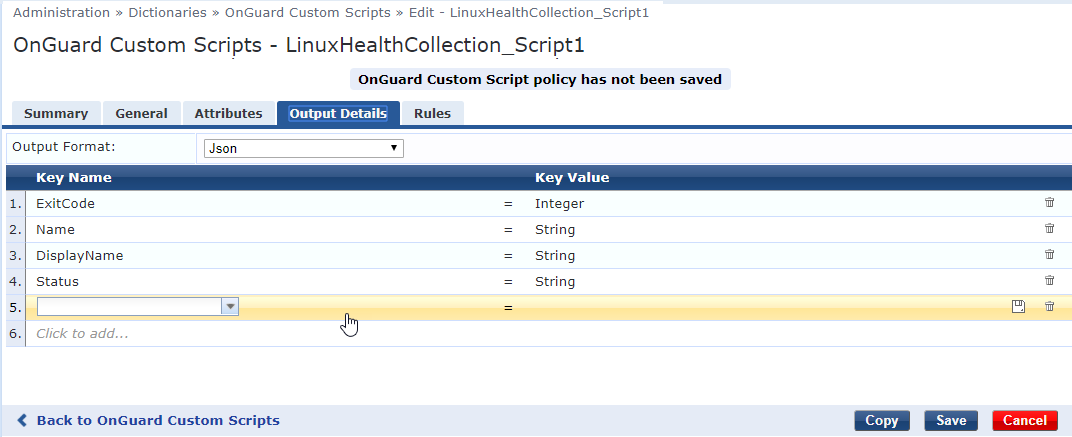
c. The tab includes the ExitCode key by default. To create a new key-value, click the column and enter a custom key name, then click the column and select , or as the value for that key type. Click any blank row in the table to enter your key-value data into the table, as shown in Figure 2. If you do not click into another row, the data you just entered will not be saved.
d. Next, click The tab to define health evaluation rules based on the exit code and key-values returned by the health collection script.
Figure 3 Health Evaluation Rules

e. In the field, click to return the health status for the first matched condition, or click and return more than one health status value if more than one condition is matched.
f. Click to open the .
Figure 4 Rules Editor
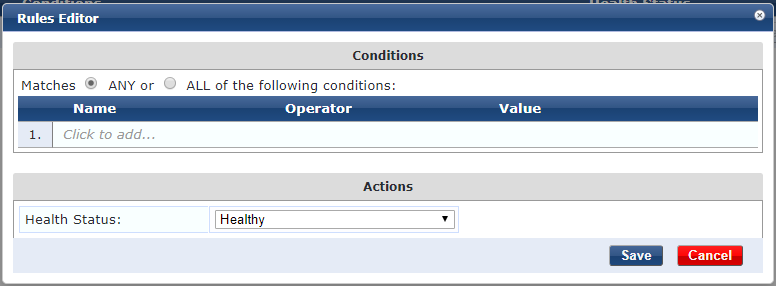
g. In the field, select the match conditions for the health evaluation exit code. Select to assign a health status to a rule that matches any of the conditions, or select to assign the health status only if all the conditions are matched.
h. Click the field and select or a key name, as defined in step c.
i. Click the field and select any of the available operator types (for example, EQUALS, GREATER_THAN or LESS_THAN, or EQUALS, EXISTS or NOT_EXISTS).
j. Click the field and enter a value for the selected key.
k. In the field, click the dropdown menu and assign a value or or to a rule that matches these conditions.
l. Click to exit the rule editor, and return to the OnGuard Custom Scripts dialog.
m. Click again to save your custom script.
