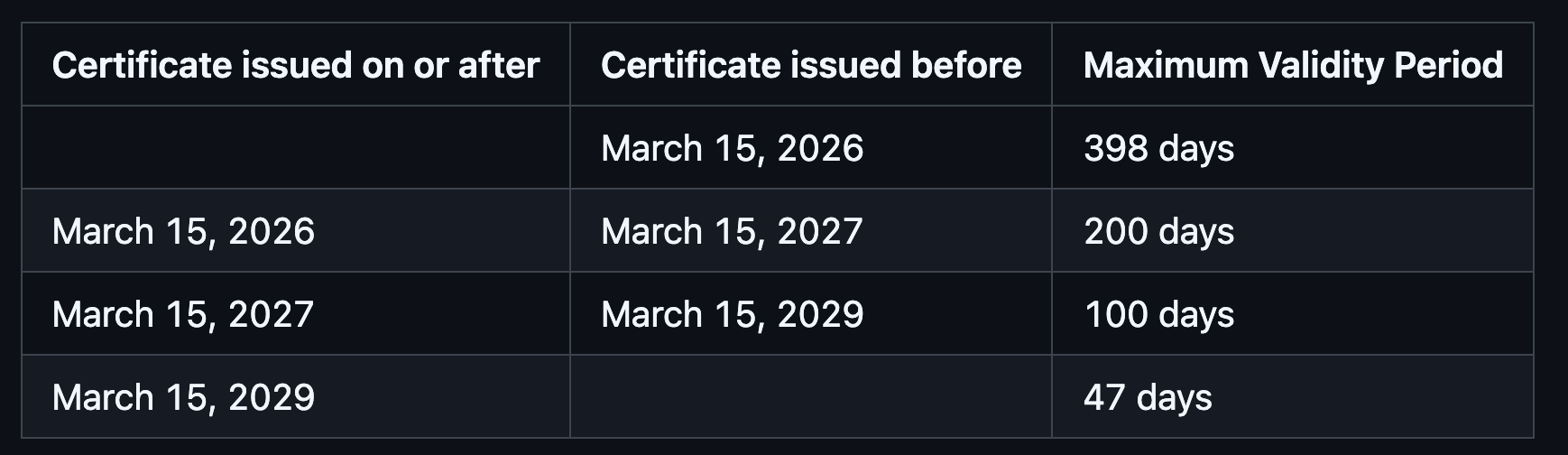
Public TLS certificate lifetimes have been steadily decreasing as part of an industry-wide effort to strengthen internet security and improve the reliability of certificate management. Historically, publicly trusted TLS certificates could be issued with lifetimes of several years, but these limits have been progressively reduced through policies defined by the CA/Browser Forum and enforced by major browser vendors such as Apple, Google, and Mozilla. As of March 2026, the maximum validity period for publicly trusted TLS certificates has been reduced to 200 days, reflecting an ongoing industry trend toward shorter certificate lifecycle to reduce the risk associated with compromised keys, outdated cryptographic parameters, or changes in domain ownership. The CA/Browser Forum has officially set a schedule for shortening the lifetime of TLS certificates as shown in the table below.
A ClearPass deployment typically relies on server certificates for multiple services, including management access to ClearPass over HTTPS, captive portal logins over HTTPS, 802.1X authentication using different EAP methods like EAP-TLS, PEAP, etc., and secure RADIUS (RadSec) transport using RADIUS over TLS. Especially the HTTPS certs in most cases are publicly trusted so that devices connecting to guest network can validate the identity of the ClearPass servers without requiring custom trust configuration. As certificate lifetimes become shorter, the frequency with which these server certificates must be renewed and redeployed across ClearPass clusters correspondingly increases.
Managing these certificate renewals manually can introduce operational risk. If a certificate expires or is not updated consistently across all nodes in a ClearPass cluster, services such as administrative HTTPS access, guest portals, or certificate-based network authentication may fail. In environments that use RadSec to securely transport RADIUS traffic between network devices and authentication servers, an expired certificate could also disrupt authentication requests between network access devices and the RADIUS infrastructure.
For this reason, implementing an automated certificate lifecycle management process is becoming increasingly important for systems like ClearPass. Automated mechanisms allow certificates to be requested, renewed, and deployed before expiration, reducing the risk of service interruptions. Modern certificate automation protocols such as Automated Certificate Management Environment(ACME), Enrollment over Secure Transport(EST), Secure Certificate Enrollment Protocol(SCEP), and enterprise certificate lifecycle platforms can help organizations maintain valid certificates across HTTPS, RADIUS, and RadSec services while minimizing operational overhead and ensuring compliance with evolving public certificate lifetime requirements.
Certificate Enrollment Manager (CEM) Extension
Certificate Enrollment Manager (CEM) Extension provides an extensible way to integrate with different enterprise certificate lifecycle management platforms using EST / SCEP protocols and REST APIs to automatically renew the server certificates in ClearPass. Although the enrollment protocols like EST and SCEP are standardized, the implementation between different vendors have differences in terms of the URLs, authentication methods and types of certificates issued. Hence support for each CA vendor has to be validated separately.
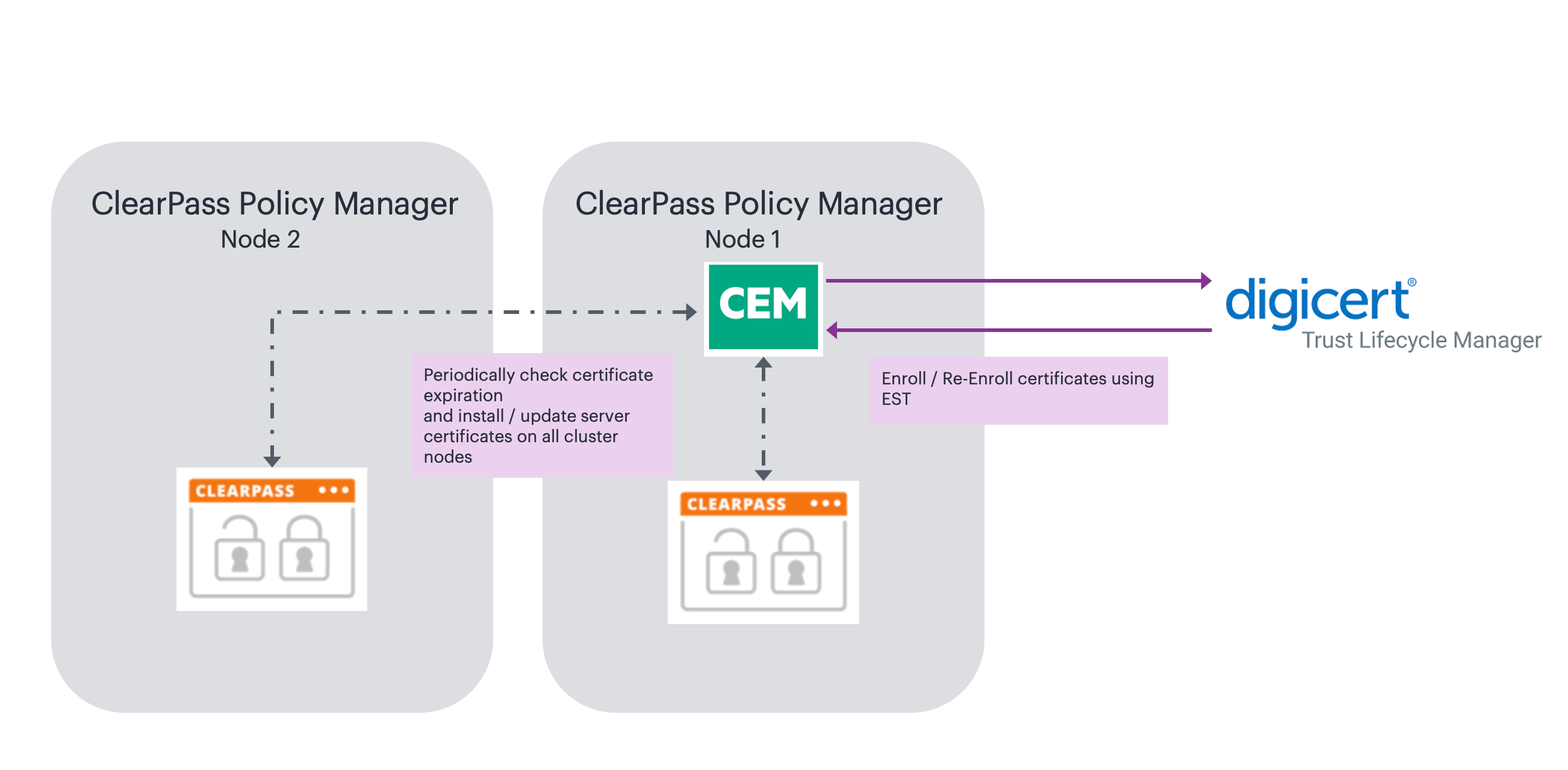
The extension only needs to be installed on any one of the ClearPass nodes in the cluster and it can monitor the HTTPS / RADIUS / RadSec certificates on all the cluster nodes and trigger enrollment / re-enrollment appropriately. The extension can be installed on any ClearPass node in the cluster regardless of whether its the publisher, standby publisher, subscriber or dedicated insight node.
 INFO
INFO
The first iteration of CEM extension adds support for automatic enrollment and renewal of certificates issued by DigiCert Trust Lifecycle Manager (TLM) using EST protocol framework.
How integration with DigiCert TLM works
DigiCert Trust Lifecycle Manager is a digital trust solution for CA-agnostic certificate management and PKI services. Trust Lifecycle Manager centralizes visibility and control over an organization’s certificate landscape, reduces risk of business disruption from certificate expiration or human error, streamlines operations with automation and configurable workflows, and increases agility for fast remediation or adaptation to changes in cybersecurity standards.
DigiCert Trust Lifecycle Manager supports EST to provide secure, automated certificate enrollment across diverse devices and applications. With EST, organizations gain standards-based enrollment, renewal, and revocation workflows, reducing human error while ensuring scalable trust management in hybrid IT environments. Trust Lifecycle Manager’s EST protocol implementation is based on IETF’s RFC7030 EST standard.
With EST based enrollment, all operations are submitted over HTTPS and DigiCert TLM supports the issuance of both RSA and ECDSA certificates. The EST service supports the following operations/client requests:
cacerts: To obtain the CA certificates and establish the trust anchor.
simpleenroll: To enroll new end-entity certificates.
simplereenroll: To renew existing end-entity certificates.
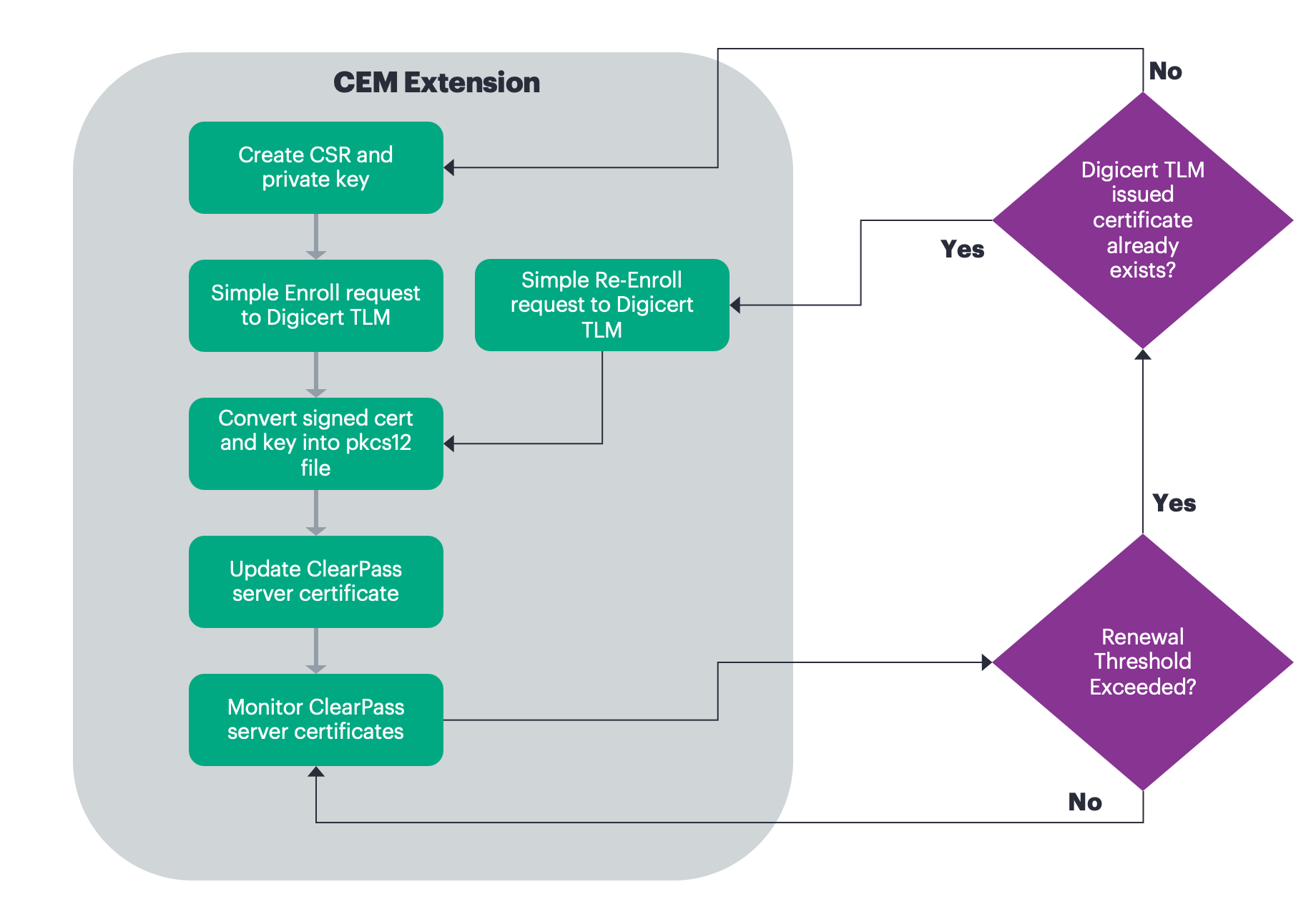
CEM extension uses EST protocol to enroll new certificates and to renew existing ones. It can be configured to enroll / re-enroll the certificates at startup or based on certificate validity checks done periodically.
INFO
The very first time the extension runs, it does a full enrollment by requesting for a new certificate from DigiCert TLM. The subsequent runs would only do a renewal or re-enrollment. Even if the extension were to be restarted or backed up and restored, it would remember the previous state and perform only re-enrollment.
If the extension were to be deleted and re-installed, it would do a full enrollment, the first time.
Software Requirements
The minimum software version required for CPPM is 6.11.0 . At the time of writing, version 6.11.10 is available as the long supported release and 6.12.4 is available as the short supported release. CPPM runs on hardware appliances with pre-installed software or as a Virtual Machine under the following hypervisors. Hypervisors that run on a client computer such as VMware Player are not supported.
-
VMware vSphere Hypervisor (ESXi) 7.0 U3c and 8.0
-
Windows Server 2019 with Hyper‑V and Windows Server 2022 with Hyper‑V.
-
KVM on CentOS Stream 8, CentOS Stream 9, Ubuntu 20.04 LTS, and Ubuntu 22.04 LTS.
ClearPass Installation and Deployment Guide
This document assumes your ClearPass environment is already configured and operational. If you require assistance with basic deployment, refer to the following deployment guide:
https://arubanetworking.hpe.com/techdocs/ClearPass/6.11/Installation-Guide/Default.htm
ClearPass Extensions
The integration between ClearPass Policy Manager and external systems is driven through a ClearPass capability known as Extensions, a sub-component of the ClearPass Exchange Integration framework. ClearPass Extensions are micro-services running on top of the base ClearPass platform. These micro-services enable HPE Aruba Networking to deliver new features outside of the main software release cycle and facilitate a faster time to market for specific features and integrations. Configuration and control of ClearPass Extensions is accomplished through the ClearPass Guest GUI, as covered later in this document.
Installing Extension
ClearPass Extensions are easy to install from the ClearPass Extensions Store. In a cluster, ClearPass Extensions can be installed on a subscriber independently of the publisher. Multiple copies of the same extension can be installed if needed as well.
INFO
Internet access is required for ClearPass Policy Manager to install the ClearPass Extensions from the Extension Store. Starting with ClearPass 6.12, extensions can be can be installed offline as well. Offline ClearPass Extension images are available on HPE networking support portal.
Access to the extension store
Access the Extension Store to download and install ClearPass extensions. The Extension store utilizes the same HPE Passport account credentials used to validate support entitlement in the Software Updates Por- tal. This is configured under Administration > Agents and Software Updates > Software Updates as shown below. Ensure that valid HPE Passport credentials have been entered in these fields to enable Ex- tension download capabilities.

Installing the Extension from Store
Extensions are installed from the extension page in ClearPass Guest, as shown below. Access it from Guest > Administration > Extensions

From here, click on ‘Install Extension’, and the search box below appears.

Enter “Intune” and click on ‘Search’, see the example below.
INFO
Here we are using Intune as an example. The installation steps are the same for all the extensions. For your deployment, please search for the appropriate extension like Jamf, Mosyle, Crowdstrike, etc.
All currently available extensions are listed in the page: https://www.arubanetworks.com/techdocs/NAC/clearpass/integrations/clearpass-extension/extensions-list/

Click on the extension name and then click “Install.”

In the “Install Extension” dialog box, set the IP address if necessary, as described in section “Extensions and IP address configuration support” below. Do not check the box to start the extension at this time. Click the “Install” button.

In this example, we’ve not entered an IP address for the extension to use, if there is intent to use the extension as an authorization source set this value and ensure its set the same on all nodes where the Extension is deployed.
The extension will download and appear in a “Stopped” state. Notice the options to Start, Delete, Reinstall, Show Logs, and view Configuration. Click on “Configuration” to view settings.
After the extension has been installed, proceed to configure the extension

A copy of the default Extension configuration is shown above, this will need to be modified for your deployment.
INFO
Password and sensitive configuration items are obfuscated when presented in both the Extension GUI or in the Explorer configuration.
 WARNING
The configuration attributes are case sensitive. It is recommended to refer the default configuration sample while editing your configuration.
Extensions and web proxy support
Extensions support communications with 3rd parties via a web proxy. This adds incremental proxy functionality. If a proxy is defined in ClearPass Policy Manager, then an extension will inherit that configuration. See later in the document on how to disable the proxy inherited configuration.
INFO
Note that the Policy Manger web proxy configuration is ONLY read by the extension at installation time. If the web proxy configuration is changed in Policy Manager, then the extension must be re-installed so the new settings are re-read and bonded to the extension.
Extensions and IP address configuration support
ClearPass uses a non-externally routed IP address range to communicate with the Extension. The default is 172.17.0.0/16. You may configure a different range, if desired. This is especially useful when deploying extensions across nodes within a cluster where there is the requirement for a fixed consistent IP address for the extension across the cluster.
Changing the “Extensions Network Address” range is only necessary if either the ClearPass MGMT or DATA interface are using an IP address in the extension default range of 172.17.x.x/12, or if ClearPass needs to communicate with some external device in that range.
To Configure the base Extension IP subnet within Policy Manager navigate to Administration > Server Manager > Server Configuration [chose your node] Service Parameters [ClearPass system service].
INFO
The subnet defined here for the extension framework must fall within the following subnet range 10.0.0.0/8, 172.16.0.0/12, 192.168.0.0/16 as defined by RFC1918. For best results, set the network address range to a subnet that does not exist in your enterprise, and restart the extension service for this change to take effect.
Never set the DATA or MGMT IP address to use an address that matches the Extension Network

INFO
Note that changing the extension base IP address will require the extension service to be restarted.
Configuring DigiCert TLM
These are the configuration steps required on DigiCert TLM to setup auto enrollment for certificates. Log into DigiCert ONE and open Digicert Trust Lifecycle Manager to complete the configuration steps below.
Add Trusted Root CA
EST enrollment uses either an enrollment code or client certificate for authentication. The re-enroll functionality mandates using a client certificate for authentication and hence a certificate with EKU TLS Client Authentication is required to authenticate the enrollment request. This client certificate can be created in many different ways. Some options are:
- Generate a client certificate from DigiCert TLM
- Generate a client certificate from ClearPass Onboard
- Generate a client certificate using openssl
The root CA that issued the client certificate needs to be uploaded to Digicert TLM as a trust certificate authority.
Navigate to Account > Root CAs and add the CA certificate.
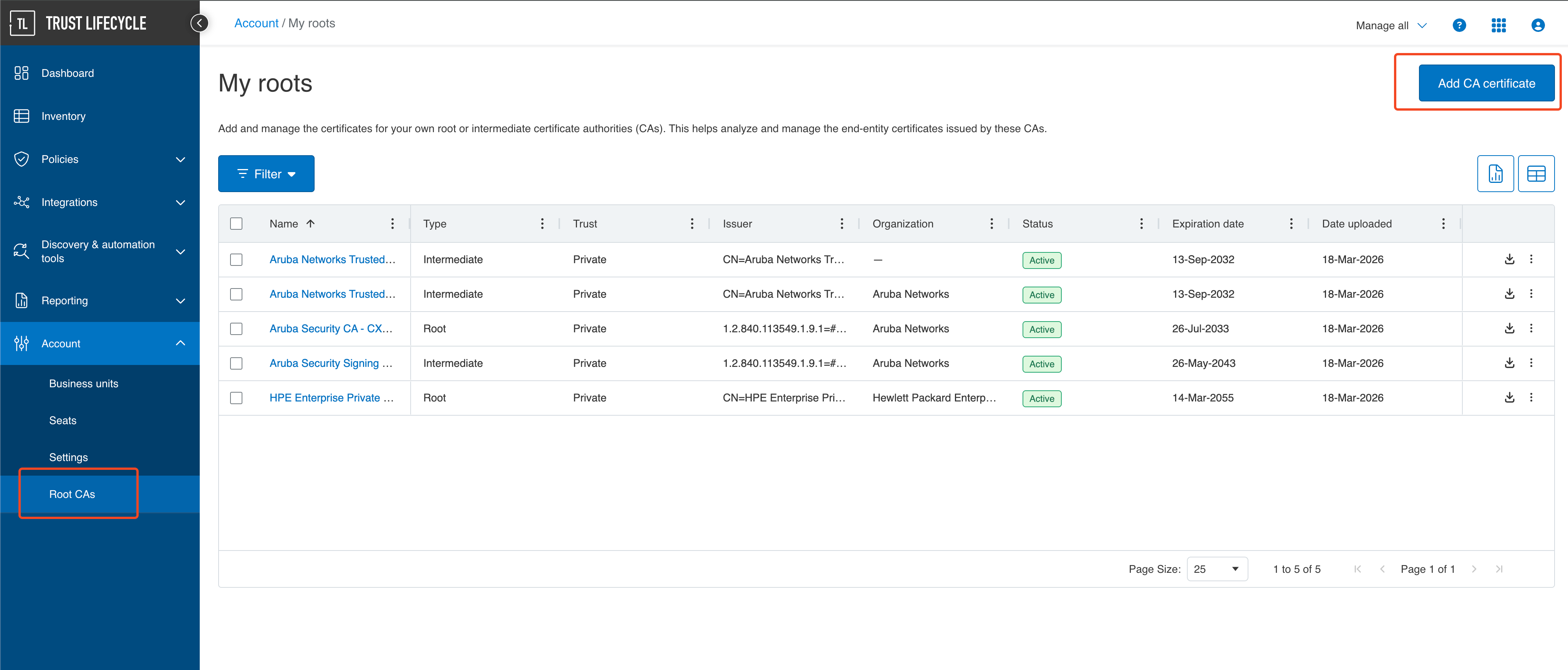
Configure Certificate Profile
Navigate to Policies > Certificate Profiles and Create profile from template
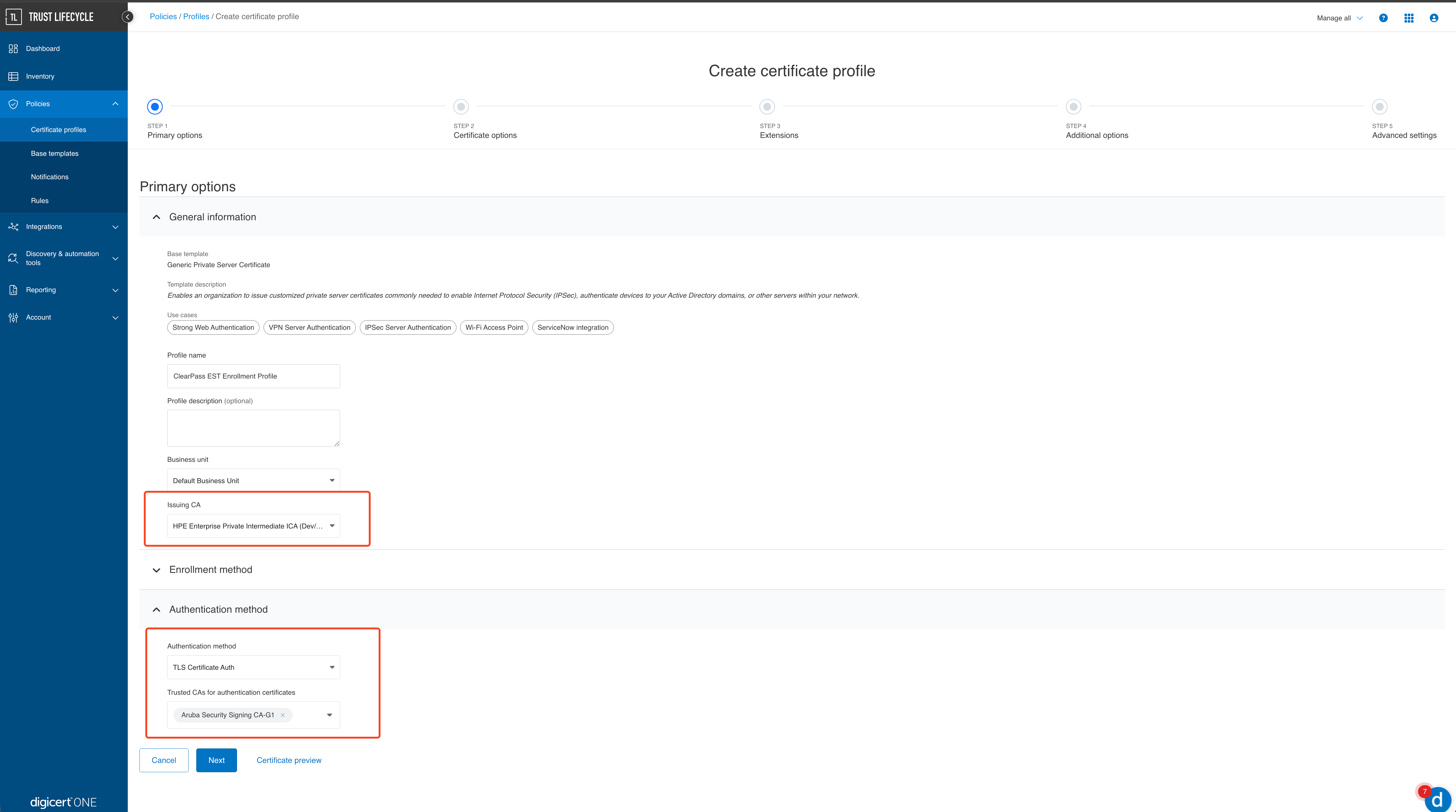
Select the appropriate template like “Generic Private Server Certificate”. Note that not all templates support EST based enrollment. The first release only supports EST and hence only the EST based templates are supported. Support for REST API and SCEP will be added later.
Within the profile, select the enrollment method as EST, select the Trusted CA added in previous step.
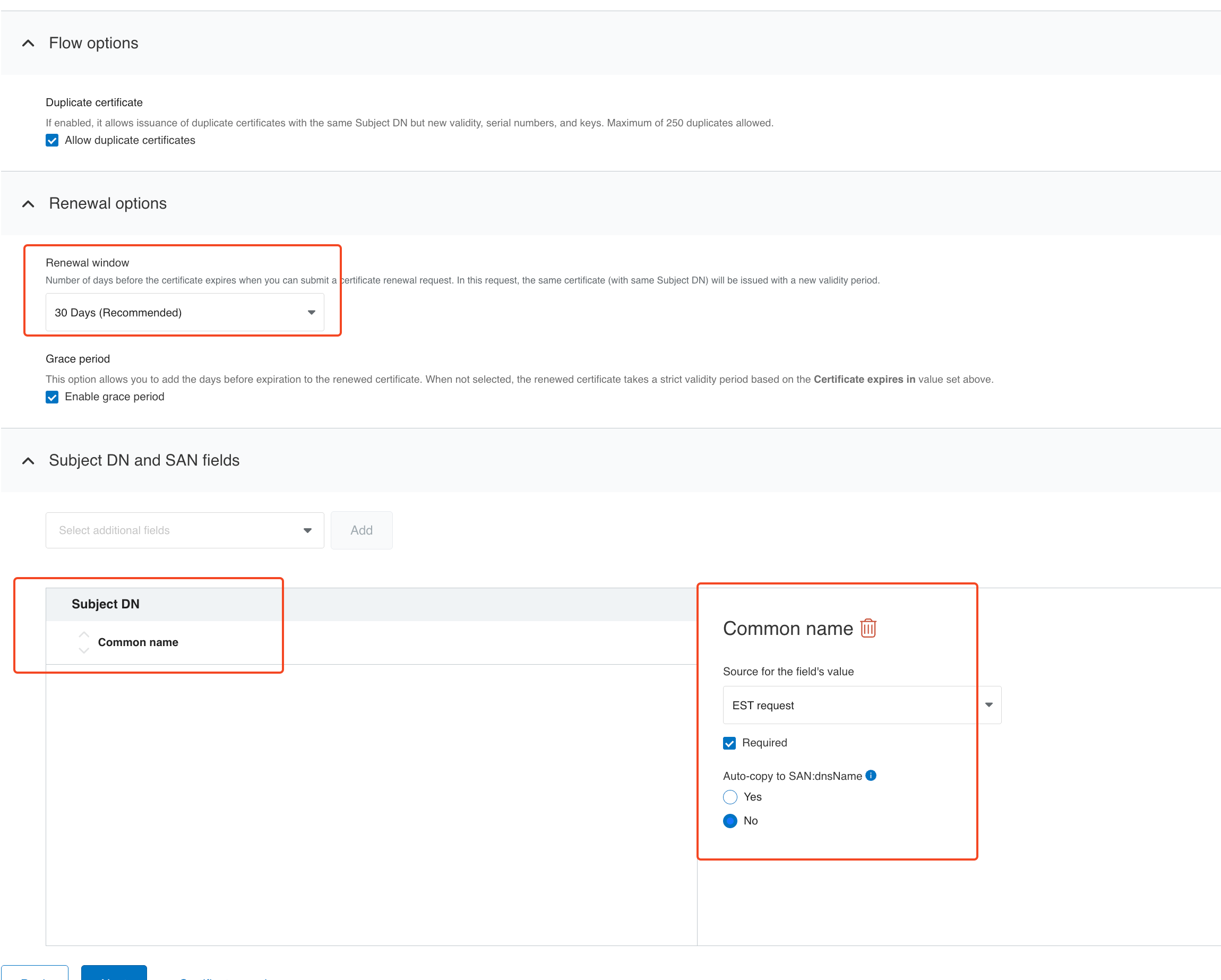
Select the appropriate renewal period and Subject common name
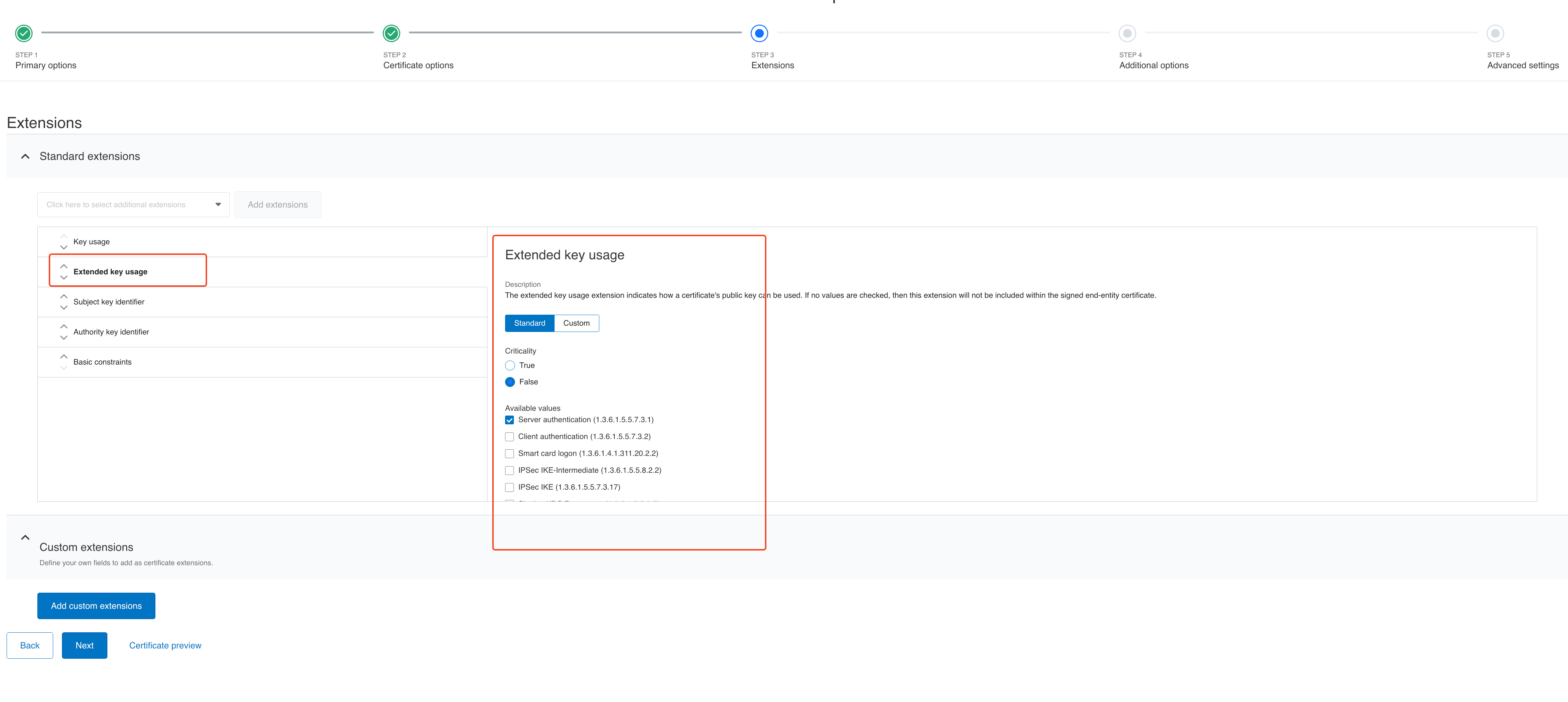
Select the server authentication EKU and other extensions as needed
Configure appropriate seat ID mapping

Configuring CEM Extension
The extension needs to be configured to make simple enroll and simple re-enroll requests to DigiCert TLM. First we need to convert the client certificate created for EST enrollment into base 64 format. This can be done using openssl or other tools. Openssl command to convert certificate into base 64 is given below. Note that the pkcs12 file containing the certificate and private key should be converted to base64 and used within the extension config.
openssl base64 -in certificate.p12 -out certificate.txt
Sample output showing base64 encoded pkcs12 certificate:
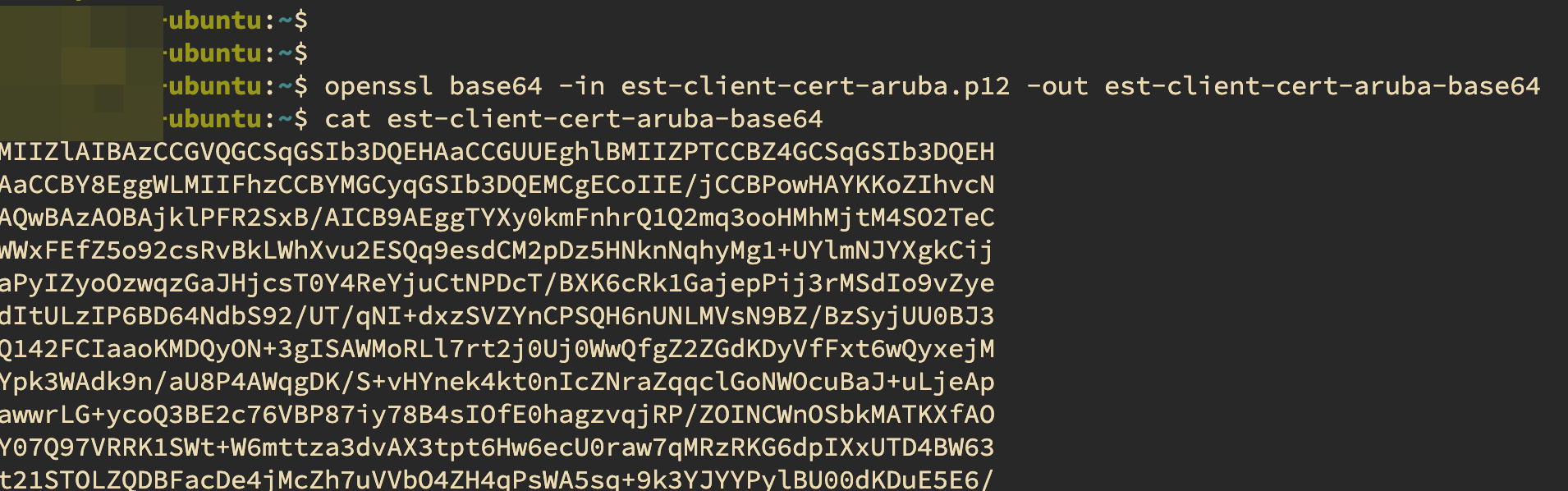
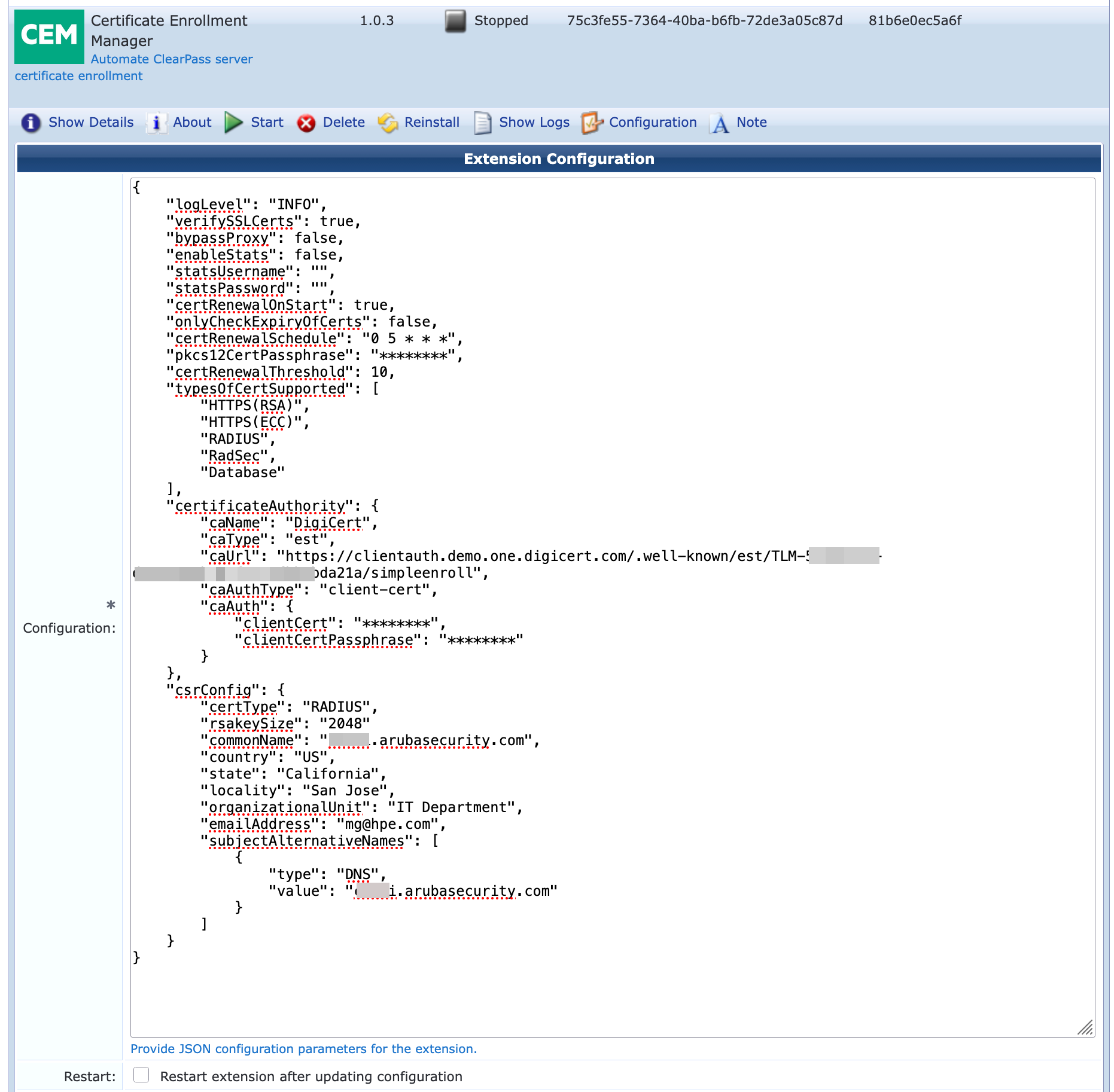
Listed below are the extension configuration items specific to CEM Extension
Figure 12: Extension configuration parameters
| Configuration attribute | Description | Default Values |
|---|---|---|
| logLevel | Logging level for troubleshooting. Change to "DEBUG" to see more detailed logs | “INFO” |
| certRenewalOnStart | If set to true, enrollment / renewal would be done as the extension starts up. If false, enrollment / renewal would be done based on certRenewalSchedule cron job | false |
| onlyCheckExpiryOfCerts | When set to true, extension only checks validity of certs without doing the actual renewal. Use this option to check if any of the certs are to be renewed and to validate connectivity to DigiCert without doing actual enrollment / renewal. If toggling this value, ensure to check the box to restart the extension | false |
| certRenewalSchedule | Configure a cron job to schedule when the cert renewal should be done. This ensures that renewal is done outside of business hours. Recommended to configure the cron to run once a day during off peak hours to check validity of certificates and trigger renewal | 0 5 * * * |
| pkcs12CertPassphrase | Password to be used while generating the CSR and private key. This is the password for the certificate being installed in ClearPass | ****** |
| certRenewalThreshold | Percentage value of certificate lifetime to trigger certificate renewal. Note that this value should be configured in such a way that renewal happens within the renewal window configured in DigiCert TLM Certificate Profile | 80 |
| typesOfCertSupported | Lists all the type of certificates the extension supports. The actual certificate type is selected under csrConfig > certType described further down | ["HTTPS(RSA)", "HTTPS(ECC)", "RADIUS", "RadSec", "Database"] |
| caName | Name of the Certificate Authority. DigiCert is the only supported CA at initial release | |
| caType | Specify the enrollment method. est is the only supported enrollment method at initial release | est |
| caUrl | Specify the enrollment URL | https://example.com/.well-known/est/TLM-{uuid}/simpleenroll |
| caAuthType | Specify the auth method used for EST Enrollment. "client-cert" is the only supported auth method at initial release | client-cert |
| clientCert | base 64 encoded client certificate for EST authentication | "base-64-encoded-pem-string" |
| clientCertPassphrase | Password used to encrypt the client certificate private key used to authenticate against DigiCert | |
| csrConfig | Attributes for the server certificate to be included in the CSR | |
| csrConfig > certType | Select from one of the supported CAs listed under typesOfCertSupported attribute. Note that the extension only supports renewing one type of certificate. If the goal is to automate the renewal for multiple certificate types (example both RADIUS and HTTPS(RSA)) then separate instances of the extension should be installed with each extension handling the renewal for one type of certificate. You can add a note to differentiate between multiple copies of CEM extension | HTTPS(RSA} |
| csrConfig > subjectAlternativeNames | SAN attributes of the type DNS and IP can be configured | { "type": "DNS", "value": "example.com" } |
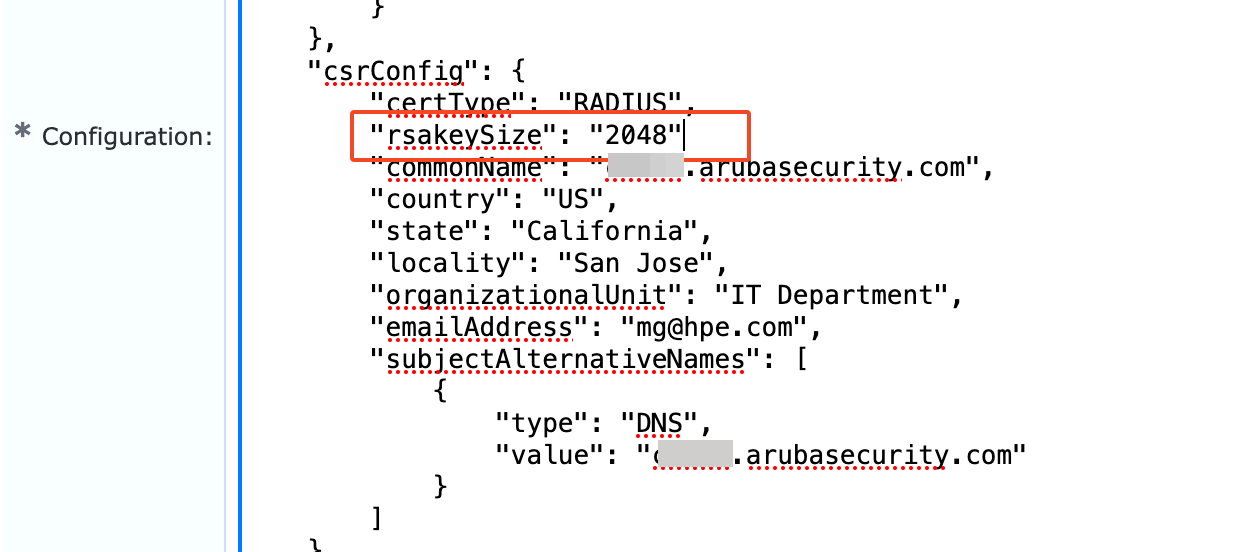
Note that by default key type is automatically derived from certType attribute with “HTTPS(ECC)” using Elliptic Curve keys and All others (HTTPS(RSA), RADIUS, RadSec, Database) using RSA keys. If you wish to specify the key type manually, use these additional attributes within csrConfig
rsakeySize: Supported values ‘2048’, ‘3072’, ‘4096’
ecCurve: Supported values ‘prime256v1’, ‘secp384r1’, ‘secp521r1’
Example:
INFO
If the certificate renewal runs into any errors, the extension will stop running. This would print an alert message in ClearPass Event Viewer which can then be exported as syslog or sent as email to notify ClearPass administrators / NOC teams
INFO
Note that installing a HTTPS certificate will cause the ClearPass Admin UI service to restart. Installing a RADIUS certificate will cause a soft reload of the RADIUS service and installing a RadSec certificate will cause the RadSec tunnels to be restarted. Hence care must be taken to ensure that the certRenewalSchedule is setup in such a way that the enrollment / renewal happens during off-peak hours to minimize any impact to the workflows supported by ClearPass.
Validation
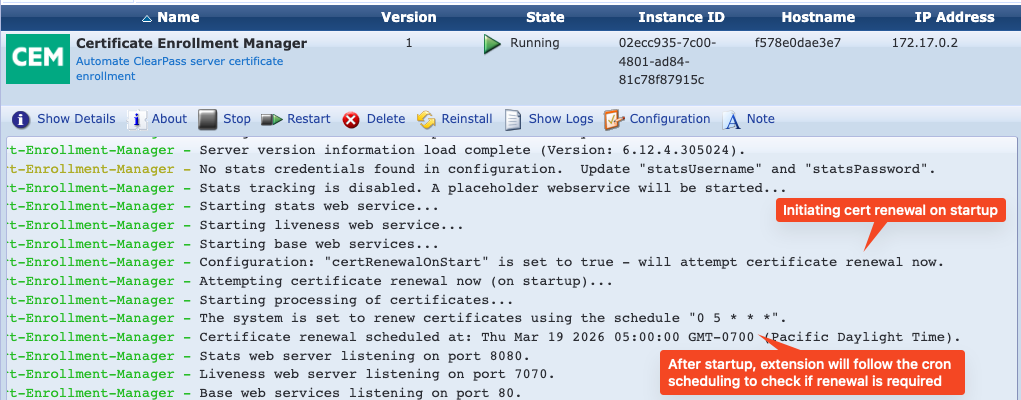
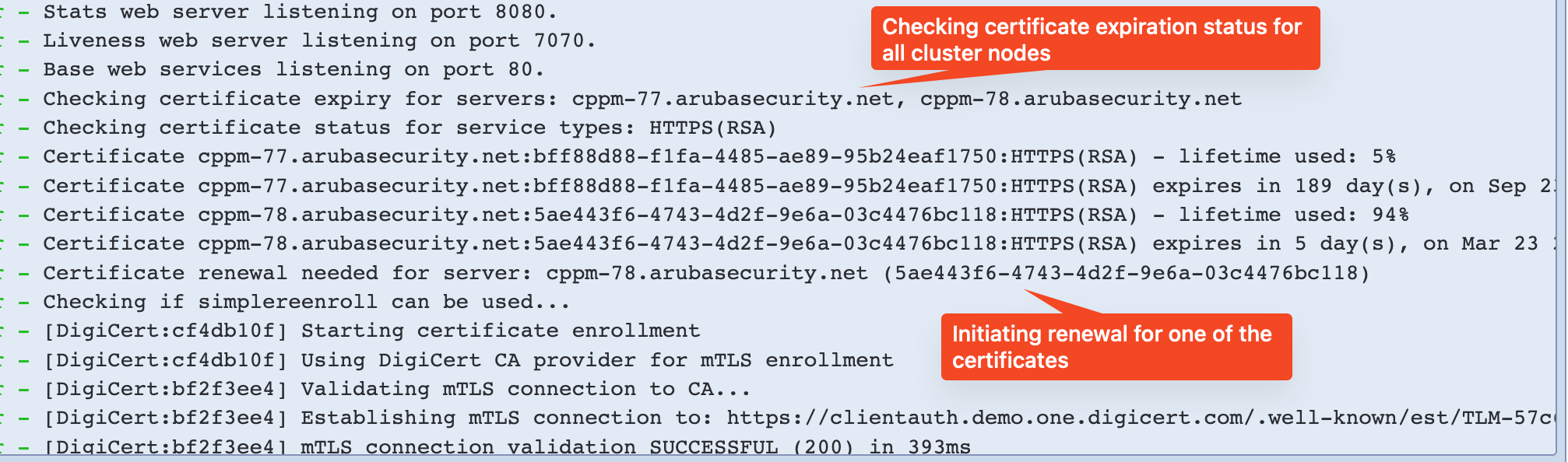
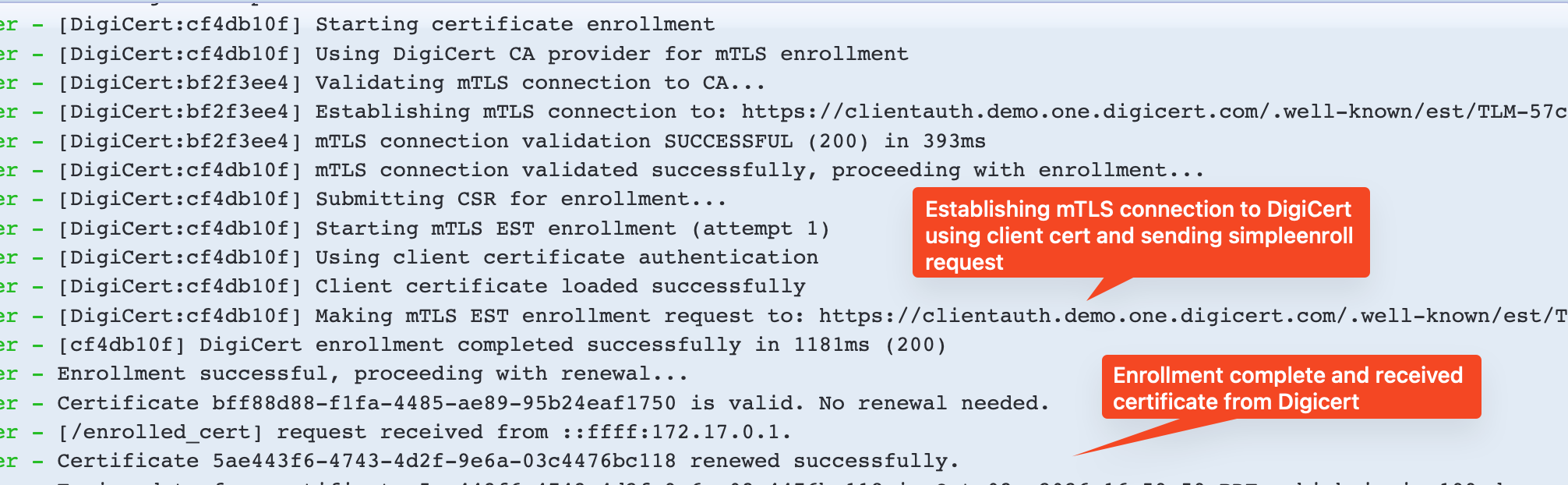
CEM extension log print details messages about each step of the enrollment / renewal process as shown below. If certRenewalOnStart is true, a renewal / enrollment is attempted when the extension starts. Otherwise its attempted at the scheduled cron interval.

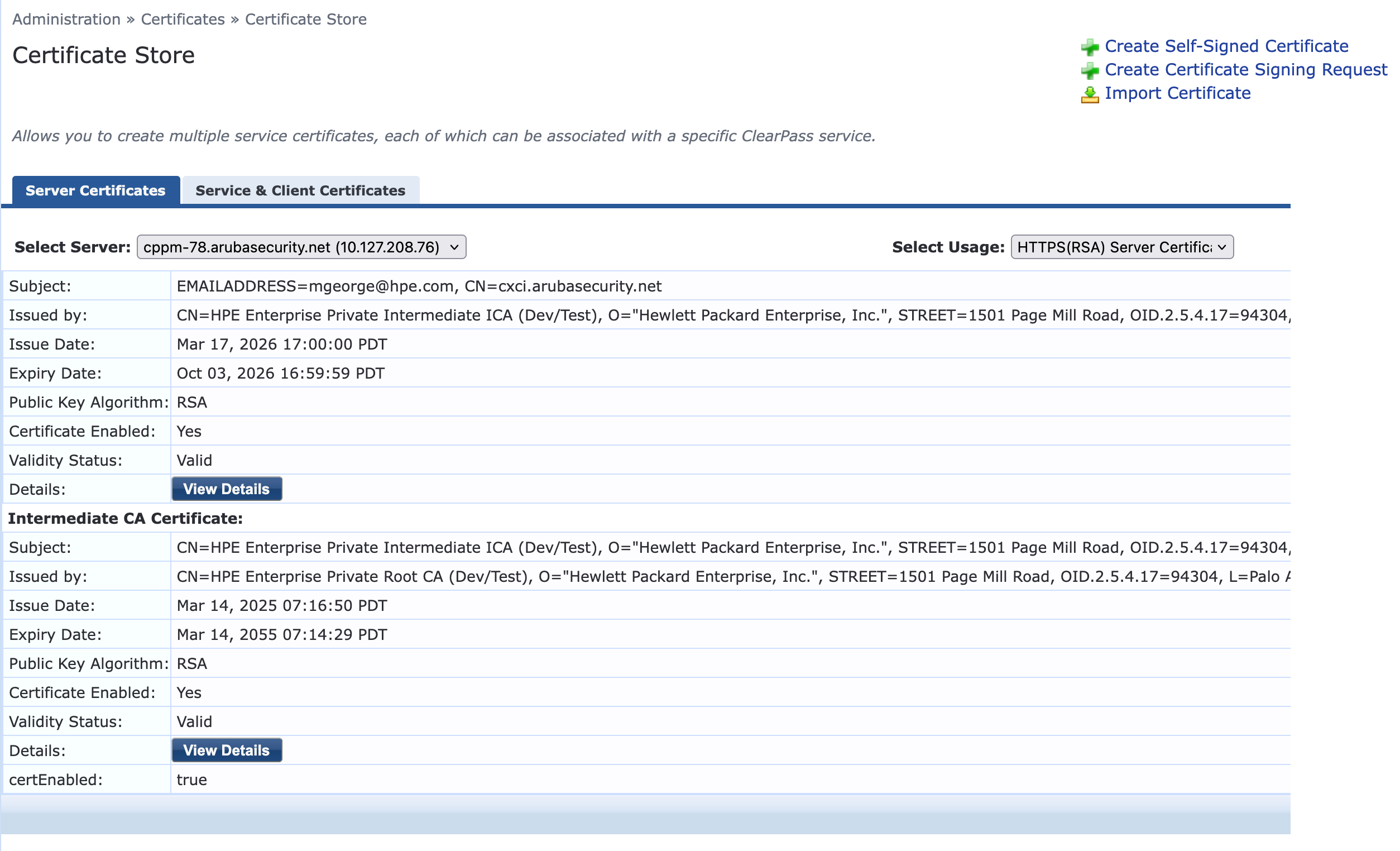
Confirm that the certificate has been installed / renewed on ClearPass