Microsoft Intune Extension
2 minute read
The Microsoft Intune integration with HPE Aruba Networking Central strengthens endpoint visibility, security and compliance by combining cloud-based device management with network-level intelligence. HPE Aruba Networking Central aggregates and analyzes client attributes sourced from Microsoft Intune to enhance device classification across the network. This enriched classification enables more accurate identification of endpoints based on compliance status, device posture, and management attributes. Once classified, endpoints are automatically assigned client tags, which can be leveraged as conditional attributes within Network Access Control (Central NAC) policies to enforce granular, context-aware access decisions.
Microsoft Entra ID App registration
Steps for Microsoft Entra ID App registration is detailed in the Adding Microsoft Entra ID as Identity Provider in Central NAC technote in the following link https://arubanetworking.hpe.com/techdocs/NAC/central-nac/central-nac-idps/microsoft-entra-id/
Configuring API permissions
It is important to note that the application registered for the Microsoft Intune integration requires a distinct set of API permissions compared to the permissions used when configuring Microsoft Entra ID as an Identity Provider (IdP) in Central NAC. The Intune extension leverages specific Microsoft Graph permissions to retrieve device management and compliance attributes necessary for endpoint classification. The following permissions are required when installing and configuring the Intune integration.
Microsoft Graph API permissions:
| Permission | Type | Description |
|---|---|---|
| DeviceManagementManagedDevices.Read.All | Application | Read Microsoft Intune device configuration and policies |
| User.Read | Delegated | Sign in and read user profile |
 INFO
INFO
If the same app registration in Microsoft Entra ID is used both for configuring Microsoft Entra ID as an Identity Provider (IdP) in Central NAC and for installing the Intune extension, the required API permissions can be consolidated within a single app registration. In this case, the permissions required for the Intune integration can be combined with those needed for the Entra ID IdP configuration, ensuring that all necessary Microsoft Graph access rights are granted under one unified application object..
Installing the Intune Extension on New Central
-
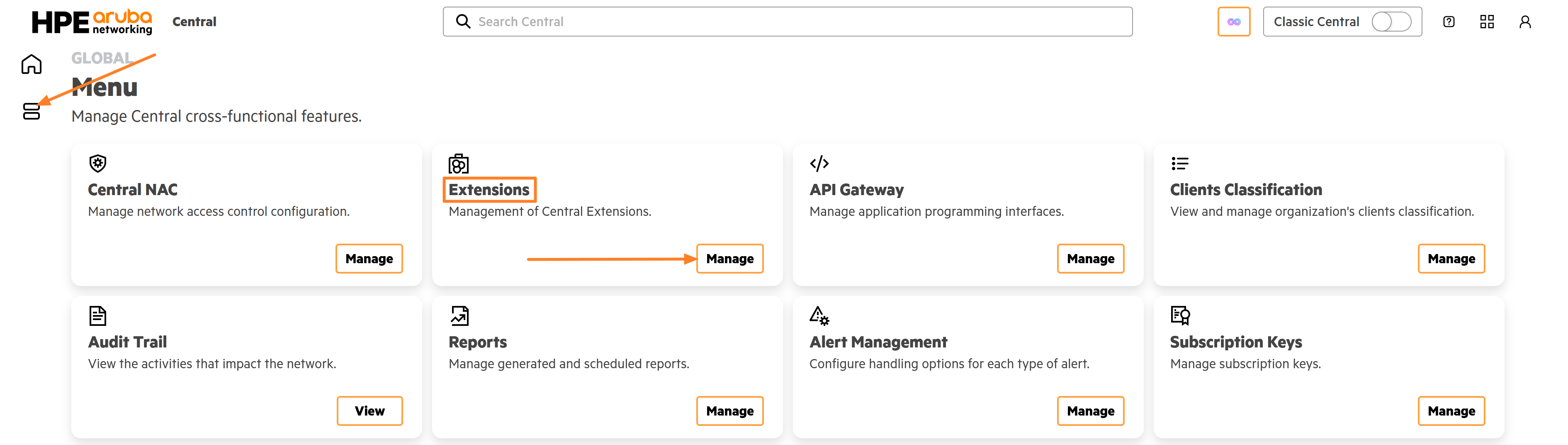
Login to New Central and navigate to Menu > Extensions > Manage
-
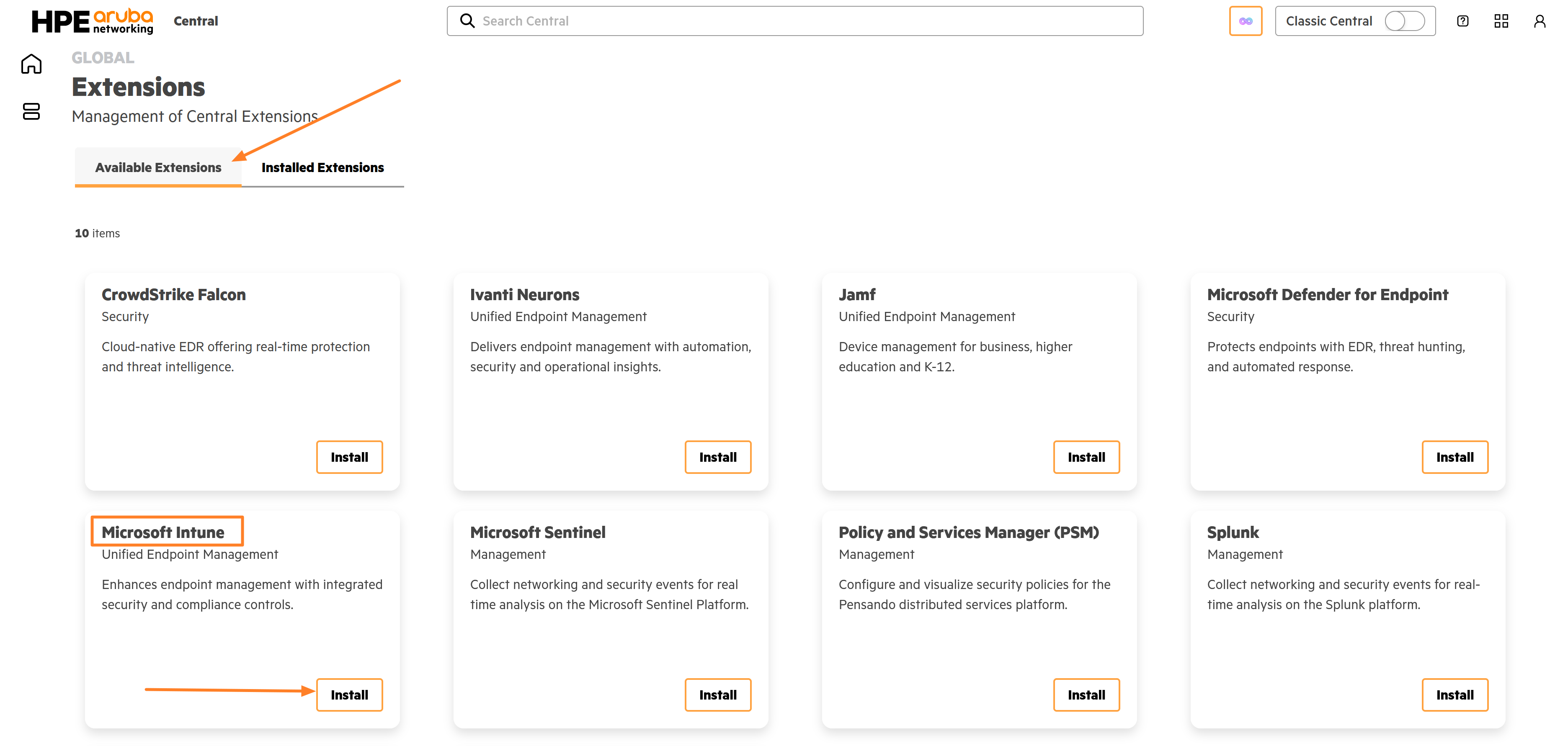
Click on Available Extensions > Microsoft Intune > Install
-
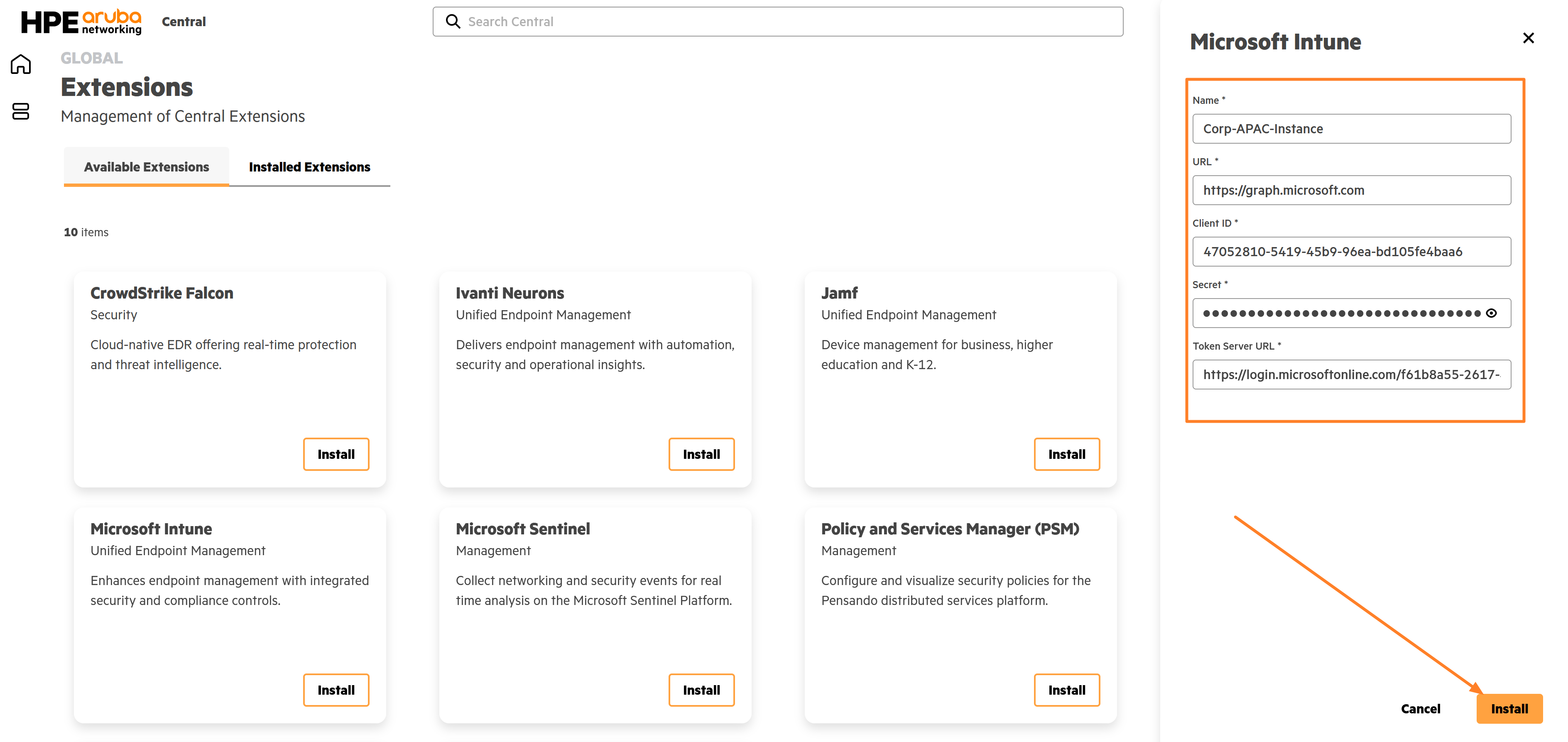
Fill the below details in the installation window and click on Install
Name → Give a suitable name for the extension instance
URL → Enter https://graph.microsoft.com as the URL value
Client ID → Use the Client ID generated during the application registration process in Microsoft Entra ID.
Secret → Use the Client Secret generated during the application registration process in Microsoft Entra ID.
Token Server URL → Enter https://login.microsoftonline.com/microsoft-entra-tenant-id/oauth2/v2.0/token
Replace «microsoft-entra-tenant-id» with the actual tenant-id of your Entra ID tenant.
Feedback
Was this page helpful?
Glad to hear it!
Sorry to hear that.