Using custom scripts to upgrade OnGuard Agents
9 minute read
HPE Networking ClearPass Policy Manager supports custom scripts through its OnGuard enforcement framework, enabling automated remediation and endpoint management. By combining Agent Script Enforcement profiles with ClearPass policy rules, administrators can trigger targeted actions on endpoints based on endpoint attributes without manual intervention.
This guide covers the configuration of custom script enforcement across Windows, macOS, and Linux, for both Persistent Agent and Agentless OnGuard deployments, for automatic OnGuard Agent upgrades as the working example. The steps illustrates the use of endpoint attributes such as client OS and current OnGuard Agent version in enforcement policies to determine under what conditions the custom scripts are used to auto-upgrade OnGuard Agents.
Custom Script Enforcement Workflow
- Create a custom script for the required task.
- Attach the script to an Agent Script Enforcement profile for the target operating system.
- Create an enforcement policy rule that triggers the profile when the defined conditions are met.
- Link the enforcement policy to the target service.
The Persistent Agent on Windows is used as the primary working example throughout this guide, demonstrating an automated agent upgrade use case. Supplementary scripts and configuration notes are provided for other agents and operating systems where applicable.
Upgrading OnGuard Agents on Windows using custom scripts
Persistent Agent on Windows
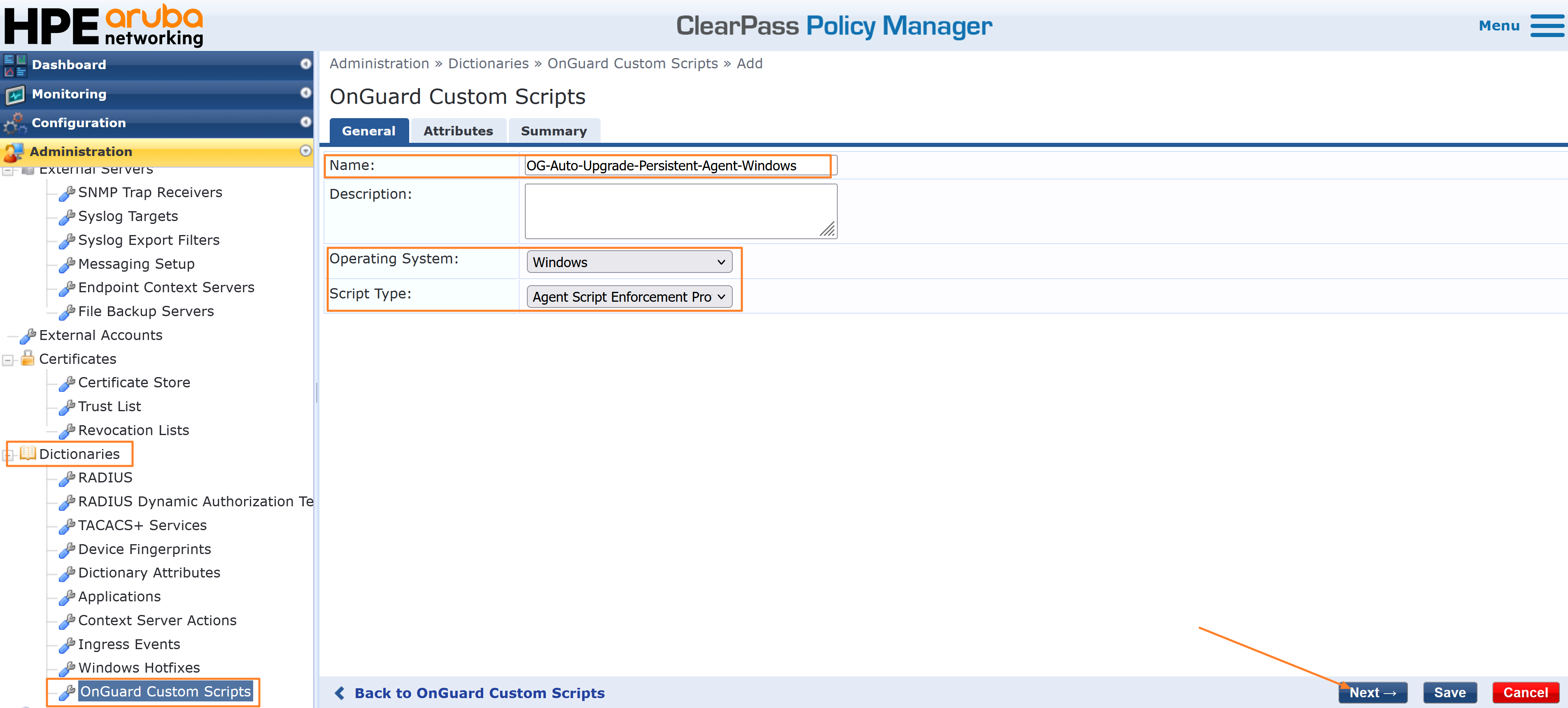
- Create a custom script by navigating to Administrator→Dictionaries→OnGuard Custom Scripts→Add.
- Use a suitable name for the custom script, Set the ‘Operating System’ as ‘Windows’ and the ‘Script Type’ as ‘Agent Script Enforcement Profile’.
- Set the below attributes with their respective values and click on Save. You can use a SHA checksum calculator tool to determine the SHA-256 checksum for the agent installer and the Download URL can be modified as needed to point to a node in the ClearPass cluster or to an external file server.
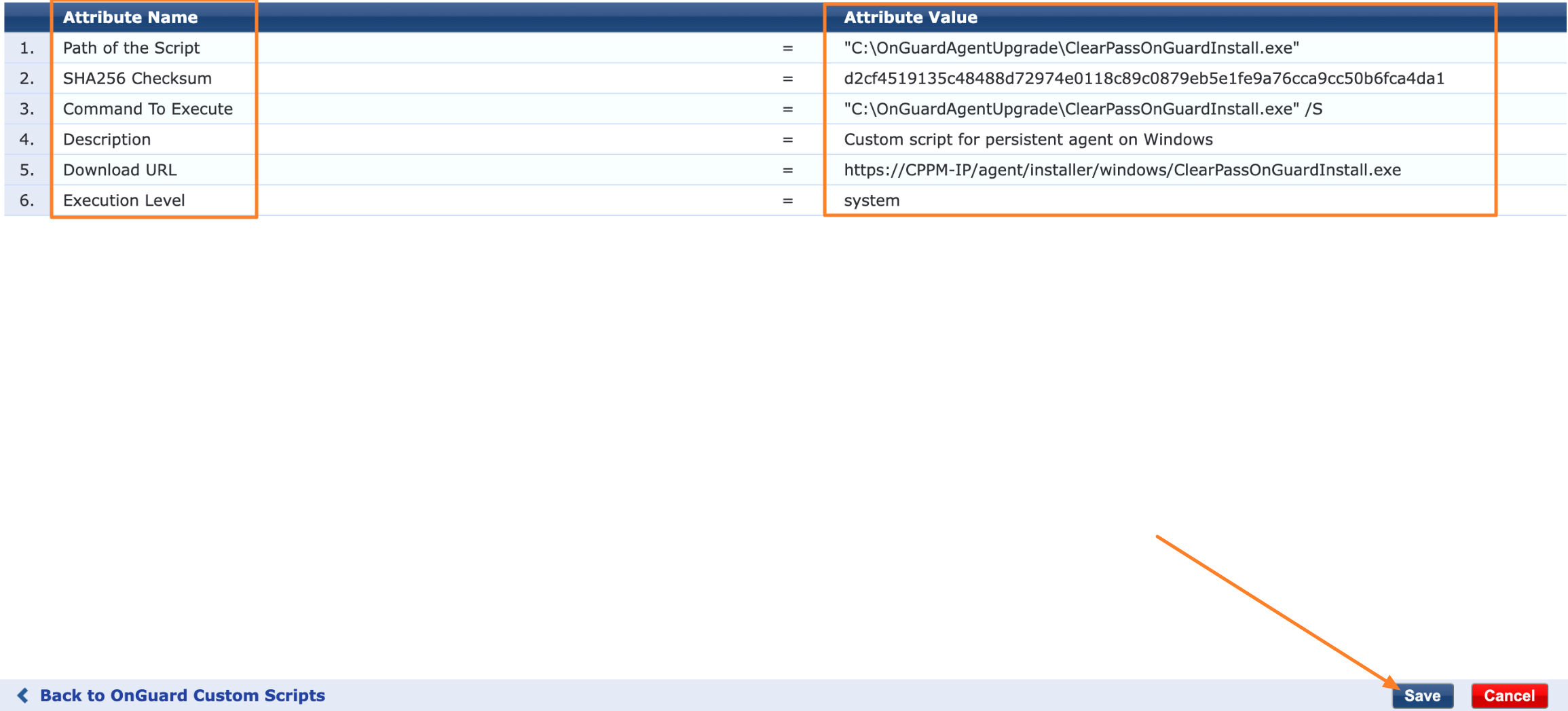
Path of the script: Installer file path on client machine. For example, “C:\OnGuardAgentUpdate\ClearPassOnGuardInstall.exe”
Download URL: Installer URL path on ClearPass or external file server. If you are using ClearPass, The URL can be found under the Installer section of OnGuard Settings.
Execution level: system. The installer requires elevated privileges to install the package on the client machine.
SHA256 Checksum: Checksum of installer file. Use the command below to generate it on Windows.
Get-FileHash ClearPassOnGuardInstall.exe -Algorithm SHA256
Command to Execute: This is the command which would run on the endpoint machine. In this example, this command silently installs the OnGuard agent on the client machine.
C:\OnGuardAgentUpdate\ClearPassOnGuardInstall.exe /S
-
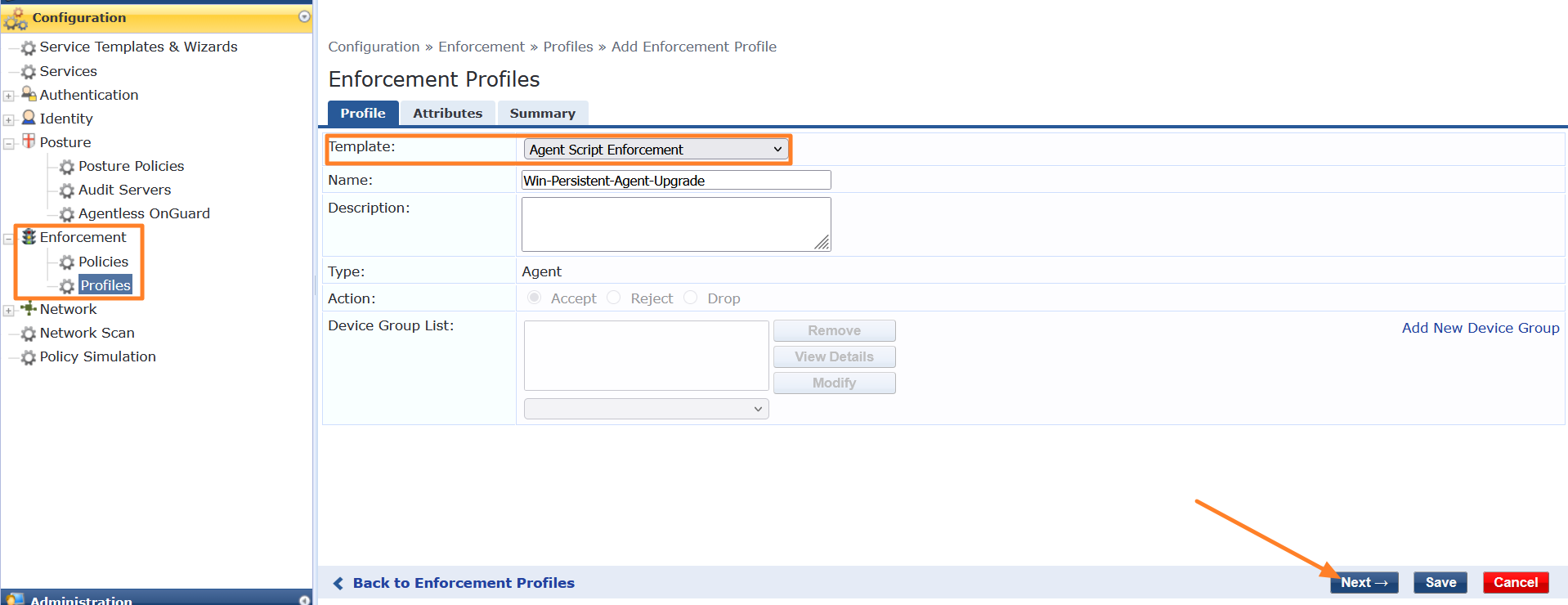
Create an enforcement profile to apply the custom script to OnGuard clients that require an agent upgrade upon authentication with ClearPass. Navigate to Configuration → Enforcement → Profiles → Add to create a new enforcement profile.
-
Select Agent Script Enforcement as the template, provide a profile name, and click Next.
-
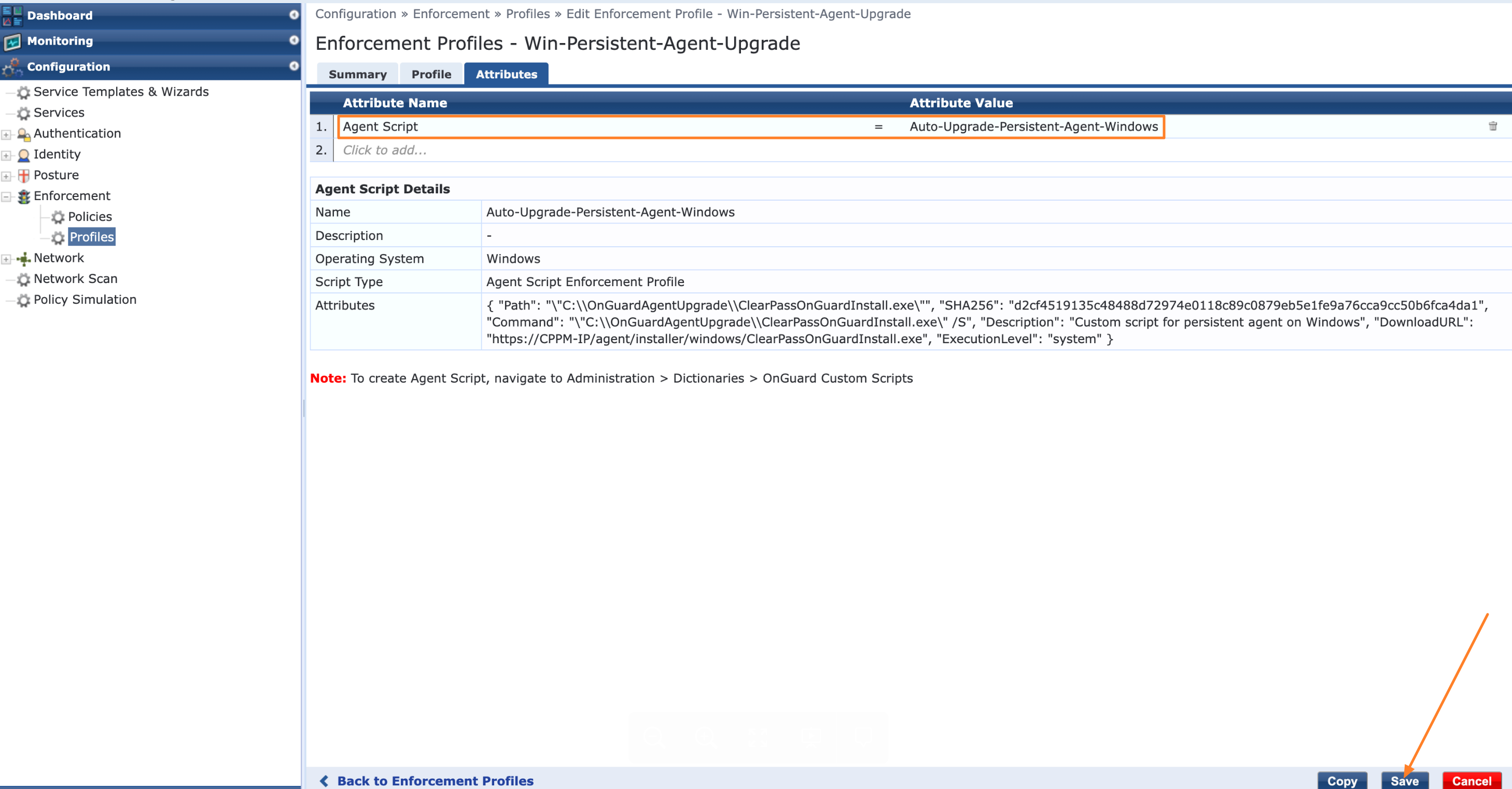
Under the Attributes tab, select Custom Script as the Agent Script attribute added to the dictionary in the previous steps, and click Save.
-
The next step is to create an enforcement policy with rules that trigger the enforcement profile upon client authentication with ClearPass. For instance, a rule can be configured to trigger the enforcement profile when the client’s OnGuard Agent version matches 6.11.x. When a client machine that meets this condition authenticates with ClearPass, the enforcement profile is triggered and executes the custom script to download and install the latest OnGuard Agent version on the client machine.
-
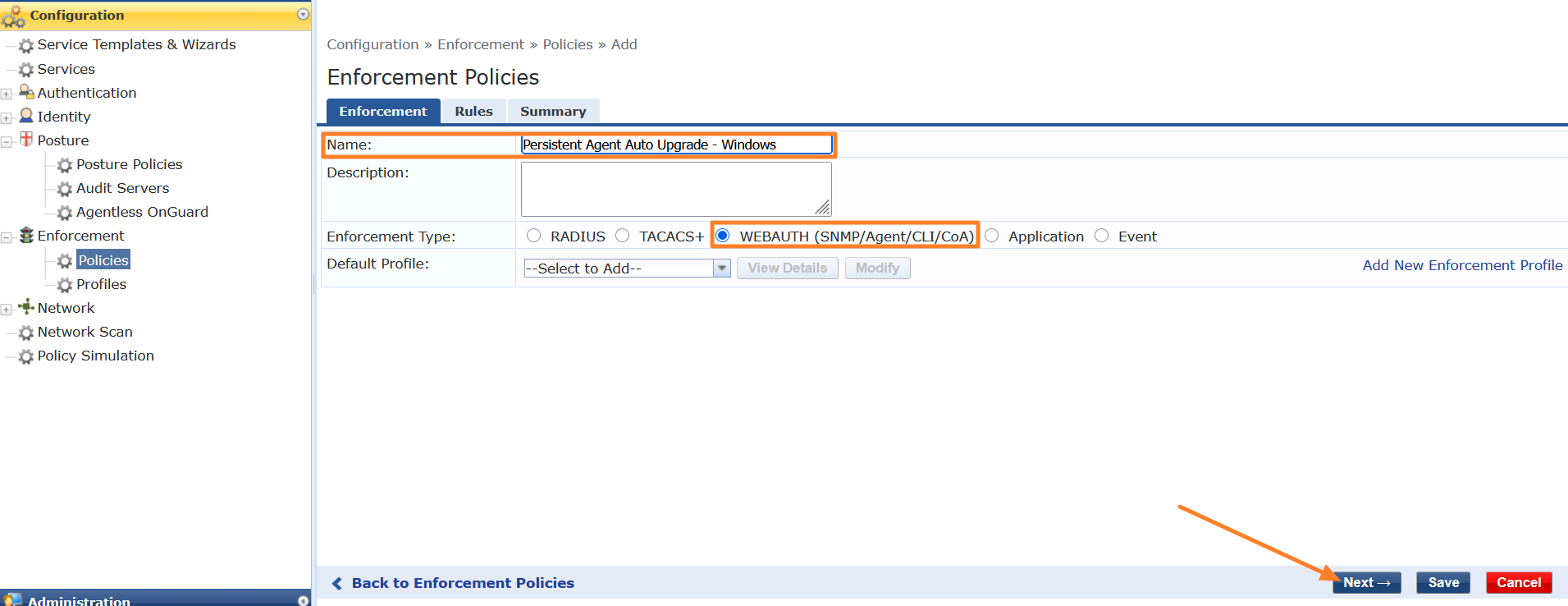
To add an enforcement policy, navigate to Configuration → Enforcement → Policies → Add. Provide a name, select WEBAUTH as the enforcement type, and click Next. For the default profile, either create a placeholder profile with no enforcement action or retain the existing value if modifying an existing enforcement policy.
-
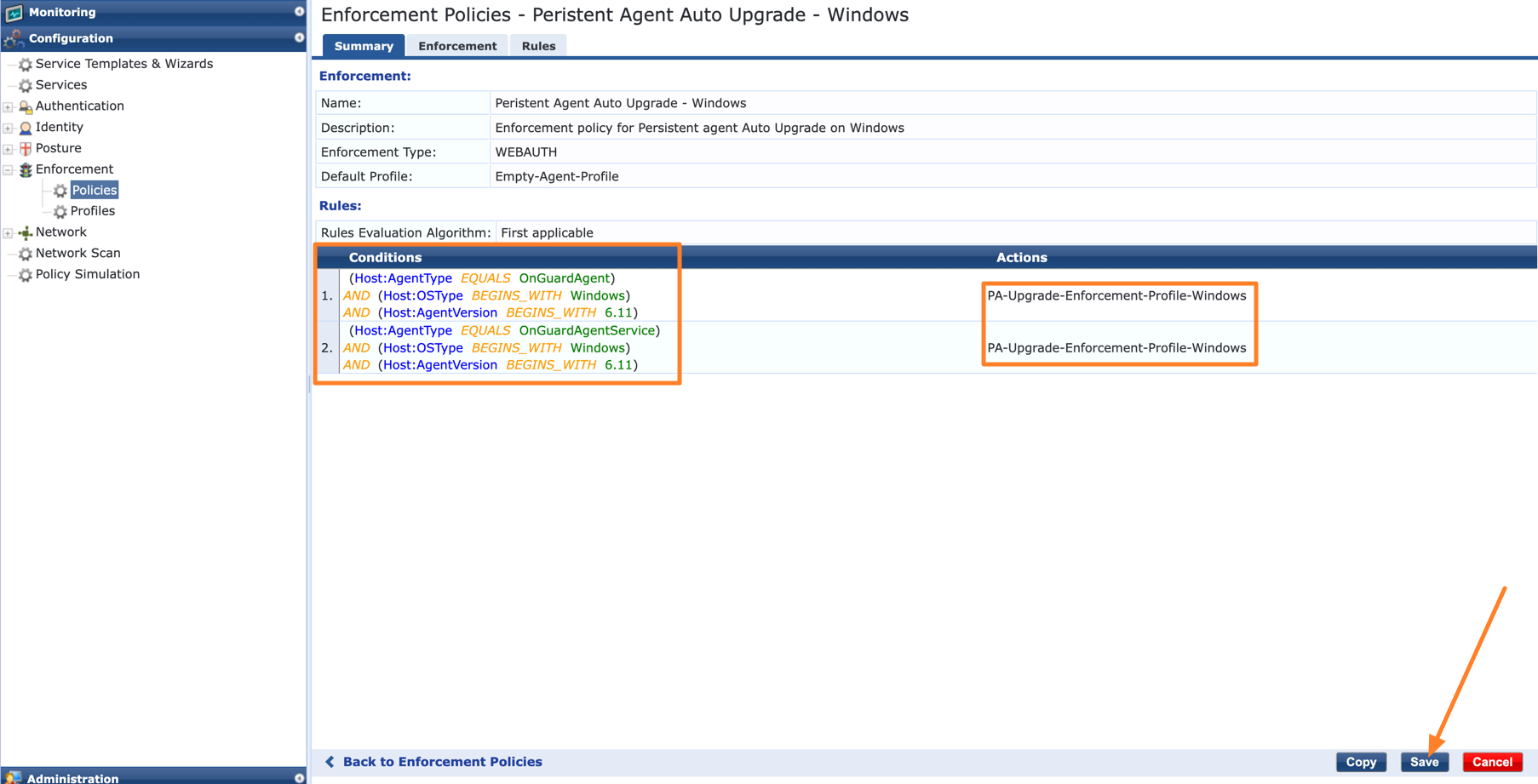
Under the Rules tab, add the necessary rules to trigger the enforcement profile containing the custom script. In this example, AgentVersion and OSType are used as conditions. The Host:AgentType attribute is used to match both agent modes — OnGuard as an Agent and OnGuard as a Service — select one or both depending on your deployment settings. Once the conditions are configured, select the enforcement profile with the custom script to be applied when the conditions match. Click Save to complete the enforcement policy configuration.
-
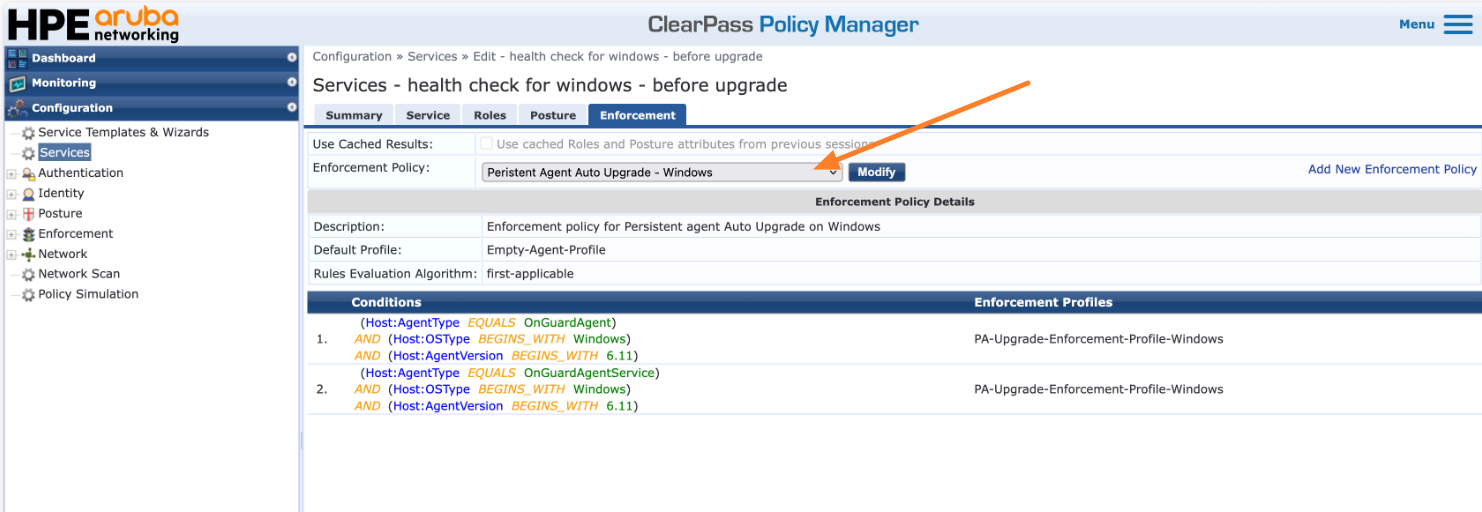
The final step is to apply the enforcement policy to the service used for authentication by OnGuard Agents. When a client machine authenticates through that service, the enforcement policy is triggered and, if the conditions match, executes the custom script to download and install the latest OnGuard Agent version on the client machine.
-
Navigate to Configuration → Services and select the target service. If creating a new service, attach the enforcement policy directly. If editing an existing service, update the enforcement policy already mapped to that service by adding the rules, conditions, and enforcement profile containing the custom script for the agent upgrade, as described in the previous steps.
The steps above establish the baseline configuration required for upgrading OnGuard Agents using custom scripts. The following sections outline the modifications needed based on the agent type (Persistent, Agentless, or Dissolvable) and the client operating system.
Agentless OnGuard on Windows
When configuring the Custom Script for Agentless OnGuard, update the following configurations:
Under the General tab, configure the following:
- Operating System: Windows
- Script Type: Agent Script Enforcement Profile
Under the Attributes tab, configure the following:
-
Path of the Script: Installer file path on the client machine. For example,
C:\OnGuardAgentlessUpdate\AgentlessOnGuardWrapper.exe -
Download URL: The URL can be found under the Installer section of OnGuard Settings. For example,
https://<cppm-ip>/agent/AgentlessOnGuard/windows/AgentlessOnGuardWrapper.exe -
Execution Level: system
-
SHA256 Checksum: Checksum of the installer file. The checksum can be found under the Agentless OnGuard section of OnGuard Settings.
-
Command to Execute:
C:\OnGuardAgentlessUpdate\AgentlessOnGuardWrapper.exe
Within the Enforcement Policy, update the following rule condition for Agentless OnGuard on Windows:
- Agent Type: Agentless | OS Type: Windows with operator BEGINS_WITH, mapped to the relevant enforcement profile.
macOS
Persistent Agent on macOS
The following modifications apply to the baseline configuration described above.
Custom Script Changes
When configuring the custom script, apply the following adjustments:
General Tab
- Operating System: macOS
- Script Type: Agent Script Enforcement Profile
Attributes Tab
-
Path of the Script: Installer file path on the client machine. For example,
/var/tmp/OnGuardAgentUpdate/ClearPassOnGuardInstall.dmg -
Download URL: The URL can be found under the Installer section of OnGuard Settings. For example,
https://<cppm-ip>/agent/installer/mac/ClearPassOnGuardInstall.dmg -
Execution Level: system
-
SHA256 Checksum: Checksum of the installer file. Use the following command to generate it on macOS:
shasum -a 256 ClearPassOnGuardInstall.dmg -
Command to Execute: The following command mounts the DMG file and installs the OnGuard Persistent Agent on the client machine:
M=$(hdiutil attach /var/tmp/OnGuardAgentUpdate/ClearPassOnGuardInstall.dmg -nobrowse | awk '/\/Volumes\//{print substr($0,index($0,"/Volumes/"))}' | tail -1); sudo installer -pkg "$(find "$M" -maxdepth 2 -name '*.pkg' -print -quit)" -target / && hdiutil detach "$M"
Enforcement Policy Changes
Under the Rules tab, configure the following conditions:
- Condition 1: Agent Type: OnGuardAgent | OS Type: macOS, mapped to the relevant enforcement profile
- Condition 2: Agent Type: OnGuardAgentService | OS Type: macOS, mapped to the relevant enforcement profile
Agentless OnGuard on macOS
The following modifications apply to the baseline configuration described above.
Custom Script Changes
When configuring the custom script for Agentless OnGuard, apply the following adjustments:
General Tab
- Operating System: macOS
- Script Type: Agent Script Enforcement Profile
Attributes Tab
-
Path of the Script: Installer file path on the client machine. For example,
/var/tmp/OnGuardAgentlessUpdate/AgentlessOnGuardWrapper-mac.tar.gz -
Download URL: The URL can be found under the Installer section of OnGuard Settings. For example,
https://<cppm-ip>/agent/AgentlessOnGuard/mac/AgentlessOnGuardWrapper-mac.tar.gz -
Execution Level: system
-
SHA256 Checksum: Checksum of the installer file. The checksum can be found under the Agentless OnGuard section of OnGuard Settings.
-
Command to Execute: The following command extracts and executes the Agentless OnGuard installer on the client machine:
WP=/var/tmp/OnGuardAgentlessUpdate && tar -zxvf $WP/AgentlessOnGuardWrapper-mac.tar.gz -C $WP && chmod +x $WP/AgentlessOnGuardWrapper && $WP/AgentlessOnGuardWrapper && rm -rf $WP 2>&1
Enforcement Policy Changes
Under the Rules tab, configure the following condition:
- Condition 1: Agent Type: Agentless | OS Type: macOS, mapped to the relevant enforcement profile
Native Dissolvable Agent on macOS
Custom Script Enforcement is not supported for the Native Dissolvable Agent. Manual installation is required for agent upgrades. Follow the steps below:
- Once the user connects to the network, they are redirected to the Guest
web login page.
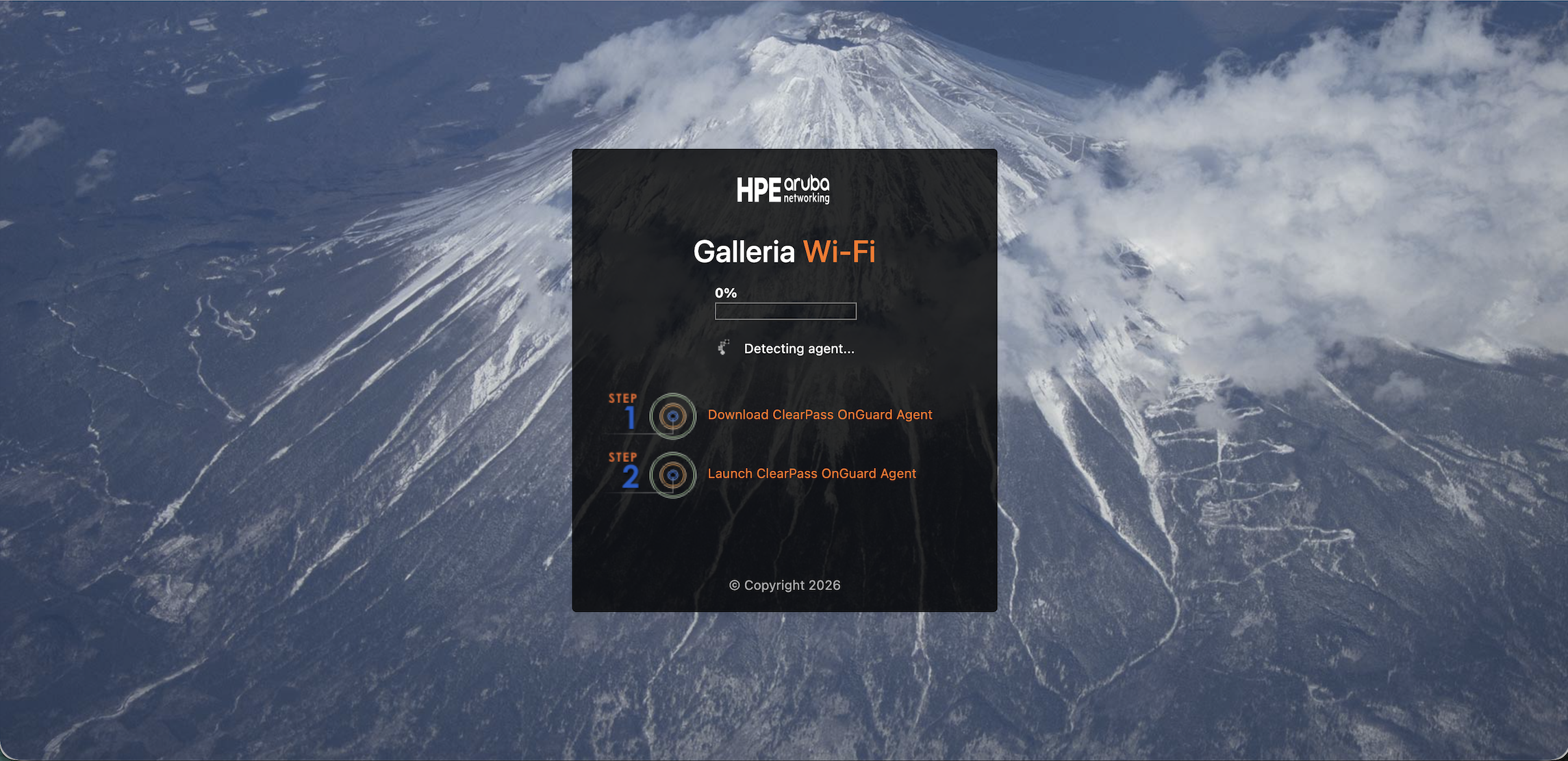
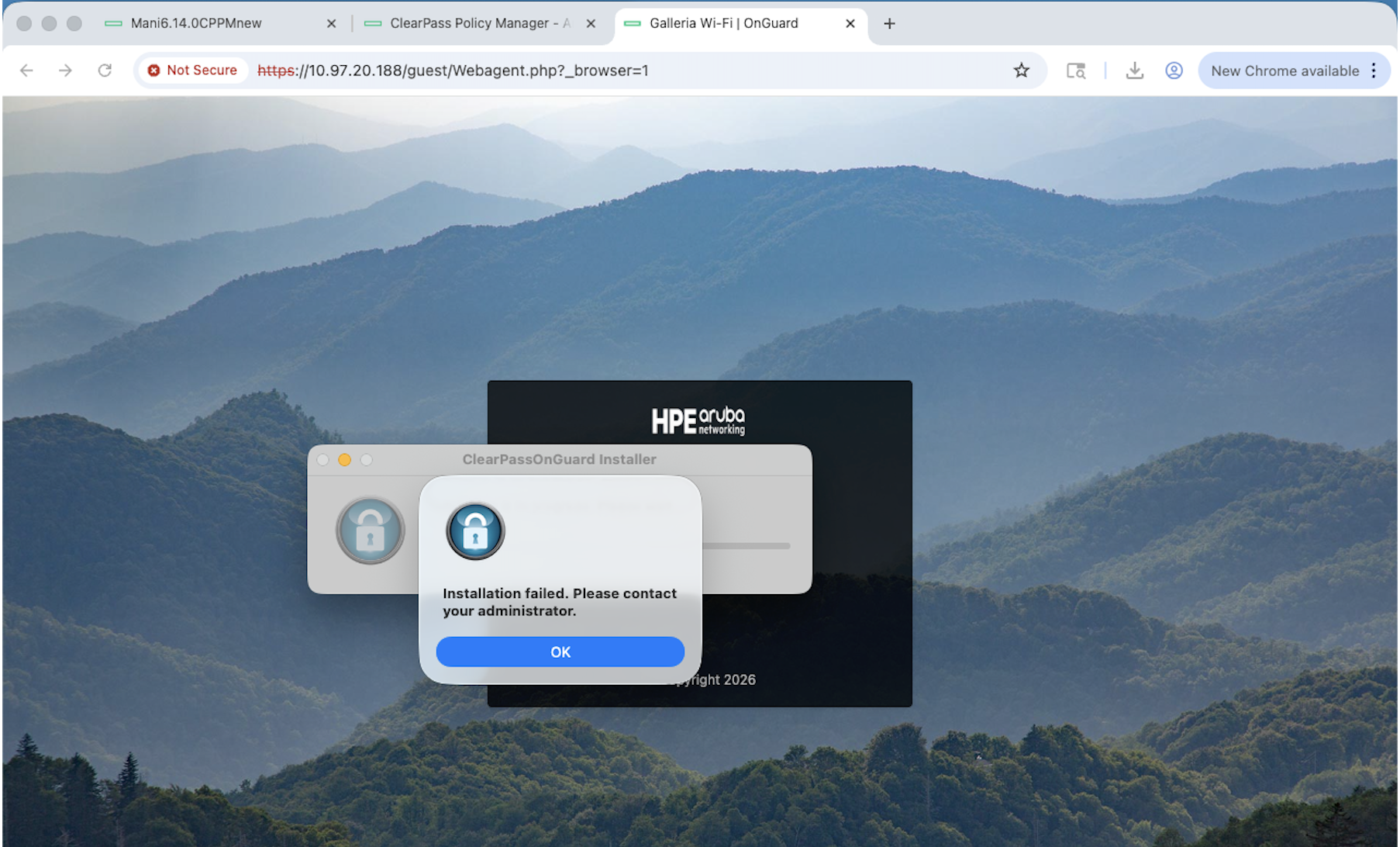
- The Web Agent attempts to upgrade but fails, displaying the following message:
“Installation failed. Please contact your administrator.”
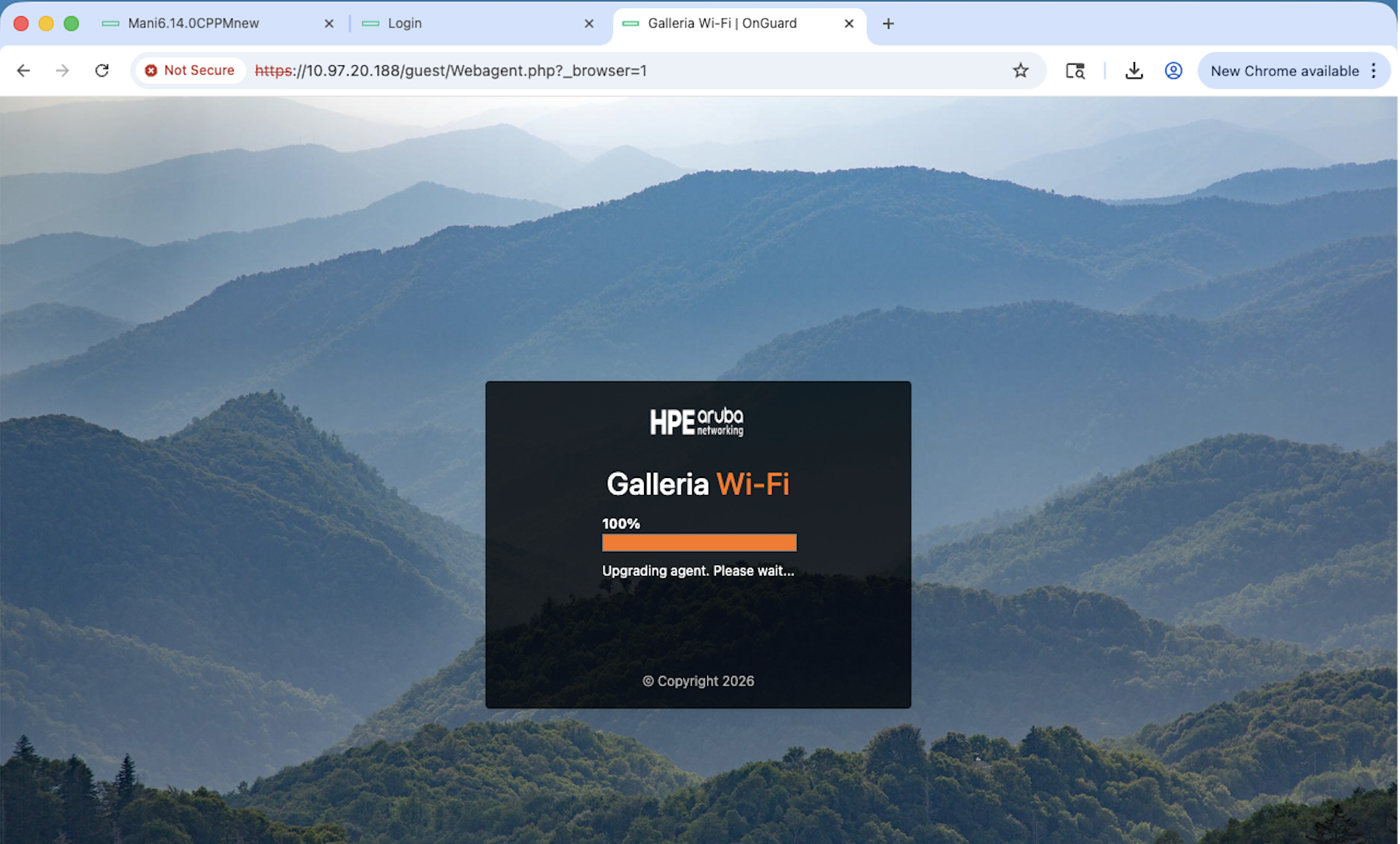
- The Guest web login page remains on:
“Upgrading agent. Please wait…”
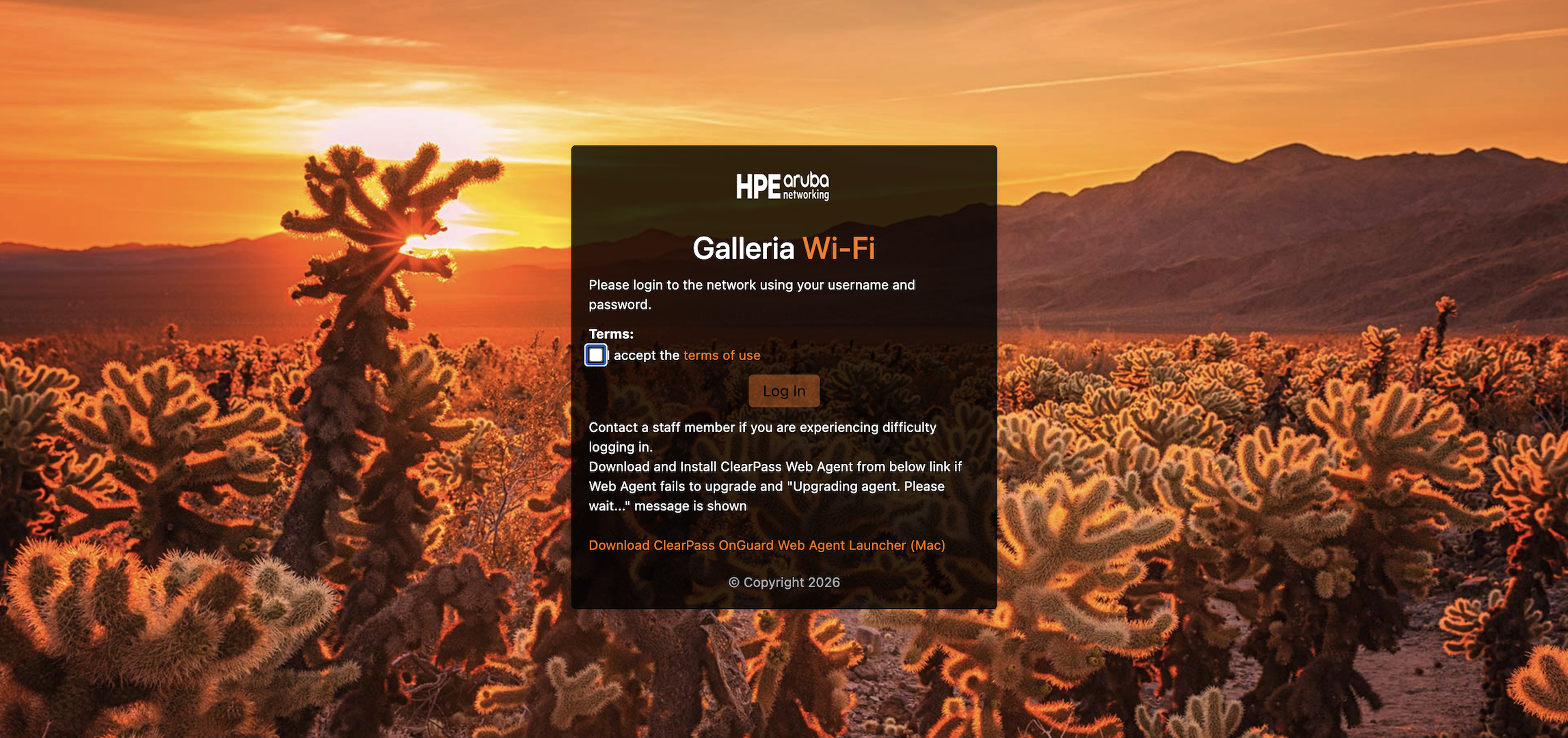
- To upgrade the Web Agent manually, navigate to the login page and download
the agent using the Download ClearPass OnGuard Web Agent Launcher (Mac)
link.
- Once downloaded, install the agent manually to complete the upgrade.
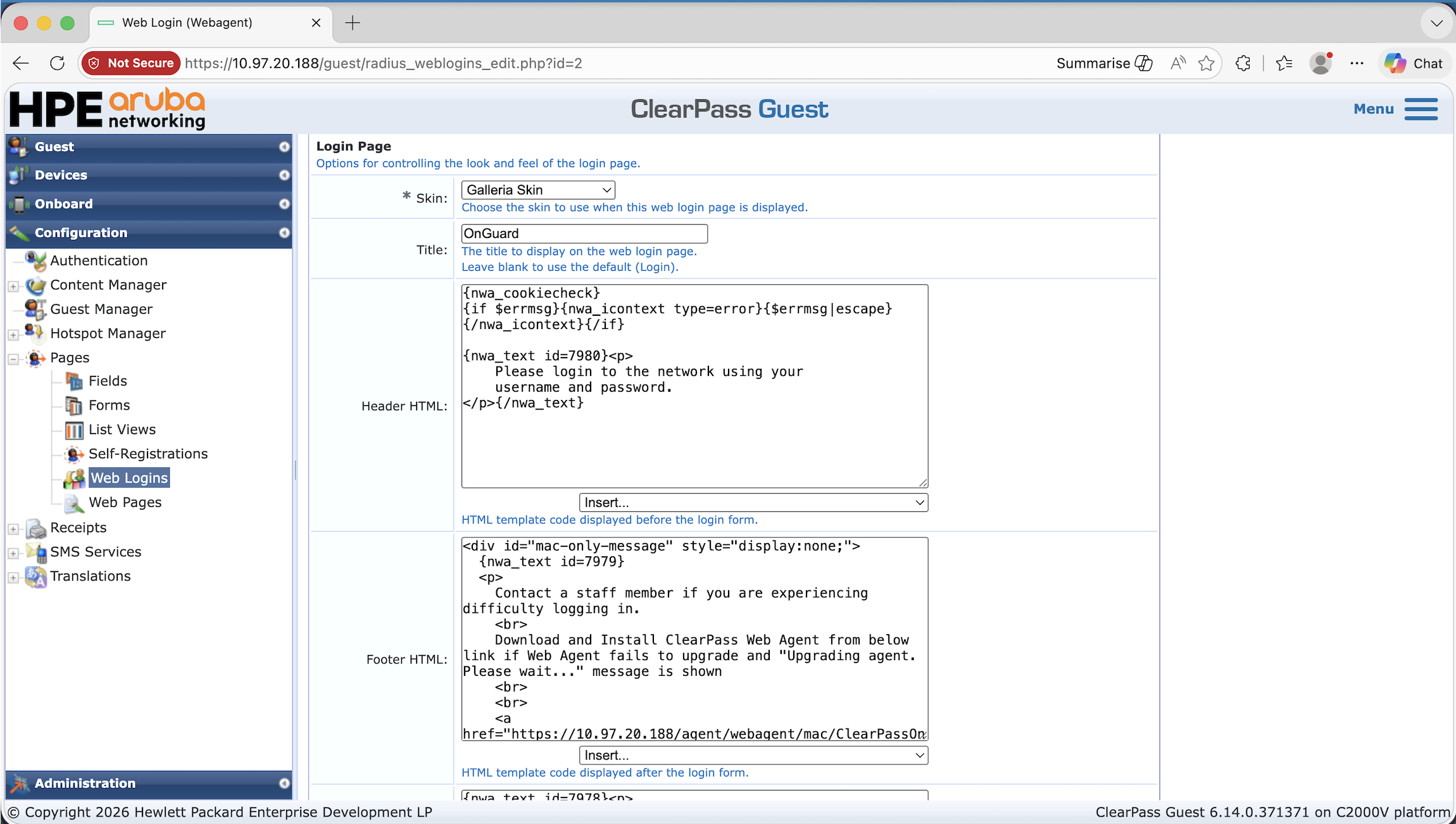
The Download Web Agent link is not displayed by default. One way to make it available to users within the weblogin page is to add the
following custom HTML and script which will provide them download link. If you wish to use this option then go to
Configuration → Pages → Web Logins → Footer HTML to add the custom HTML and script.
<div id="mac-only-message" style="display:none;">
  {nwa_text id=7979}
  <p>
    Contact a staff member if you are experiencing difficulty logging in.
    <br>
    Download and install the ClearPass Web Agent from the link below if the
    Web Agent fails to upgrade or "Upgrading Agent. Please wait..."
    message is displayed.
    <br><br>
    <a href="https://<cppm-ip>/agent/webagent/mac/ClearPassOnGuardWebAgentLauncher">
      Download ClearPass OnGuard Web Agent Launcher (Mac)
    </a>
    <br>
  </p>
  {/nwa_text}
</div>

{literal}
<script>
(function () {
  var platform = (navigator.userAgentData && navigator.userAgentData.platform)
                 || navigator.platform || "";
  var ua = navigator.userAgent || "";
  var isMac = /Mac/i.test(platform) || /Macintosh|Mac OS X/i.test(ua);

  if (isMac) {
    document.getElementById("mac-only-message").style.display = "block";
  }
})();
</script>
{/literal}
Linux
Persistent Agent on Linux
The following modifications apply to the baseline configuration described above.
Custom Script Changes
When configuring the custom script, apply the following adjustments:
General Tab
- Operating System: Linux
- Script Type: Agent Script Enforcement Profile
Attributes Tab
-
Path of the Script: Installer file path on the client machine. For example,
/var/tmp/onguard-agent-update/ClearPassOnGuardInstall.tar.gz -
Download URL: The URL can be found under the Installer section of OnGuard Settings. For example,
https://<cppm-ip>/agent/installer/ubuntu/ClearPassOnGuardInstall.tar.gz -
Execution Level: system
-
SHA256 Checksum: Checksum of the installer file. Use the following command to generate it on Linux:
shasum -a 256 ClearPassOnGuardInstall.tar.gz -
Command to Execute: The following command extracts and installs the OnGuard Persistent Agent on the client machine:
rm -f /tmp/agent.conf && WP=/var/tmp/onguard-agent-update && tar zxvf $WP/ClearPassOnGuardInstall.tar.gz -C $WP && cd $WP && EXE=$(find $WP -type f -perm -111 | head -n 1) && $EXE --silent --auto-update > /dev/null 2>&1 && rm -rf $WP
Enforcement Policy Changes
Under the Rules tab, configure the following conditions:
- Condition 1: Agent Type: OnGuardAgent | OS Type: Linux, mapped to the relevant enforcement profile
- Condition 2: Agent Type: OnGuardAgentService | OS Type: Linux, mapped to the relevant enforcement profile
Agentless OnGuard on Linux
The following modifications apply to the baseline configuration described above.
Custom Script Changes
When configuring the custom script for Agentless OnGuard, apply the following adjustments:
General Tab
- Operating System: Linux
- Script Type: Agent Script Enforcement Profile
Attributes Tab
-
Path of the Script: Installer file path on the client machine. For example,
/var/tmp/onguard-agentless-update/AgentlessOnGuardWrapper-linux.tar.gz -
Download URL: The URL can be found under the Installer section of OnGuard Settings. For example,
https://<cppm-ip>/agent/AgentlessOnGuard/linux/AgentlessOnGuardWrapper-linux.tar.gz -
Execution Level: system
-
SHA256 Checksum: Checksum of the installer file. The checksum can be found under the Agentless OnGuard section of OnGuard Settings.
-
Command to Execute: The following command extracts and executes the Agentless OnGuard installer on the client machine:
WP=/var/tmp/onguard-agentless-update && tar zxvf $WP/AgentlessOnGuardWrapper-linux.tar.gz -C $WP && EXE=$(find $WP -type f -perm -111 | head -n 1) && $EXE && rm -rf $WP
Enforcement Policy Changes
Under the Rules tab, configure the following condition:
-
Condition 1: Agent Type: Agentless | OS Type: Linux, mapped to the relevant enforcement profile
Feedback
Was this page helpful?
Glad to hear it!
Sorry to hear that.