
Central Readiness
This guide summarizes the steps needed to migrate site and device configuration, floor plans, operational settings, and API integrations from Classic Central to HPE Aruba Networking Central for existing customers, and how to prepare each of these areas for new deployments.
For more information on migration of monitoring, reporting, and troubleshooting (MRT) to New Central please see the Day-2 Workflow Migration documentation.
Table of contents
Site Creation and Device Assignment
Summary of Steps
The steps needed to onboard and activate devices in HPE Aruba Networking Central are summarized as follows:

In Device Onboarding, an HPE GreenLake account must be created if not already present. Devices are added to inventory, assigned to the Central service, and assigned a subscription/license. When a Device Group is created using the instructions later in this document, it enables the device group for Central, with the appropriate device types and device roles selected.
Sites provide an additional way to build hierarchy for ease of network management and configuration. Sites are required in Central, unlike Classic Central, where they were optional. Location details must be added for each site and devices must be assigned to a site before they can be configured. Device Function is a mandatory step for switches, defining the core, aggregation, or access switch function in the network. This configuration is managed when the toggle is set to “New Central,” as described below. Application Visibility and Telemetry is necessary for full traffic visibility. Configure the feature for gateways, access points, and switches.
HPE GreenLake Account and Device Onboarding
HPE GreenLake Cloud Platform provides unified management for cloud and as-a-service solutions, including HPE Aruba Networking Central. It unifies security, visibility, and management in a scalable, cloud-native solution.
For existing deployments currently configured in Central, an HPE GreenLake account has already been obtained, and devices may be onboarded.
For new deployments, or for customers new to HPE Aruba Networking Central and the HPE GreenLake platform, visit the GreenLake Platform section, which provides further instructions to obtain an HPE GreenLake account, onboard network devices, assign them to the Central service, and assign license/subscription keys.
Device Groups
For compatibility with the newest version of HPE Aruba Networking Central, devices must be added to groups that support the latest capabilities. These device groups provide a succinct path to organizing network infrastructure to streamline configuration and monitoring.
Devices must be assigned to a device group that supports Central configuration, enabling Central to manage configuration intent for the device. Devices that remain in Classic groups can still be monitored in Central, but cannot receive configuration from Central.
Caution: Do not move devices into a New Central device group until the configuration is fully prepared in the New Central configuration model. Moving a device before this point may overwrite or disrupt its existing configuration. Review the Configuration Model chapter and ensure all configuration intent is in place before proceeding.
Create Device Groups
In the example that follows, a Device Group named Test Group is created and enabled for HPE Aruba Networking Central. This device group will be enabled for access points, gateways, and switches of the AOS-CX type only.
Step 1 Log into HPE GreenLake and launch HPE Aruba Networking Central.
Step 2 Slide the Classic Central toggle in the upper right corner.

Step 3 Select Organization in the Maintain section.

Step 4 On the Network Structure tab, select Groups.

Step 5 Select the + (plus sign) in the upper right hand section of the Groups screen to add and configure a new group.

Step 6 On the Add Group page, complete the following and click Next:
- Name: Test Group
- Allow New Central to overwrite all configurations for this group: Toggle to the on position. This key parameter makes the devices and group available and configurable in Central.
- Group will contain: Select Access points, Gateways, and Switches

Step 7 On the Add Group page, complete the following and select Add:
- Architecture: ArubaOS 10
- Network Role: Campus/Branch
- Gateway Network Role: Mobility for Gateways (Branch is not fully supported at this time.)
- Type of Switches: AOS-CX only (For this example.)

Step 8 The group is now available to add devices.

Assign Devices to Device Groups
Devices are assigned to a Central device group by executing a move task from an existing group to the desired Central group. This example illustrates a move from an existing Classic Central group. This move task is also relevant for new devices in the Unprovisioned devices or default group — the procedure is the same.
Step 1 From the Organization > Groups page, use the arrow to expand the group that contains the device(s) to be moved.

Step 2 Select the device(s) to be moved. In this example, the devices are two 6300 switches.

Step 3 Use the inner scroll bar as necessary to show the Move icon in the lower right hand corner, then click on the Move icon.

Step 4 Select the Destination group, and click Move. For this example, the switches are moved to Test-Group.

Step 5 The devices are now present in the correct Central group, and ready for their site configuration.

Note: After a device is added to a Central device group, it is no longer configurable in Classic Central.
If new devices have not been powered on, or have yet to communicate with Central, they may still be located in the Organization > Device Preprovisioning section. Devices can be moved to the appropriate Central group from this page, but only if their group field is empty (a state achieved by onboarding a new device, but not powering it on). These devices will not be available for Central management until powered on and added to a site as described in the next section.

Sites
Sites are mandatory in HPE Aruba Networking Central. A site defines a location where managed devices are physically installed. Sites can contain APs, gateways, and switches. Sites can be organized by single building, co-located buildings, or a logical grouping of buildings. Sites can be used for monitoring, and defining the scope of alerts, events, and insights. Sites also play an important role in defining configuration hierarchy to streamline configuration efforts.
The video below walks through the steps detailed in this section.
Because sites are optional in Classic Central, some customer workspaces may have devices assigned to groups but not sites. In other cases, sites may be only partially implemented.
If a Classic Central instance has no site configured or the site list is incomplete, use the following steps to create and assign devices to them.
Note: Customers with fully configured sites are encouraged to skip these steps and immediately begin to explore the HPE Aruba Networking Central interface.
Create Sites
Use this procedure to create sites.
Step 1 Open a web browser, log into Central, and navigate to the main Overview page.
Step 2 On the lower left, select Organization in the Maintain section. On the Network Structure tab, click the large number in the Sites tile.

Step 3 When the Manage Sites page appears, scroll to the bottom, click New Site on the lower left, and complete the Create New Site fields, as shown below.
- Site Name: USWH1
- Street Address: 8000 Foothills Blvd
- City: Roseville
- Country: United States
- State or Province: California
- Zip/Postal Code: 95747

Step 4 Repeat steps for additional sites.
Assign Devices to a Site
Follow these steps to move Central-managed devices to the newly created site(s).
Step 1 Return to the Manage Sites page by opening a web browser, logging into Central, and navigating to the main Overview page.
Step 2 In the left navigation pane, select Organization in the Maintain section. On the Network Structure tab, click on the large number in the Sites tile.
Step 3 On the Manage Sites page, filter for the devices. Select and drag them to the corresponding site on the left, then click yes to confirm the action, as shown below.

Step 4 Repeat the above steps until all devices are assigned to their corresponding sites and the Unassigned number of devices displays 0 in the Device Count column.

After completing the above steps, sites and devices appear as expected in Central.
Device Function Configuration (Switches)
For switches, an additional configuration step is required to further classify it as Core, Aggregation, or Access. The Device Function, in combination with Scope, can be used to govern how profiles are applied to devices. For example, profiles related to AAA authentication can be applied to access switches for UBT capability, but not to core and aggregation switches. The Device Function can also be used to scope OSPF configurations to core or aggregation switches only.
Use these steps to assign device functions:
Step 1 Toggle the Classic Central slider in the upper right corner of the dashboard to the off position (move left):

Step 2 On the Network Overview Dashboard, click the large number in the Device Inventory tile.

Step 3 On the Device Inventory display, note that the Device Function for campus access points and mobility gateways present in the network have been auto-assigned. For switches, the Device Function column is blank and requires assignment. In the example below, the list is filtered by device serial number. Devices can also be filtered by Model, Type, Name, or Site.

Step 4 Check one or more switch devices to assign (multi-select is supported), and hover the cursor over the far right of the line to display the triple dots (…).

Step 5 Click the triple dots, then click Assign.

Step 6 Select the Device Function and click Assign.

Enable Application Visibility and Telemetry
Some changes may be required to switch, AP, and/or gateway configurations in order to display full traffic visibility within Central.
To enable CX switch telemetry, first consult the complete list of requirements on the Prerequisites for HPE Aruba Networking Central page. Detailed configuration steps are provided on the Configuring Prerequisites for Switch Telemetry page.
To enable application visibility across the campus, see:
- Configuring Application Visibility for Switches for details on required CX configuration.
- Configuring Application Visibility for Access Points for details on required AP configuration.
- Configuring Application Visibility for Gateways for details on required gateway configuration.
Floor Plan Migration
HPE Aruba Networking Central supports account-level migration of floor plan data from Classic Central. The migration process transfers floor plan data for all sites in the account in a single operation, including the floor plan image, AP placements, walls, regions, and planned access points. Devices not present in the destination site are converted to planned APs. Non-supported devices are converted to AP-635 access points.
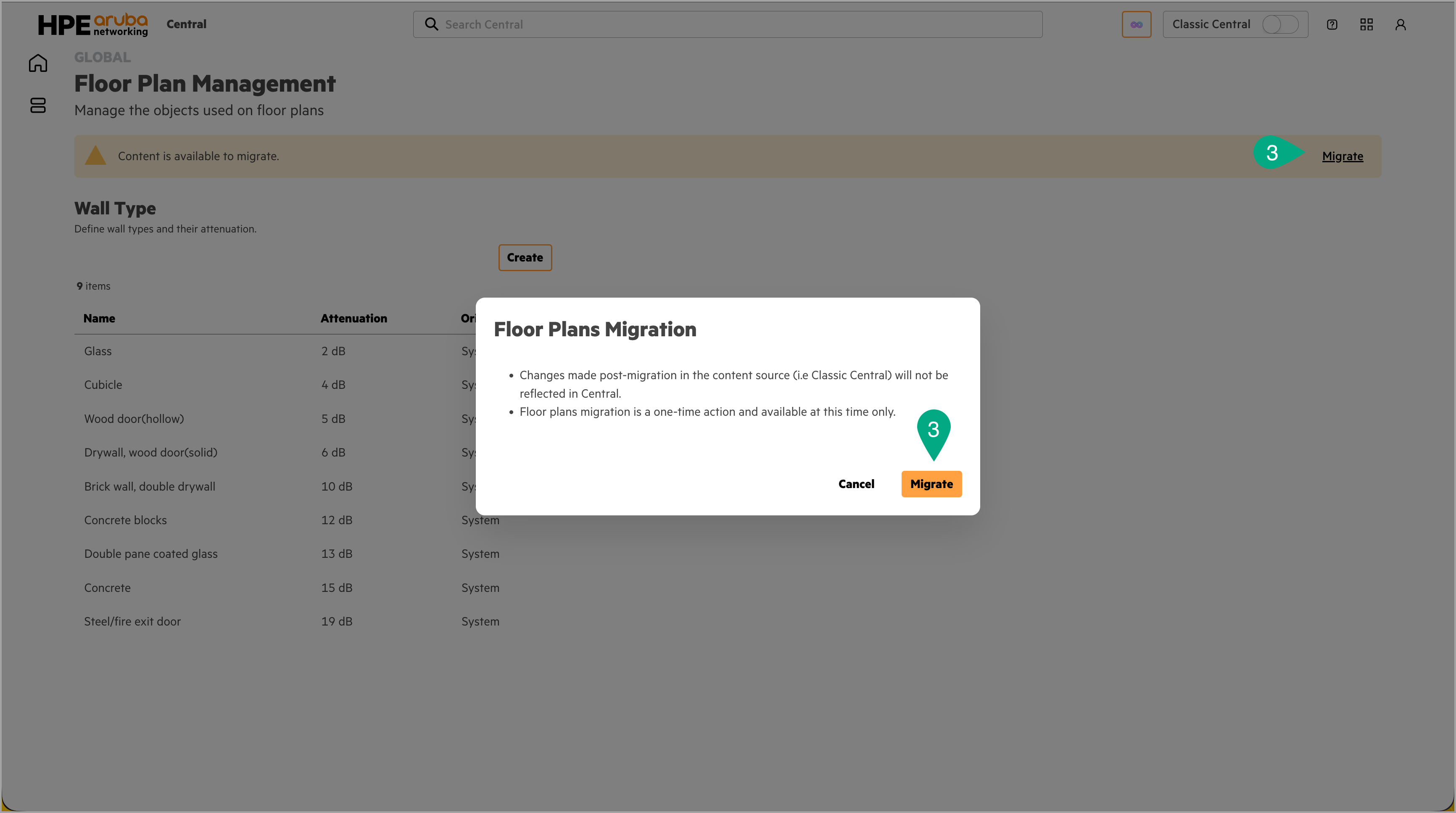
Account-level migration is a one-time operation and uses the last backup data from Classic Central. Changes made in Classic Central after migration completes are not reflected in Central, and floor plan imports cannot be performed while migration is in progress. If migration fails, it cannot be re-initiated — contact HPE Aruba Networking support. The Migrate option is only available to admin, view-edit, or custom role users with full site-scope access, and only if the account has Classic Central VisualRF floor maps.
Migrate Floor Plans
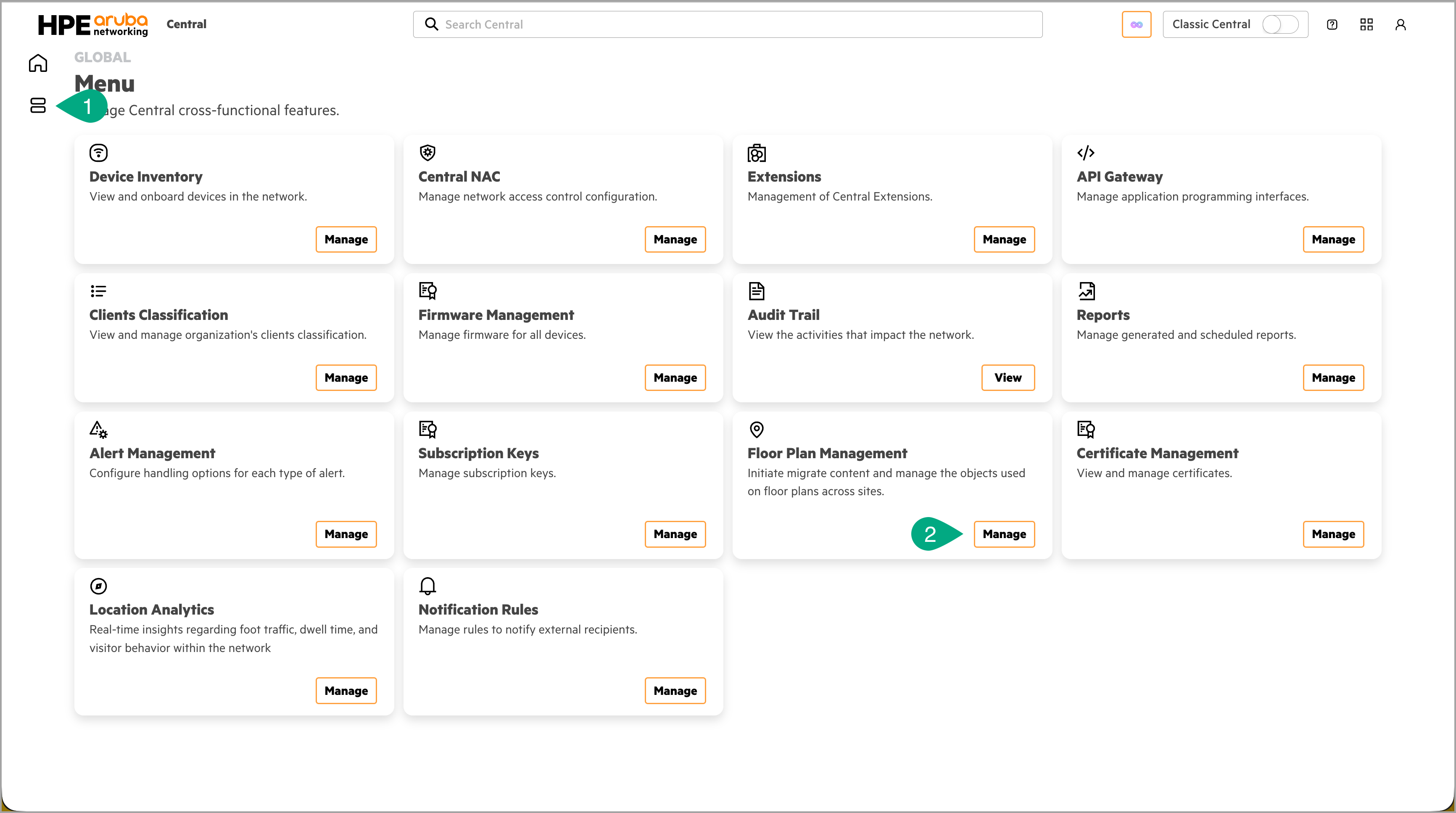
Step 1 On the HPE Aruba Networking Central landing page, click the menu icon to open the Menu page.
Step 2 In the Floor Plan Management card, click Manage.
Step 3 Click Migrate and confirm when prompted. Migration status is displayed in the banner. The Migrate button changes to View Summary once migration is initiated.
Step 4 Click View Summary to review the migration status for each site. Use the search bar to filter by site name.
For site-level migration and manual floor plan import procedures, see Site Level Floorplan Migration and Importing Floors in the Central Online Help.
Customize Operational Settings
HPE Aruba Networking Central provides a set of operational tools — including alerts, reports, webhooks, and workflows — that should be reviewed and configured to match the operational requirements of the environment. Settings configured in Classic Central are not automatically carried forward and must be reconfigured in Central.
The Campus Operate guide covers the monitoring and reporting practices recommended for this guide, including:
- Alert Management — guidance on configuring and tuning alerts for campus environments.
- Reporting — guidance on scheduling and customizing reports for operational visibility.
For configuration details within Central, refer to the following Central Online Help references:
- Alert Management — configure alert rules, severity thresholds, and notification targets.
- Reports — create and schedule network and security reports.
- Webhooks — configure webhook endpoints to forward alert events to external systems such as ITSM platforms or custom integrations.
API Transition
The Classic Central REST and Streaming APIs will be decommissioned. Any existing scripts, tools, or integrations built against the Classic Central APIs must be updated to use the HPE Aruba Networking Central APIs before decommission occurs. A full review of existing automation against the new API set is recommended before cutover.
A complete mapping of Classic Central MRT APIs to their HPE Aruba Networking Central equivalents is available from the Classic Central to HPE Aruba Networking Central MRT migration guide. API reference documentation, getting started guides, and code examples for Central are available on the HPE Aruba Networking Developer Hub.
The PyCentral SDK supports both Classic Central and HPE Aruba Networking Central APIs, abstracting the differences between the two. Automation built on PyCentral can continue to function during the transition without requiring an immediate full rewrite of existing scripts and tools.
Key considerations for the API transition:
- Authentication — Central introduces enhanced API token management compared to Classic Central. Existing automation that handles token acquisition or refresh will require updates. See Generating and Managing Access Tokens on the Developer Hub for details.
- Endpoint mapping — Use the MRT API reference mapping to identify the Central equivalent for each Classic Central endpoint in use. Some Classic Central endpoints have no Central equivalent and are marked as not available or not applicable.
- Streaming API — Review any integrations using the Classic Central Streaming API and map them to the Central equivalents before decommission.
- Webhooks — For event-driven integrations, Central webhooks may reduce the need for polling-based automation. See the Webhooks guide to get started.