Small Campus Wireless Connectivity
The Small Campus wireless network leverages a modern AOS-10 architecture fully managed by HPE Aruba Networking Central. This design adopts a bridge mode (local switching) topology, meaning client data traffic is bridged directly to the local wired switch at the Access Point (AP) port, ensuring efficient data paths. Crucially, access control and security are centralized through User Roles, which define granular policies (firewall rules, rate limits, VLAN assignment) based on the user’s identity after authenticating via SSIDs like CORP, GUEST, and IOT.
Table of contents
Element Profile Summary
This table summarizes the key Element Profiles used for the wireless configuration and their scope of application. Ensure the profiles references in the shared profiles chapter are also configured.
| Profile Name | Central Profile Path | Type/Scope | Device Function | Primary Purpose |
|---|---|---|---|---|
| SC-NVLAN-EMPLOYEE | Interface > Named VLAN | Site | Campus Access Point | Configure named VLANs which can be referenced in RADIUS rather then VLAN numbers. |
| SC-NVLAN-IOT | * | * | * | * |
| SC-NVLAN-GUEST | * | * | * | * |
| SC-AP-UPLINK | Interface > AP Uplink | * | * | Configure the wired uplink interface on the access points |
| CORP | Wireless > WLAN | * | * | Configure Bridged WLANs for employee, guest, IOT, and guest access |
| IOT | * | * | * | * |
| GUEST | * | * | * | * |
Entering Configuration Mode
In the upper right corner of the Central web application, click the Configuration gear icon.

Several Central contexts do not allow direct navigation into the configuration context, including Central’s Menu context that provides access to Central’s Audit Trail. The Audit Trail is often used in the configuration process, as it provides logs on profile configuration changes and that status of configuration pushes to devices. After selecting Central’s Menu context, the Configuration gear is not available for selection.

To return to the Configuration context after navigating to a context that does not display the Configuration gear icon, first click on the Home button in the upper left of the Central web application, and then click on the Configuration gear.

The following procedures assume the reader is in the Configuration context and does not explicitly include steps for entering the configuration context.
Default Profiles & Services
The following default profiles are applied globally to the campus access point function and are referenced throughout this configuration. These profiles are noted here to ensure they can be reviewed and modified if required.
- Wireless > RF > default-radio-profile: Defines channel width and minimum/maximum transmit power
- System > AP System > default-system-config: Configures country code, timezone, and other AP system parameters
- Services > AirMatch Service: Enables and schedules automated RF optimization
If sites are created using valid street addresses or GPS coordinates, the Country Code and Timezone parameters are automatically derived from the site location. If real addresses are not used, these values must be configured manually.
Named VLAN
Named VLAN profiles associate a human-readable name with a VLAN ID. This allows RADIUS to return a VLAN name instead of a VLAN number, which is especially useful when different sites use different VLAN numbering schemes for the same function.
Profile Path: VLANs & Networks > Named VLANs
Device Functions: Campus Access Point
Scope: Site: SMALL-CAMPUS-SITE
| VLAN ID | Name | Description |
|---|---|---|
| 11 | AP-MGMT | AP management network |
| 25 | EMPLOYEE-WLAN | Wireless employee devices |
| 30 | IOT | IoT devices |
| 40 | GUEST-NET | Guest access |
| 999 | BLACKHOLE | VLAN that provides no network access |
For each Named VLAN above, configure the following values:
- Name: < VLAN Name >
- Description: < VLAN Description >
- VLAN ID: < VLAN Number >

AP Uplink
The AP Uplink profile defines the wired uplink interface for access points. VLAN restrictions should be configured on the switch port, allowing only the necessary VLANs on the trunk and keeping the AP Uplink profile configuration simple.
Profile Path: Interface > AP Uplink
Device Functions: Campus Access Point
Scope: Site: SMALL-CAMPUS-SITE
Configure the following non-default values:
- Name: SC-AP-UPLINK
- Select LAN Port(s): Ethernet 0/0
- Port Mode: Trunk
- Native VLAN: 11
- Allowed VLANs: all

WLAN Configuration (SSIDs)
Three WLANs are configured in this design, each mapping to a unique security posture and policy model.
The same profile path and scope functions apply to all three SSIDs:
Profile Path: Wireless > WLAN
Device Functions: Mobility Access Point
Scope: Site: SMALL-CAMPUS-SITE
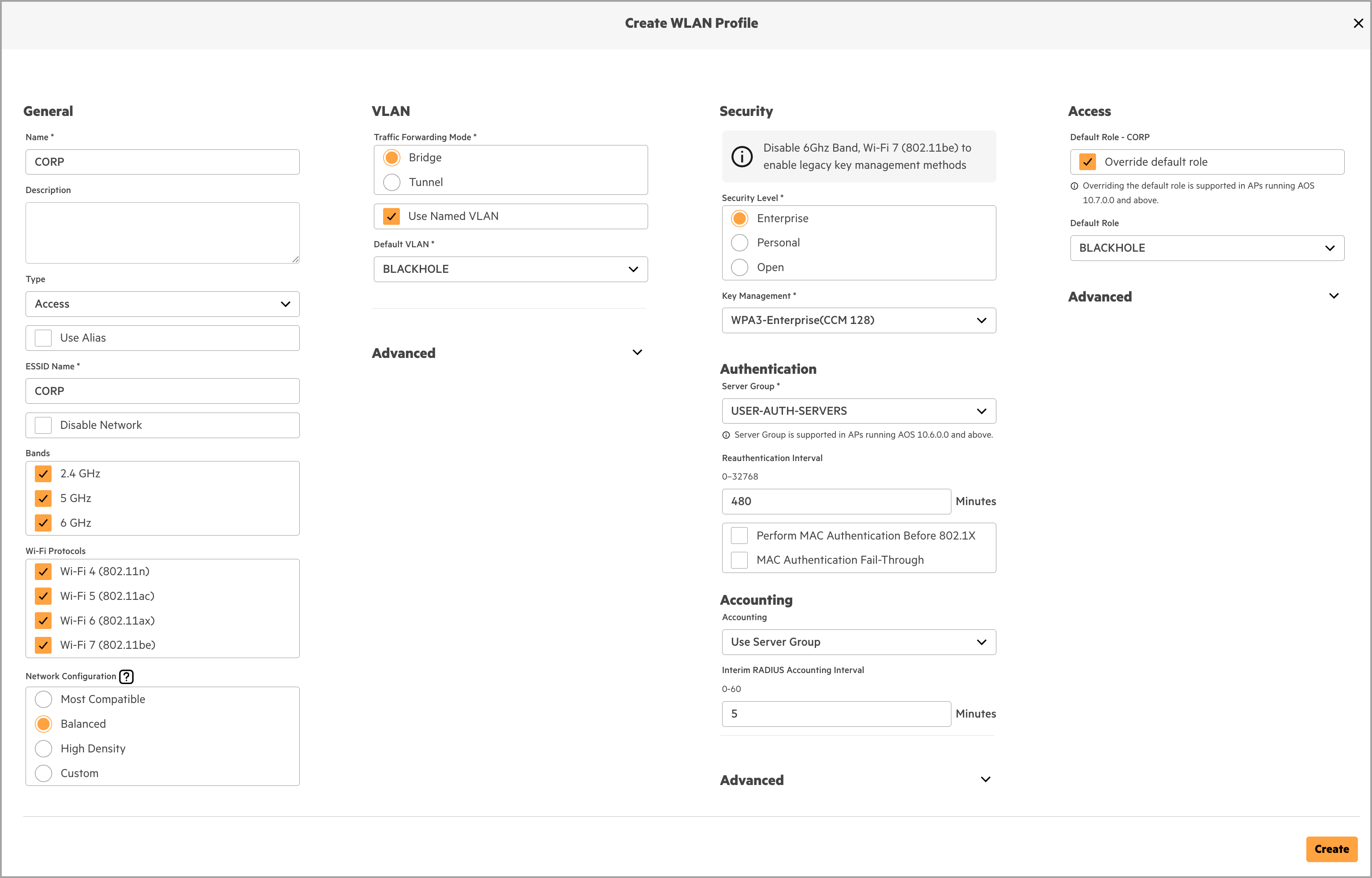
Corporate WLAN Creation
This WLAN provides secure access for corporate-owned devices. Authentication is performed using 802.1X, and RADIUS returns both the user role and the Named VLAN. A non-routed placeholder VLAN and a role with a policy that blackholes all traffic are configured as defaults to prevent unintentional access. Only RADIUS-returned VLANs and roles permit traffic forwarding.
Configure the following non-default values:
- Name: CORP
- Use Named VLAN: Checked
- Default VLAN: BLACKHOLE
- Security: Enterprise
- Server Group: USER-AUTH-SERVERS
- Reauthentication Interval: 480 minutes
- Accounting: Use Server Group
- Accounting Interval: 5 minutes
- Override Default Role: Checked
- Default Role: BLACKHOLE
Guest WLAN Creation
This WLAN provides Internet-only access for guest users. To ensure broad device compatibility while maintaining security, the network uses Enhanced Open to provide over-the-air encryption between the client and the access point for WPA3-compatible devices. Enhanced Open is HPE Aruba Networking’s implementation of WPA3 Opportunistic Wireless Encryption (OWE).
OWE provides per-device data encryption for wireless users without the complexity of authentication. Unlike traditional “open” networks that transmit data in the clear, OWE uses a Diffie-Hellman key exchange to protect over-the-air traffic from local eavesdropping. For older devices that do not support OWE, a “transition mode” provides unencrypted access using a traditional open SSID, ensuring that security is modernized for capable devices without sacrificing the broad connectivity required for a diverse range of guest hardware.
Band selection, such as disabling the 5GHz frequency, should be adjusted based on an organization’s preferences. The 6 GHz frequency must be disabled to allow OWE transition mode.
Captive portals may be enabled, if required by business or security policy. However, administrators should note that captive portal redirection is increasingly impacted by encrypted DNS mechanisms and device-based VPN services. These features can interfere with the redirection process, so portals should only be deployed when necessary for the business use case.
Configure the following non-default values:
- Name: GUEST
- 6 GHz: Unchecked
- Wi-Fi 7: Unchecked
- Use Named VLAN: Checked
- Default VLAN: GUEST-NET
- Security: Open
- Key Management: Enhanced Open
- Override Default Role: Checked
- Default Role: GUEST-USER
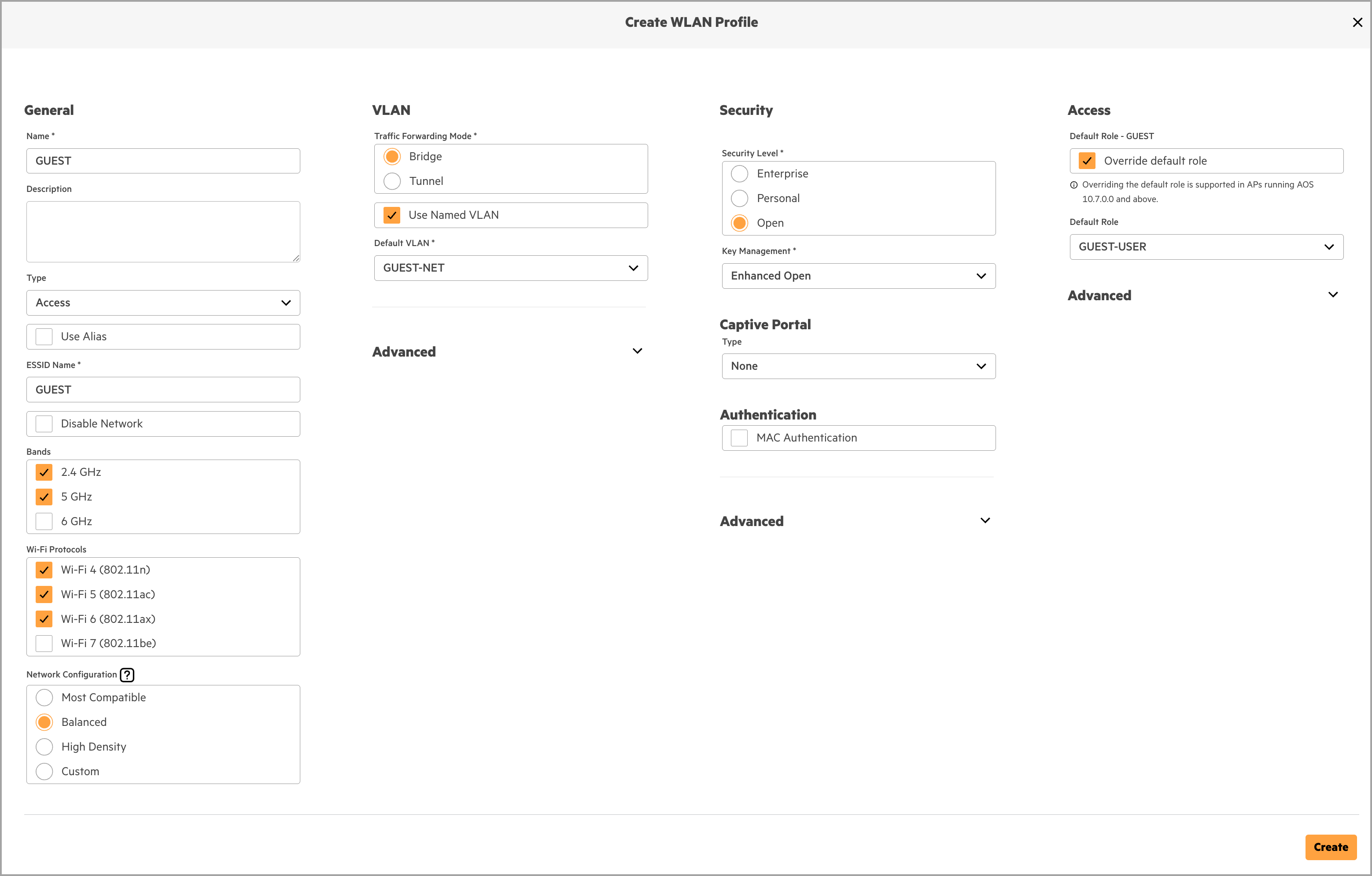
Note: 6 GHz channels and WiFi 7 must be disabled to enable OWE transition mode.
IoT WLAN Creation
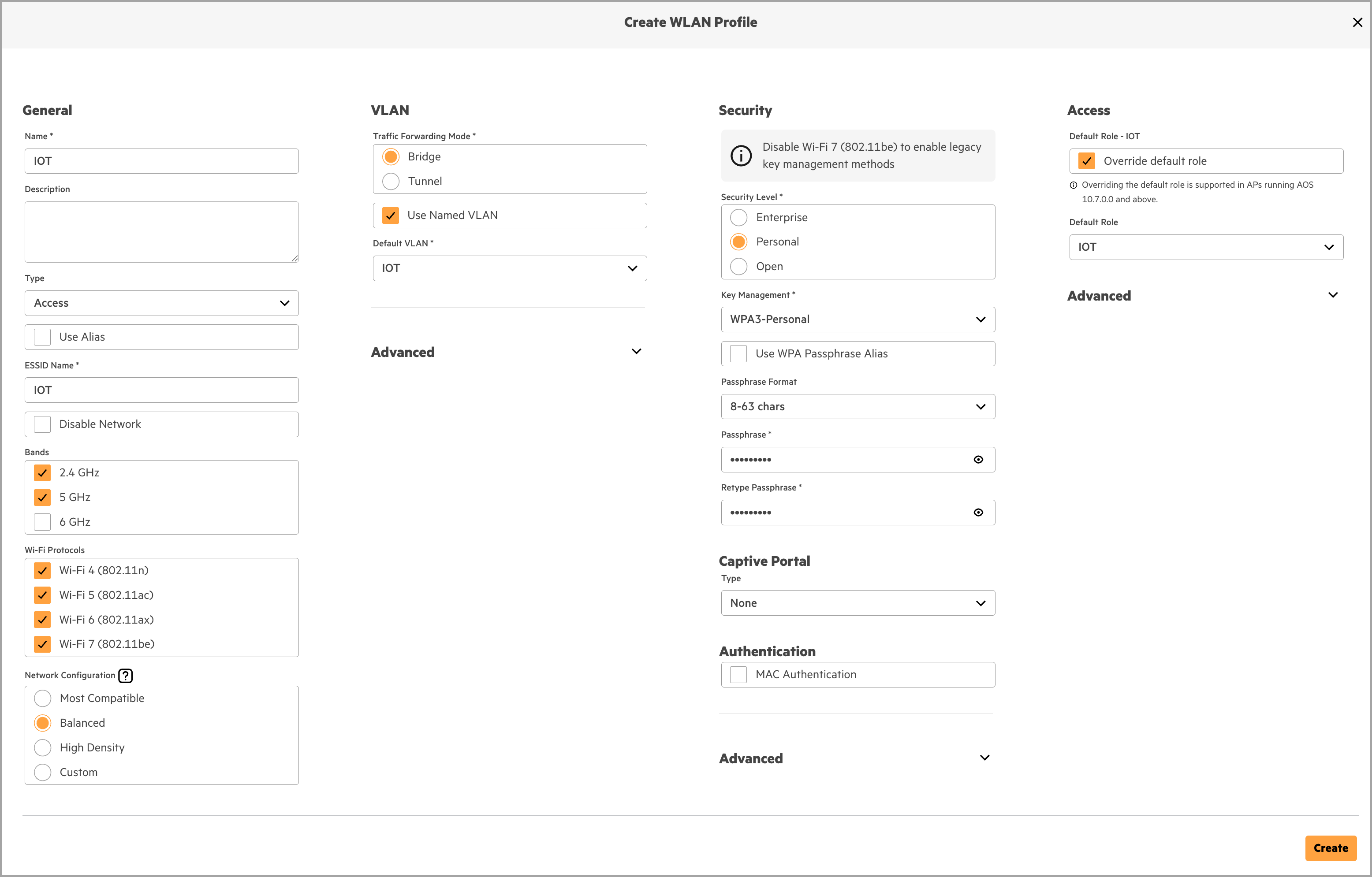
The IoT WLAN is restricted to 2.4GHz and 5GHz because most IoT hardware lacks the specialized radios required for 6GHz connectivity. By avoiding 6GHz, the network maintains maximum compatibility for legacy sensors and low-power devices that prioritize range over the high-throughput capabilities of newer spectrums.
Security is handled via Pre-Shared Key (PSK) because “headless” IoT devices typically lack the supplicants necessary for EAP-based enterprise authentication. To enhance security, Multi-Pre-Shared Key (MPSK) can be utilized; this allows unique keys for individual devices on a single SSID, providing the granular control and isolation of an enterprise network without the complexity of 802.1X.
Configure the following non-default values:
- Name: IOT
- 6 GHz: Unchecked
- Use Named VLAN: Checked
- Default VLAN: IOT
- Security: WPA3-Personal
- Passphrase: < Passphrase >
- Retype Passphrase: < Passphrase >
- Override Default Role: Checked
- Default Role: IOT
Floorplan Management & AP Placement
Accurate access point placement is critical to achieving predictable wireless coverage and performance. HPE Aruba Networking Central provides the Floorplan Manager to model RF behavior, visualize AP placement, and generate predictive heatmaps for the 2.4 GHz, 5 GHz, and 6 GHz bands.
Once access points are placed on a floorplan, Central continuously updates RF predictions and provides visibility into client distribution and coverage quality.
Floorplan manager is an extremely powerful tool with many options. The below procedure covers the basic creation of a building, floors, and AP placement. For more information about floorpan manager review its documentation.
Create Floorplan
The following procedure creates a building and floor within Central and associates a scaled floorplan image. This establishes the physical context required for accurate RF modeling and access point placement.
Step 1 From the Central landing page, navigate to Sites and select the site representing the Small Campus deployment.

Step 2 Within the selected site, click the Location icon to open the Floorplan Manager.

Step 3 From the Action menu, select Create Floor.

Step 4 Enter a floor name and assign a floor number that reflects the physical layout of the site.
Step 5 Create a new building when prompted by entering a descriptive building name and selecting the appropriate building type. Otherwise, select an existing building.

Step 6 Enter the ceiling height for the floor. The default value is 10 feet and should be adjusted to match the actual environment to ensure accurate RF modeling.
Step 7 Upload a scaled floorplan image that represents the physical space where access points will be deployed.
Step 8 Scale the floorplan by either geo-locating the floor on the map or measuring known distances on the floorplan. Proper scaling is required for accurate predictive heat maps. This step will dictate what is presented in the next screen.
Step 9 Review the floor configuration and click Next.

Step 10 Distance must be calibrated on the floorplan to ensure accurate device placement and heatmapping.
If using Geo-Location (as shown):
- Position the two targets on the Floor Plan (left pane) to known reference points, such as building corners.
- Position the corresponding targets on the Map (right pane) to the exact same geographic locations.
- Verify the GPS coordinates align, then click Finish.
If using Manual Measurement:
- Select the manual measurement tool to define the floor dimensions.
- Draw a line across a known distance on the floor plan (e.g., a long corridor or exterior wall) and enter the exact length.
- Once the scale is set, click Finish.

Assign Devices to Site
Step 1 From the Floorplan Manager, open the Action menu and select Assign Devices.

Step 2 Select the target floor from the list of available floor plans displayed in the left pane.
Step 3 Select one or more access points from the device list and assign them to the selected floor.
Step 4 Click Assign Devices.

Place APs
HPE Aruba Networking Central supports both automatic and manual access point placement within the Floorplan Manager.
Automatic placement can be used for early-stage planning when rapid, approximate AP positioning is sufficient, particularly in uniform environments with consistent layouts and a single AP model per floor. This approach is useful for quickly estimating AP count and generating an initial coverage baseline.
This design uses manual access point placement. Manual placement allows APs to be positioned at their intended physical mounting locations and supports mixed AP models, non-uniform floor layouts, and environment-specific constraints. Explicitly defining AP locations and orientations produces more accurate predictive RF heatmaps and enables meaningful validation of coverage, capacity, and overlap prior to deployment.The following procedure assigns access points to a floor and manually places them on the floorplan to validate coverage prior to deployment.
Note: The floor plan used in the following examples (e.g., CP-DFW) is a real-world reference design. While the site name may differ from the “SMALL-CAMPUS-SITE” naming convention used elsewhere in this guide, the placement logic and RF modeling principles remain identical.
Step 1 Click the floor number represented in the stack on the Floorplan Manager. The floor details is displayed on the side panel.
Step 2 Click View Floor Plan to display the details of the selected floor.

Step 3 From the Action drop-down list, select Place Devices.

Step 4 The Place Devices page is displayed. Select Manual Placement as placement method and click Next.

Step 5 The Place Access Points page is displayed with the list of APs assigned to the selected floor. A teal-time image of the AP is displayed based on the AP model.
Step 6 Click and drag the APs to the floorplan and place them at the required location.
Step 7 Click Finish to confirm the AP placement.

Once access points are placed, Central automatically generates predictive RF heat maps that can be used to validate coverage and identify potential gaps prior to deployment and show client locations on the map.
