Central On-Premises
HPE Aruba Networking Central On-Premises (COP) is a variant of HPE Aruba Networking Central, a cloud management platform for the security-first, AI-powered network and security solutions developed for HPE customers of various sizes in a range of industries. COP enables easy, efficient network management by combining industry-leading functionality with an intuitive user interface, allowing network administrators and help desk staff to support and control the on-premises network. This chapter outlines the procedure to set up and install COP and provides step-by-step guidance to add devices to the deployment.
This guide covers COP 3.x, which is based on HPE Aruba Networking Central. COP 2.x refers to Classic Central, the previous generation of the platform. For documentation and resources specific to COP 2.x, refer to COP 2.x Documentation.
Table of contents
Requirements
This section highlights the hardware and network requirements for the successful installation of COP.
Hardware Requirements
Central On-Premises (COP) can be purchased as an appliance to ensure that servers meet hardware requirements. It is deployed as a cluster with a minimum of 3 nodes. Supported cluster sizes include 3, 5, 7, 9 and 11.
For custom installations, the table below specifies the hardware requirements. Installation is supported only on HPE Aruba Networking AirWave appliances and select models of HPE servers. Exact requirements may vary by server model.
| Server Model | CPU Requirement | RAM Requirement | Memory Requirement (SSD) | RAID Configuration | Network Interface Speed |
|---|---|---|---|---|---|
| HPE DL360 Gen 10 server | 40 physical cores | 512 GB RAM | 4 Hard Disks with 960 GB each | RAID 0 | 10 Gbps |
| HPE DL360 Gen 11 server | 48 physical cores | 512 GB RAM | 5 Hard Disks with 1.6 TB each | RAID 6 | 10 Gbps |
| HPE DL365 Gen 11 | 128 physical cores | 1024 GB RAM | 7 Hard Disks with 1.6 TB each | RAID 6 | 10 Gbps |
Note: COP supports deployments that include a mix of HPE DL360 Gen 10 and Gen 11 servers. COP does not support DL360 and DL365 servers in the same cluster.
COP requires 10 Gbps network operation and supports only the following cables and transceivers:
| SKU | Description |
|---|---|
| J9281D | HPE Aruba Networking 10Gb SFP+ to SFP+ 1m Direct Attach Cable |
| J9283D | HPE Aruba Networking 10Gb SFP+ to SFP+ 3m Direct Attach Cable |
| J9285D | HPE Aruba Networking 10Gb SFP+ to SFP+ 7m Direct Attach Cable |
| J9150D | HPE Aruba Networking 10G SFP+ LC SR 300m OM3 MMF Transceiver |
Before proceeding with the integrated-lights-out (iLO) based installation, the server must meet the following minimum requirements. If the requirements are not met, a service pack needs to be installed.:
| Server Model | NIC version | ROM | iLO | TPM Provisioned |
|---|---|---|---|---|
| HPE DL360 Gen 11 | 4.2 | 2.12 | 1.56 | Yes |
| HPE DL365 Gen 11 | 4.2 | 2.12 | 1.56 | Yes |
| HPE DL360 Gen 10 | 11.1.1 | 2.68 | 2.72 | Yes |
Capacity Planning
Refer to the HPE Aruba Networking ordering guide for detailed specifications not included in this guide.
DL360 Gen 10 and Gen 11 Servers:
| Number of Nodes | AP only (Overlay or Underlay) | Switches (AOS-CX only) | APs (Combined Deployment) | Switches (Combined Deployment, AOS-CX) |
|---|---|---|---|---|
| 1 | 1000 | 200 | 800 | 200 |
| 3 | 2000 | 400 | 1600 | 400 |
| 5 | 8000 | 1600 | 6400 | 1600 |
| 7 | 12000 | 2400 | 9600 | 2400 |
| 9 | 16000 | 3200 | 12800 | 3200 |
| 11 | 20000 | 4000 | 16000 | 4000 |
DL365 Gen 11 Servers:
| Number of Nodes | AP only (Overlay or Underlay) | Switches (AOS-CX only) | APs (Combined Deployment) | Switches (Combined Deployment, AOS-CX) |
|---|---|---|---|---|
| 3 | 10000 | 2000 | 8000 | 2000 |
| 5 | 20000 | 4000 | 16000 | 4000 |
| 7 | 30000 | 6000 | 24000 | 6000 |
| 9 | 40000 | 8000 | 32000 | 8000 |
| 11 | 50000 | 10000 | 40000 | 10000 |
Network Requirements
Required network steps to build a COP cluster successfully using a pre-installed appliance or custom server include:
- Connect all COP appliances iLO interfaces to the management network.
- Verify that iLO interfaces have a DHCP address and default IP gateway.
- Verify that all COP appliances are physically connected using 10G DAC or optical connections.
- COP supports LAG connection to a standalone switch, VSF stack or a VSX pair. LAG’s can only be setup after the cluster is configured.
- Assign all cluster uplink ports to the same VLAN. Cluster members require Layer 2 adjacency.
- Ensure that the NTP server is reachable by the appliance on the 10G connected network, as configured in the Cluster Setup procedure.
FQDN and IP Address Requirements
A fully-qualified DNS name (FQDN) is required for each COP appliance and for the cluster’s virtual IP (VIP) address. All FQDNs must be resolvable by the managed devices (access points, gateways, and switches). COP also requires four additional FQDNs that support cluster operations and resolve to the cluster’s VIP. Allocate dedicated /16 and /23 subnets for the internal COP cluster. Verify that the ranges do not overlap and that the networks are not routable to external networks.
The following table provides sample DNS values for a five node cluster:
| Node | FQDN | IP Address |
|---|---|---|
| Cluster Virtual-IP | cop.owllab.net | 100.100.13.9 |
| Node 1 | cop-1.owllab.net | 100.100.13.10 |
| Node 2 | cop-2.owllab.net | 100.100.13.11 |
| Node 3 | cop-3.owllab.net | 100.100.13.12 |
| Node 4 | cop-4.owllab.net | 100.100.13.13 |
| Node 5 | cop-5.owllab.net | 100.100.13.14 |
The following table provides examples of the four additional cluster-level FQDNs using <cluster_fqdn> as a variable:
| FQDN Format | Purpose | Example |
|---|---|---|
| <cluster_fqdn> | Central-UI home page access from the browser | cop.owllab.net |
| central-<cluster_fqdn> | Central-UI NMS page access from the browser | central-cop.owllab.net |
| apigw-<cluster_fqdn> | Central NBAPI access from applications | apigw-cop.owllab.net |
| ccs-user-api-<cluster_fqdn> | Central-UI API access | ccs-user-api-cop.owllab.net |
| sso-<cluster_fqdn> | Central-UI authentication page access | sso-cop.owllab.net |
Note: The primary cluster FQDN is a standard PTR record pointing to the cluster VIP. The remaining cluster-level FQDNs are CNAME alias records that point to the primary cluster FQDN.
ISO Installation
When using appliances with pre-installed COP, skip this section and proceed to Network Interface Setup.
This procedure outlines the steps to upload and install the ISO image on a custom server or Aruba Central ready Airwave appliance. Dowload the ISO image from HPE Networking Support Portal.
For fast and reliable installation, host the ISO image on an HTTP/HTTPS server reachable via the iLO network connection. Alternatively, upload the ISO image from a local device using the local PC option.
Note: During installation, do not rename or modify file names for the ISO image to avoid installation failures.
Step 1 Open a web browser and connect to the iLO using its IP address. Login with administrator credentials for a custom server, or with copilo credentials on a COP appliance. The copilo credentials are:
- Username: copilo
- Password: < server-serial-number >
Step 2 On the left pane, click the command line and select HTML5 Console.

Step 3 Right-click the Virtual Media icon at the top left, select CD/DVD, then click Virtual Media URL.

Step 4 Enter the location of the ISO image on the remote web server. Click Apply.

Step 5 Reboot the server by clicking the Power icon at the top left section of the main screen and selecting Cold Boot.

Step 6 Wait for the server to complete the boot sequence. COP installation begins automatically upon successful boot.

The ISO installation process takes about an hour to complete.
Network Interface Setup
This section details the steps to configure the permanent network settings for a COP appliance. This process is repeated for each appliance added to the cluster.
Note: This procedure applies to both pre-installed appliances and custom server installations.
Step 1 Open a web browser and connect to the COP appliance iLO. Login using administrator credentials or copilo credentials.
Step 2 On the left pane, click the command line and select HTML5 Console.
Step 3 Login to the console with following credentials:
- Username: copadmin
- Password: < serial number of the appliance >

Step 4 Navigate to System Configuration > Network Setup and select Permanent (Network Settings).

Step 5 Enter the following information as prompted.
- Interface name: ens1f1
- IP address: 100.100.13.10
- Subnet mask: 255.255.255.240
- Gateway: 100.100.13.1
- DNS: 10.2.120.198
- Secondary DNS: 10.2.120.199
- COP Hostname/FQDN: cop-1.owllab.net
- Timezone: UTC

Note: The interface name may vary depending on the appliance and interface used for the 10G uplink. To find the active interface, go to the System Information section on the iLO Web UI.
Software Package Installation
When using appliances with pre-installed COP, skip this section and proceed to Cluster Setup.
Download the software package through the HPE Networking Support Portal. The file comes in two parts, and it needs to be combined. To merge the two files, run the following command:
Linux/Ubuntu : cat COP-apps-pkg-3020-113-20251215-prod.tar.gz.part-01 COP-apps-pkg-3020-113-20251215-prod.tar.gz.part-02 > COP-apps-pkg-3020-113-20251215-prod.tar.gz
Windows : cmd /c "copy /b COP-apps-pkg-3020-113-20251215-prod.tar.gz.part-01 + COP-apps-pkg-3020-113-20251215-prod.tar.gz.part-02 COP-apps-pkg-3020-113-20251215-prod.tar.gz"
Note: Make sure that the checksum matches with the checksum value provided in HPE Networking Support Portal.
The following process installs the COP sofware package. For fast and reliable installation, host the software package on an HTTP/HTTPS server reachable via the COP network interface. Before proceeding with this section, verify that the network interface configuration is complete. This process is repeated for each appliance to be added to the cluster.
Step 1 Login to the COP appliance CLI menu and select File Operations.

Step 2 Select 3. Upload via (HTTP/HTTPS).
Step 3 Enter the full file path to file on the web server. Press ENTER.
Step 4 Verify the checksum to ensure that the file package downloaded successfully. Press ENTER to continue.

Step 5 Go back to the main menu, then select Install COP Software.
Step 6 Enter the option to choose the tarball file. This begins the installation process.
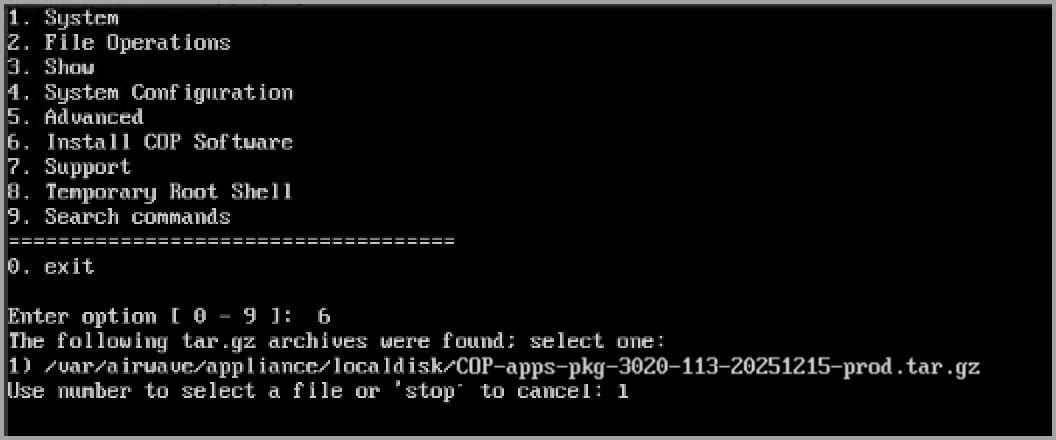
Step 7 Press ENTER and reboot the appliance when the installation is done.
Caution: Do not reboot the appliance until the installation is complete.
Cluster Setup
Following COP software installation, a cluster is built for scaling and redundancy. Before proceeding, verify that the FQDNs defined in the FQDN and IP Address Requirements section resolve properly.
Step 1 Lauch the web UI on any appliance by entering the URL in the following format.
- Format: https://<COP server IP address>:4343 (e.g., https://100.100.13.10:4343)
Step 2 At the login prompt, enter the the following credentials:
- Username: copadmin
- Password: < serial number of the appliance >
Step 3 On the Node Addition page, click the + icon to add hosts.

Step 4 Enter the FQDN for another appliance and click Add to cluster at the bottom of the page. Repeat this process for each appliance.

Step 5 When the server list is complete, click Next.

Step 6 On the Version Selection page, select the cluster software version from the dropdown and click Next.
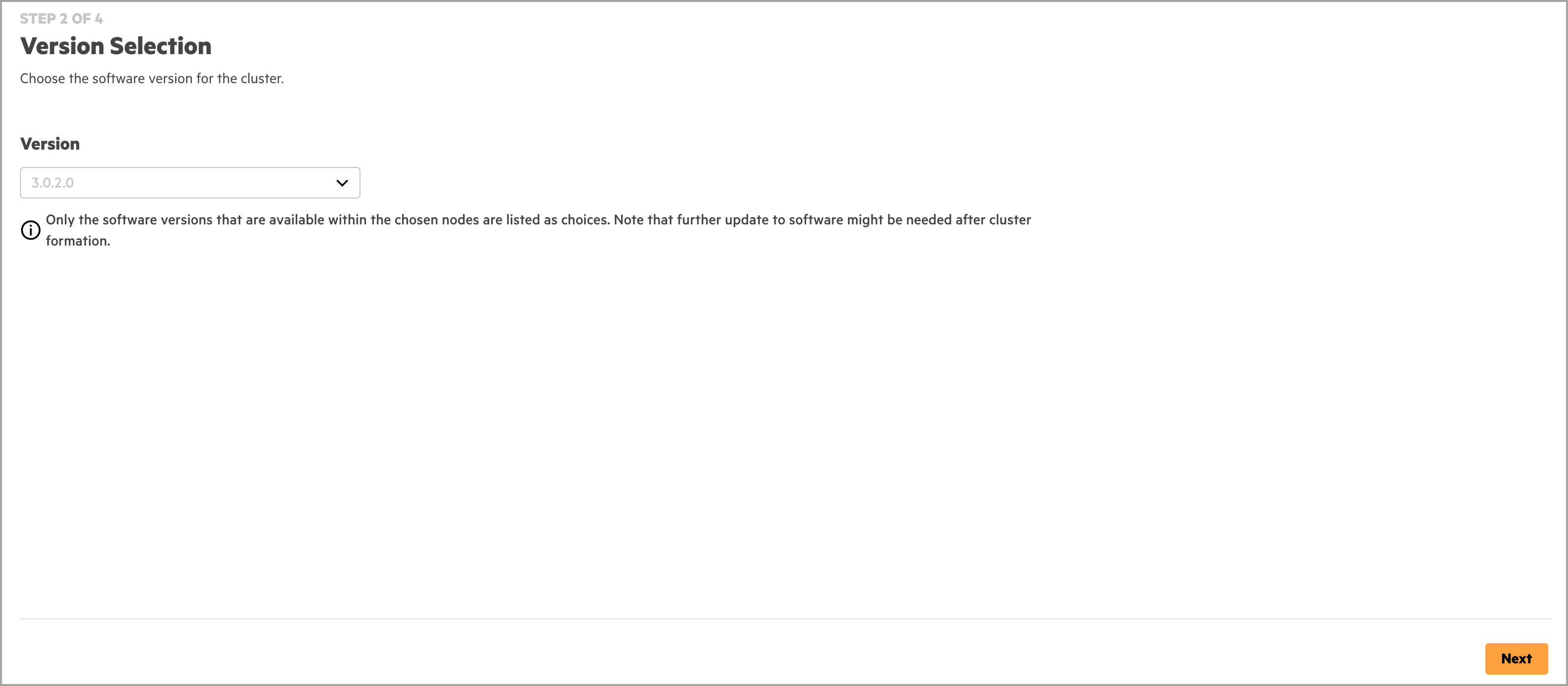
Step 7 On the Cluster Details page, enter the following values and click Next.
- Cluster FQDN: cop.owllab.net
- POD IP Range: 10.240.0.0/16
- Service IP range: 10.239.0.0/23
- NTP server: 10.2.120.198
- Secure NTP: unselected

Note: The Pod IP range must be a subnet with a mask of /16 and the Cluster IP must be a subnet with mask /23.
Step 8 Enter the password for the cluster and CLI username. Click Finish.

Configure LAG
A LAG can be set up from a COP node to a VSF stack or VSX pair to add link redundancy. This procedure must be completed after the cluster is built. Before proceeding with the LAG configuration on a COP node, setup the LAG on the upstream switch. A sample LAG configuration on a VSF stack is shown below.
interface lag 1
    description COP-1 LAG
    no shutdown
    no routing
    vlan access 1130
    lacp mode active
    lacp rate fast
interface 1/1/1
    description RSVBE-COP-1
    no shutdown
    mtu 9198
    lag 1
    exit
interface 2/1/1
    description RSVBE-COP-1
    no shutdown
    mtu 9198
    lag 1
    exit
Note: The following operation can be performed only one node at a time. Before proceeding with LAG setup on the COP node, ensure that all the nodes in the cluster are online.
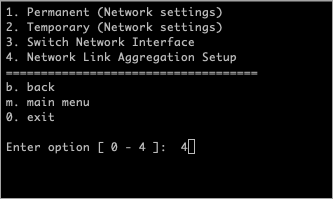
Step 1 Login to the COP appliance CLI menu via the iLO network connection and select System Configuration.
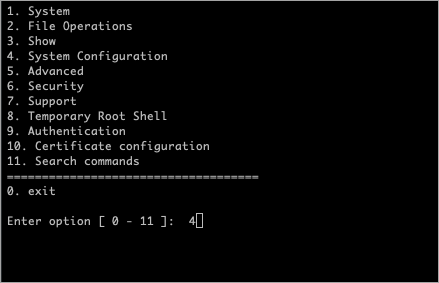
Step 2 Select Network Setup.
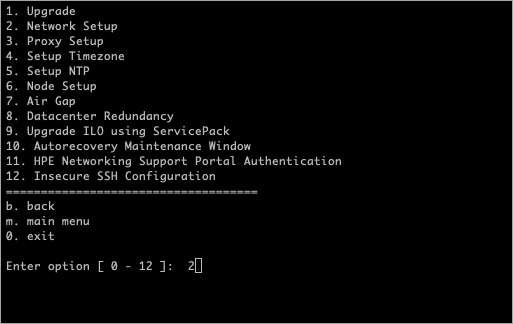
Step 3 Select Network Link Aggregation Setup.
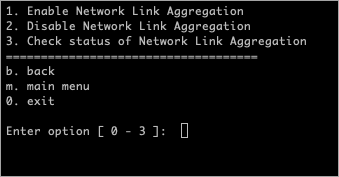
Step 4 Select Enable Network Link Aggregation.
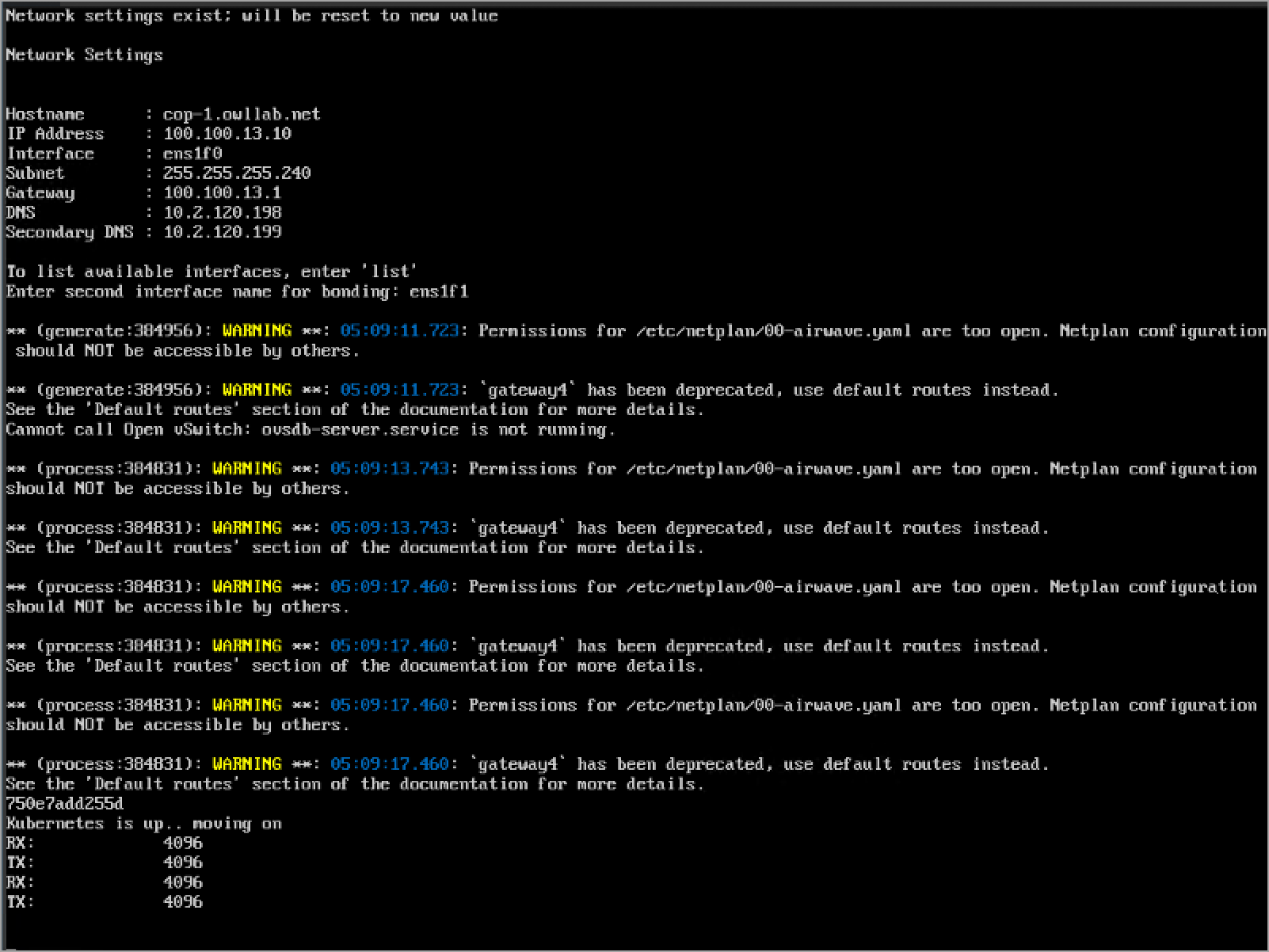
Step 5 Enter the name of the second interface for the LAG.
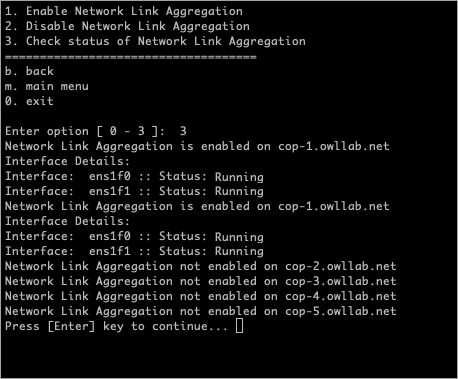
Step 6 To verify LAG configuration, select Check status of Network Link Aggregation. Ensure that the node is online under the System Management section.
Create Sites
To monitor and configure devices on COP, the devices must be added to a Central site. This procedure creates a site.
Step 1 Login to COP using the Central Cluster FQDN and navigate to the Configuration Overview section.

Step 2 On the left navigation menu, select Sites, then click Create Site.

Step 3 Enter the site details and click Save.
- Name: RSVCP-COP
- Address: 8000 Foothills Blvd
- City: Roseville
- Country: United States
- State/Province: California
- Postal Code: 95747

Device Onboarding
Devices must be onboarded to GreenLake before they can be managed by COP. There are two methods available to add devices to GreenLake:
Manual Provisioning: Devices are added to the GreenLake database individually by entering a device serial number and MAC address, or by uploading a list of devices in a CSV file. These devices must be configured locally to connect to Central On‑Premises.
Auto-Provisioning: When auto provisioning is enabled, devices are onboarded to GreenLake using a pre-shared key (PSK). The PSK is configured manually in GreenLake and provided to the device using a vendor-specific DHCP option.
In addition to the provisioning methods above, auto subscription ensures that onboarded devices are automatically assigned an appropriate subscription.
Add Device Subscriptions
This section describes the procedure to add device subscription keys in COP. For detailed specifications on device licensing, refer to the HPE Aruba Networking ordering guide.
Step 1 Login to the COP instance and click the Greenlake Services icon on the top right corner.

Step 2 Select Add Subscriptions under the Quick links section.
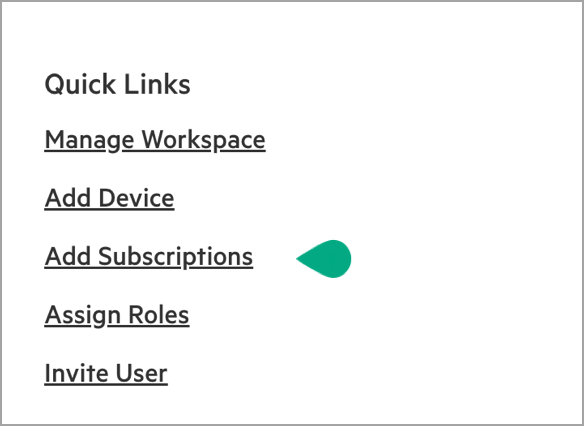
Step 3 Click Add Device Subscription.

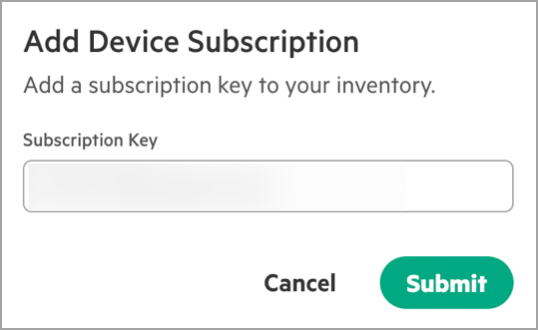
Step 4 Enter the device subscription key in the Add Device Subscription window. Click Submit.
Enable Auto-Provisioning and Auto-Subscribe
This section describes the procedure to configure auto-provisioning and auto-subscription for COP. Before proceeding with the Auto-Subscribe section, make sure that the device licenses are added to GreenLake.
Step 1 Login to the COP instance and click the Greenlake Services icon on the top right corner.
Step 2 Select the Devices tab at the top.

Step 3 On the left menu, click Auto-Provisioning. In the Pre-Shared Keys tile, click Add Key.

Step 4 Enter the name and pre-shared key as shown below, then click Create.
- Name: employee_key
- Pre-Shared Key: 123456
- Confirm Key: 123456

Note: The PSK name is referenced in the DHCP option provided to access points.
Step 5 On the left menu, click Auto-Subscribe, then click Add.

Step 6 Select Access Points from the Device Type dropdown and select the appropriate Subscription Tier. Click Configure Device.

Step 7 Repeat steps 5 and 6 to add auto-subscribe for mobility gateways.
AP Onboarding Prerequisites
APs must meet minimum firmware requirements before onboarding, as described in the Supported Devices section of Central online help.
When auto-provisioning APs, DHCP servers must support the following vendor-specific options:
Option 043 Vendor Specific Info: This option provides auto-provisioned APs with the PSK and COP virtual IP required for auto-provisioning in the following format: psk-name,cop-cluster-vip,psk. It is sent by the server in DHCP offers and acknowledgements.
Option 060 Vendor Class Identifier: To onboard AOS-10 access points to COP, option 060 must be set for DHCP offers and acknowledgments with a value of ArubaAP to process option 043 correctly.
Refer to the AOS-10 Server Configuration guide to configure the DHCP options above. An example configuration of DHCP option 43 on a Windows DHCP server is shown below:

Mobility Gateway Onboarding Prerequisites
Mobility Gateways can automatically provision themselves and connect to COP once they are powered on. The gateway must meet minimum firmware requirements before onboarding, as described in the Supported Devices section of Central online help.
When auto-provisioning APs, DHCP servers must support vendor-specific options 43 and 60. The format to mention these options are:
- Option 043 Vendor Specific Info: cop-cluster-vip,cc=us,psk
- Option 060 Vendor Class Identifier: ArubaMC
Refer to the AOS-10 Server Configuration guide to configure the DHCP options above.
AOS-CX Switch Onboarding Prerequisites
AOS-CX switches are onboarded using ZTP. Switches must meet minimum firmware requirements before onboarding, as described in the Supported Devices section of Central online help.
When auto-provisioning AOS-CX switches, DHCP servers must support vendor-specific option 43. The format to mention this options are:
- Option 043 - Vendor Specific Info: This option provides auto-provisioned switches with the Group, COP virtual IP and PSK required for the provisioning process. The information must be formatted as: Group,cop-cluster-vip,psk.
Note: In COP, the device does not get added to the group specified in DHCP Option 43. The group string can be replaced with any arbitrary value.
Assign Device to Site and Device Function
This procedures assigns a device function and site to a device, which is required to fully manage a device in COP.
Step 1 Login to COP and click the number representing the total number of devices in the Device Inventory tile.

Step 2 Select the checkbox left of each device to be assigned, then click Assign.

Step 3 Select the Device Function and Site to be assigned, then click Assign.

Note: COP supports assigning multiple device functions in a single step. For switches, ensure that switches with the same function are selected together.
Configuration and MRT
This chapter described the procedure for setting up a COP cluster and onboarding devices to the cluster. For details on device monitoring in COP, refer to the Monitoring with Central section. For device configuration, refer to the Configuration Model section.