Small Campus Wired Connectivity
This chapter describes the element profiles required to complete the aggregation and access switch configuration. In this guide, collapsed core and aggregation are used interchangeably to describe the same set of switches.
The wired architecture implements Link Aggregation Groups (LAGs) and Multiple Spanning Tree Protocol (MSTP) to ensure a redundant, loop-free topology with high-bandwidth uplinks. Access ports are standardized using 802.1X and MAC authentication with support for seamless onboarding of wireless access points. Security is fortified at the access layer using DHCP Snooping and Dynamic ARP Inspection.
All network devices were initially on-boarded using the default VLAN 1 in the bring-up process. In this chapter, the AP management network is moved to VLAN 11 and the switch management network is moved to VLAN 15.
Table of contents
- Small Campus Wired Connectivity
- Element Profile Summary
- Entering Configuration Mode
- Configure Multiple Spanning Tree Protocol (MSTP)
- Configure VLANs
- Define Base Switch Parameters
- Configure Switch-Only AAA Options
- Aggregation Interface Configuration
- Access Switch Interface Configuration
- Enable Management VLAN
Element Profile Summary
The table below summarizes the Element Profiles configured on the small campus wired switches and their scope of application.
| Profile Name | Central Profile Path | Type/Scope | Device Function | Purpose |
|---|---|---|---|---|
| SC-AG-STP | VLANs & Networks > STP | Site | Aggregation Switch | Configure MSTP priority on aggregation VSF stack. |
| SC-DHCP-SNOOPING | Network Services > DHCP Snooping | Site | Access Switch | Enable security against rogue DHCP servers. |
| EMPLOYEE-WIRED | VLANs & Networks > VLANs | Site | - Aggregation Switch - Access Switch | Create required Layer 2 VLANs. |
| EMPLOYEE-WLAN | * | * | * | * |
| IOT | * | * | * | * |
| GUEST | * | * | * | * |
| REJECT-AUTH | * | * | * | * |
| CRITICAL-AUTH | * | * | * | * |
| BLACKHOLE | * | * | * | * |
| WIRED-MGMT | * | * | * | * |
| AP-MGMT | * | * | * | * |
| SWITCH-NATIVE | * | * | * | * |
| SC-AGG-SYSTEM | System > Switch System | Site | Aggregation Switch | Configure common global switch parameters. |
| SC-ACC-SYSTEM | * | * | Access Switch | * |
| ENABLE-COA | Security > Authentication Server Global | Global / Site | Access Switch | Enable CoA dynamic authorization on switches. |
| ARUBA-AP-ID | Interfaces > Device Identity | Global | Access Switch | Define LLDP parameters used to identify Aruba APs. |
| ACCESS-DOT1X-MAC | Security > AAA Authentication | Site | Access Switch | Define 802.1X and MAC authentication parameters on access ports. |
| SC-AG1-TO-GW1 | Interfaces > Port Profile | * | Aggregation Switch | Configure uplink port settings from aggregation switches to upstream gateways. |
| SC-AG1-TO-GW2 | * | * | * | * |
| SC-AG1-TO-AC1 | * | * | * | Configure downlink port settings from aggregation switches to access switches. |
| SC-AG1-TO-AC2 | * | * | * | * |
| SC-AC-TO-AG | * | * | Access Switch | Configure uplink port settings from access switches to aggregation switches. |
| SC-AG-MEMBER | Interfaces > Interface Profile | * | Aggregation Switch | Assign aggregation switch port profiles to port numbers. |
| SC-AG-STACK | Interfaces > Interface Profile | * | * | Assign aggregation interface profiles to VSF stack IDs. |
| SC-ACCESS | Interfaces > Port Profile (Access) | * | Access Switch | Configure colorless ports parameters for authentication and loop protection. |
| SC-ACCESS-MEMBER | Interfaces > Interface Profile | * | * | Assign access port profiles to port numbers. |
| SC-ACCESS-STACK | Interfaces > Interface Profile | * | * | Assign access member interface profiles to VSF stack IDs. |
Note: In the table above, an * denotes that the value is equivalent to the column value in the previous row.
Aliases add flexibility, consistency, and powerful configuration update options to element profiles, while preserving Central’s inheritance model. The following aliases are defined to support some of the element profiles above:
| Name | Alias Type | Scope | Device Function | Applied to Element Profiles | Purpose |
|---|---|---|---|---|---|
| SC-SW-IP | VLAN IPv4 Alias | Site | Aggregation Switch Access Switch | WIRED-MGMT | Assign unique VLAN SVIs to all switches. |
| SC-SW-TRUNKS | Switchport | Site | Aggregation Switch Access Switch | - SC-AG1-TO-GW1 - SC-AG1-TO-GW2 - SC-AG1-TO-AC1 - SC-AG1-TO-AC2 - SC-AC-TO-AG | Define inter-switch tagged VLANs. |
Entering Configuration Mode
In the upper right corner of the Central web application, click the Configuration gear icon.

Several Central contexts do not allow direct navigation into the configuration context, including Central’s Menu context that provides access to Central’s Audit Trail. The Audit Trail is often used in the configuration process, as it provides logs on profile configuration changes and that status of configuration pushes to devices. After selecting Central’s Menu context, the Configuration gear is not available for selection.

To return to the Configuration context after navigating to a context that does not display the Configuration gear icon, first click on the Home button in the upper left of the Central web application, and then click on the Configuration gear.

The following procedures assume the reader is in the Configuration context and does not explicitly include steps for entering the configuration context.
Configure Multiple Spanning Tree Protocol (MSTP)
When a loop is introduced into a network, it causes catastrophic disruption to network services. MSTP is enabled to automate blocking loops.
MSTP is useful during the bring-up process to block loops that exist prior to configuring LAGs that logically remove loops between switches. After the topology setup is complete, MSTP blocks loops introduced by network users and prevents the unintentional introduction of loops between network components due to operator error.
It is best practice to configure STP priority such that a pre-determined VSX pair or VSF stack of switches operates as the known STP root of a spanning-tree domain.

Central automatically imports some switch configuration, when a switch is onboarded, including STP configuration. Imported configurations are defined in device-level profiles. To gain the benefit of standardizing configuration across multiple switches with a global or site scoped STP profile, the imported device-level profiles must be deleted. Applying a single STP profile for all access switches reduces errors and ensures a consistent configuration.
After deleting device scoped STP profiles, Central applies the STP defaults profile to all access, aggregation, and core CX switches, which enables MSTP and sets the STP priority to 8. This profile is inherited from the global scope. A new profile must be applied to aggregation switches with a better STP priority to ensure they become the root of the STP tree.
Delete Auto-Created STP Profiles
The following procedure deletes the automatically created STP device profiles with imported values from individual devices.
Step 1 On the left-hand Configuration menu, click Devices.

Step 2 In the Search field, enter SC-AG to filter the devices, then click SC-AG1.

Step 3 In the VLANs & Networks card, click STP.

Step 4 To delete the profile, hover over the device-level STP profile, then click the trash can icon.

Note: Device-level imported profiles use the following naming convention: profile-<device serial number>.
Step 5 On the Delete Profile confirmation dialogue box, click Delete.

Step 6 A new, inherited STP profile is displayed for the device. Verify the following values for the profile:
- Name: STP defaults
- Inherits From: Global

Note: If the new profile is not immediately displayed, refresh the browser.
Step 7 Repeat steps 1-6 for each switch or switch stack.
After completing this procedure, all switches and switch stacks inherit the STP defaults profile.
Set Aggregation Switches as STP Root
The following procedure creates a new STP profile with a better STP priority than the default profile. It is then applied to the aggregation VSF stack to ensure it becomes the STP root.
Step 1 On the left-hand Configuration menu, click Library.

Step 2 On the VLANs & Networks card, click STP.
Step 3 Click Create Profile.

Step 4 Enter the following non-default values on the profile and click Create.
- Name: SC-AGG-STP
- Default Instance Priority: 4

Step 5 Hover over the new profile and click the ••• context menu icon.

Step 6 On the context menu, click Assign.

Step 7 On the Assign Profile page, check Aggregation Switch.

Step 8 To the right of the Scopes heading, click the plus sign (+).
Step 9 On the Add Scope page, select the following values and click Add.
- Scope Level: Sites
- Assign to Scope: SMALL-CAMPUS-SITE

Step 10 Click Assign.

Configure VLANs
Enable DHCP Snooping
DHCP snooping must be enabled globally on a switch and individually for each VLAN. The DHCP Snooping profile enables DHCP snooping globally on the switch and contains the list of trusted DHCP servers. Individual VLAN settings are configured when creating VLAN profiles.
When using centralized DHCP services, the list of DHCP servers is typically only two or three entries. However, many small campuses implement DHCP on the WAN gateway device, which typically uses a different DHCP server IP for each VLAN. When using this method, it is important to enter the full list of DHCP server IPs to ensure clients can receive a DHCP lease.
Profile Path: Network Services > DHCP Snooping
Device Functions: Access Switch
Scope: Site : SMALL-CAMPUS-SITE
Configure the following non-default values:
- Profile Name: SC-DHCP-SNOOPING
- Check Enable DHCP V4 Snooping
- In the Add Trusted Server dialogue box, enter the following settings:
- IPv4 Address: a comma delimited IP address list of trusted DHCP servers
- VRF: default

The full DHCP Snooping profile is shown below:

Assign Switch Management Static IPs
Using an alias allows assigning a unique IP address per switch without breaking VLAN profile inheritance. When the alias is assigned as an L3 SVI value in the VLAN profile, it creates a placeholder. A value for each switch is assigned to the alias at the device level, which is applied to the VLAN profile for that individual device. This allows a single VLAN profile assignment to all small campus switches without creating profile overrides for IP assignments.
The following two procedures create an alias and assign unique management IP addresses for each switch. These configuration elements do not apply configuration to devices. When VLAN 15 is defined and scoped to switches in a later procedure, the alias value is used when applying the VLAN configuration.
Create VLAN SVI Alias
Step 1 In the Library, select the Named Objects tab. In the Aliases card, click Manage aliases.

Step 2 On the right-hand side, click Create Alias.

Step 3 In the Type drop-down menu, select VLAN IPv4 Address and click Create.

Step 4 Hover over the new profile and click the ••• context menu icon.

Step 6 On the context menu, click Assign.
Step 7 On the Assign Profile page, check Access Switch and Aggregation Switch.

Step 8 To the right of the Scopes heading, click the plus sign (+).
Step 9 On the Add Scope page, select the following values and click Add.
- Scope Level: Sites
- Assign to Scope: SMALL-CAMPUS-SITE
Step 10 Click Assign.

Assign IP Addresses to Alias
At the device level of each switch, assign a static IP address to the alias created above.
Step 1 On the left-hand configuration menu, click Devices, enter a value in the Search field to display the desired switches, and click on a switch name.

Step 2 Click on the Named Objects tab, then click Manage aliases.

Step 3 Click on the SC-SW-IP alias name.

Step 4 On the Edit Alias page, enter the following information and click Update.
- Click Save as a local profile.
- In the IPv4 Address/Prefix field, enter the switch management static IP address with a CIDR mask.

Step 5 Repeat steps 1–4 to assign a management IP address for each switch.
Create VLANs
VLANs provide network segmentation and apply some basic security protections, including DHCP snooping and ARP inspection.
The wired-only VLANs in this small campus example are configured for ARP inspection. When a switch does not have an SVI for a VLAN, ARP inspection relies on DHCP snooping to establish IP address to MAC address correlation.
It is important that ARP inspection not be enabled for VLANs used by bridge-mode wireless clients to accommodate client roaming. If ARP inspection is enabled and a wireless client roams to an AP that is not attached to the switch where the initial DHCP request occurred, there is no state correlating the client’s IP and MAC addresses for the ARP inspection process, and the wireless client traffic is dropped.
Create Wired Management VLAN
When the configuration in this chapter is complete, the wired management VLAN provides in-band Central connectivity, and a static IP is used to query external services such as RADIUS, TACACS+, and DNS. VLAN 1 is used to initially on-board switches, but it is best practice to move management to another VLAN. The VLAN IPv4 Address alias previously created is referenced in the management VLAN profile to assign unique a IP addresses to each switch.
Profile Path: Networks & VLANs > VLAN
Device Functions: Aggregation Switch, Access Switch
Scope: Site : SMALL-CAMPUS-SITE
- VLAN ID: 15
- Name: WIRED-MGMT
- Description: In-band switch management network
- Check Enable L3
- Check IPv4 Alias
- In the drop-down menu under IPv4 Alias, select the SC-SW-IP alias

Create AP Management VLAN
The AP management VLAN establishes a separate IP subnet for in-band connectivity to Central. This provides an easily identifiable IP address range for APs and ensures issues encountered on the AP management network do not impact the switch management network. In this example deployment, APs use DHCP assigned IP addresses in VLAN 11.
Profile Path: Networks & VLANs > VLAN
Device Functions: Aggregation Switch, Access Switch
Scope: Site : SMALL-CAMPUS-SITE
- VLAN ID: 11
- Name: AP-MGMT
- Description: In-band AP management network

Create Wired Client VLANs
The VLANs listed in the table below provide connectivity only to wired hosts. They are created separately from VLANs that also contain wireless hosts, because ARP inspection is enforced.
| VLAN ID | Name | Description |
|---|---|---|
| 20 | EMPLOYEE-WIRED | Employee wired data |
| 50 | REJECT-AUTH | Rejected authentication |
| 51 | CRITICAL-AUTH | Critical authentication fallback |
Profile Path: Networks & VLANs > VLAN
Device Functions: Aggregation Switch, Access Switch
Scope: Site : SMALL-CAMPUS-SITE
Configure the following non-default values for each VLAN:
- VLAN ID: < VLAN ID >
- Name: < VLAN Name >
- Description: < VLAN Description >
- Check DHCP V4 Snooping
- Check Enable ARP Inspection
- Check Enable IGMP Snooping

Create Wireless/Wired Client VLANS
The VLANs listed in the table below can contain wireless hosts. VLANs 30 and 40 contain both wired and wireless traffic. Unlike wired-only VLANs, ARP inspection is not enabled to accommodate wireless client roaming across APs that are attached to different switches.
| VLAN ID | Name | Description |
|---|---|---|
| 25 | EMPLOYEE-WLAN | Employee Wireless Data |
| 30 | IOT | IoT Devices |
| 40 | GUEST | Guest Users |
Profile Path: Networks & VLANs > VLAN
Device Functions: Aggregation Switch, Access Switch
Scope: Site : SMALL-CAMPUS-SITE
Configure the following non-default values:
- VLAN ID: < VLAN ID >
- Name: < VLAN Name >
- Description: < VLAN Description >
- Check DHCP V4 Snooping
- Check Enable IGMP Snooping

Create Blackhole VLAN
The blackhole VLAN is configured only on access switches. It is not trunked to the collapsed core, and no network services are provided. This VLAN is used to ensure access is not unintentionally provided to wireless clients when a VLAN is not returned in the AAA process.
Profile Path: Networks & VLANs > VLAN
Device Functions: Access Switch
Scope: Site : SMALL-CAMPUS-SITE
Configure the following non-default values:
- VLAN ID: 999
- Name: BLACKHOLE
Create Trunk Native VLAN
It is an industry standard practice to remove VLAN 1 from production. The following VLAN is created to replace VLAN 1 as the native VLAN on trunk links between switches.
Profile Path: Networks & VLANs > VLAN
Device Functions: Access Switch
Scope: Site : SMALL-CAMPUS-SITE
Configure the following non-default values:
- VLAN ID: 998
- Name: TRUNK-NATIVE
Establish Collapsed Core VLAN Overrides
The access layer is responsible for DHCP snooping and ARP inspection enforcement. These features are disabled on the aggregation switch by establishing a device override of inherited values.
Step 1 On the left-hand Configuration menu, click Devices, then enter search criteria to display the desired switch and click the collapsed core switch name.

Step 2 On the list of VLANs, click on a client VLAN.

Step 3 To create a local device override, click Save as local profile.

Step 4 On the Policy section under Switch Parameters, perform the following and click Update.
- Uncheck DHCPv4 Snooping
- Uncheck Enable ARP Inspection

Step 5 Repeat steps 2-4 until DHCPv4 snooping and ARP inspection have been removed from all client VLANs.
When complete, there are two visual indicators that a device-level profile override is in place. A partially filled blue circle to the left of a profile indicates an override is applied, and the Assigned Scope for all VLANs with overrides will show Central’s internal device ID for the switch.

Define Base Switch Parameters
The Switch System profile defines basic location and contact information, the 802.1X and MAC authentication servers used for authenticating users and devices, and the loop-protect re-enable timer.
Configure Access Switch System Profile
Profile Path: System > Switch System
Device Functions: Access Switch
Scope: Site : SMALL-CAMPUS-SITE
Configure the following non-default values:
- Name: < access switch profile name >
- Location: < location of switch >
- Contact: < contact information >
- Timezone: < local timezone of switch >
- 802.1X Authentication Server Group: < user/device authentication group >
- MAC Authentication Server Group: < user/device authentication group >
- Loop Protect Re-Enable Time: 300

Configure Aggregation Switch System Profile
The aggregation switch does not require authentication or loop-protect definitions.
Profile Path: System > Switch System
Device Functions: Aggregation Switch
Scope: Site : SMALL-CAMPUS-SITE
Configure the following non-default values:
- Name: < access switch profile name >
- Location: < location of switch >
- Contact: < contact information >
- Timezone: < local timezone of switch >
- Uncheck Enable 802.1X
- Uncheck Enable MAC Authentication
Configure Switch-Only AAA Options
RADIUS servers and groups were created in the Small Campus Shared Profiles chapter.
Access switches need two additional authentication and authorization options.
- Dynamic authorization must be enabled at the global level on a switch to support RADIUS change of authorization (CoA)
- A set of parameters must be defined to dynamically identify access points.
Dynamically identifying access points allows any PoE-capable port to support AP operations without requiring an administrator to pre-configuring specific ports.
Enable Change of Authorization
RADIUS Change of Authorization (CoA) must be enabled globally on a switch. The Authentication Server Global profile enables CoA, which can be assigned a global scope to enable CoA on all access switches in an organization, or it can also be scoped to only those sites that require it.
Profile Path: Security > Authentication Server Global
Device Functions: Access Switch
Scope: Global
Configure the following non-default values:
- Name: ENABLE-COA
- Under Dynamic Authorization, check Enable

Configure AP Device Identification
A Device Identity profile defines LLDP criteria used to automatically determine when an access point is connected to an access switch port. When an AP is connected, the switch port is auto-configured as an 802.1Q trunk with appropriately tagged VLANs, by associating a role that specifies the port’s expected operational behavior.
The configuration defined in this profile is used by the switch’s AAA process, when a port is configured for LLDP authentication.
Profile Path: Interfaces > Device Identity
Device Functions: Access Switch
Scope: Global
Configure the following non-default values:
- Name: ARUBA-AP-ID
- Description: LLDP criteria to dynamically identify Aruba APs
- Role: ARUBA-AP
Add the following LLDP Group Identifiers
- Action: Match, Identifiers: Vendor OUI, Vendor OUI: 000B86
- Action: Match, Identifiers: Vendor OUI, Vendor OUI: D8C7C8
- Action: Match, Identifiers: Vendor OUI, Vendor OUI: 6CF37F
- Action: Match, Identifiers: Vendor OUI, Vendor OUI: 186472
- Action: Match, Identifiers: System Description, Vendor OUI: ArubaOS

AAA Authentication Profile
The AAA Authentication profile specfies the type of authentication used on access ports. The small campus uses 802.1X authentication for employees and MAC authentication for IOT devices. The profile specifies the server groups to use for authentication, the role applied to hosts when the authentication servers are unavailable, and the role applied to hosts that fail authentication.
LLDP authentication bypass is enabled to automatically configure ports for AP operation, when the attached device matches the Device Identify profile configured above.
Profile Path: Security > AAA Authentication Device Functions: Access Switch Scope: Site : SMALL-CAMPUS-SITE
Configure the following non-default values:
- Name: ACCESS-DOT1X-MAC
- Description: Authentication for colorless access ports
- Authentication Protocol: 802.1X, then MAC
- Client Limit: 5
- 802.1X Authentication Server Group: USER-AUTH-SERVERS
- MAC Authentication Server Group: USER-AUTH-SERVERS
Under Authentication Parameters:
- Check Switch Specific Parameters
- Check Allow LLDP Bypass
Under Authorization Parameters:
- Check Switch Specific Parameters
- Select Critical Auth Role: CRITICAL-AUTH
- Select Reject Auth Role: REJECT-AUTH
- Check AOS-CX Specific Parameters
- Check RADIUS Override
Under 802.1X Parameters:
- Check Reauthentication
- Reauthentication Interval: 14400
- Check Switch Specific Parameters
- EAPOL Timeout: 2
- Maximum EAPOL Requests: 1
Under MAC Parameters:
- Check Reauthentication
- Reauthentication Interval: 14400
Note: Ensure that all parameters in the AAA profile are supported by the access switch model. Interface profiles do not apply configuration correctly, when values are not supported. When this occurs, details are provided in Central’s Audit Trail.

Aggregation Interface Configuration
Central provides multiple methods for configuring switch ports. After a switch has been on-boarded, administrators can configure interfaces individually in the UI. However, Central provides methods to improve the consistency and scalability of port configuration.
Port Profiles represent the complete configuration of an individual port or LAG for a desired operation. For example, a single port profile can represent the standardized configuration of a client port. This includes default access VLAN assignment, spanning-tree protections, and authentication methods. This individual profile can be defined once and then applied across many or all client ports, depending on the level of standardization in an organization.
The ability to apply a standardized configuration to an individual port is a powerful feature that reduces errors and speeds up the configuration process.
Interface Profiles enhance the power of Port Profiles even further. Interface Profiles can assign port profiles to specific port positions across multiple switches in a standardized manner. For example, an interface profile can apply a client access port profile to ports 1-24 and an uplink port profile to port 28. This is extremely powerful, when standardizing on switch models. For example, if all access switches are switch stacks using 6300M 48-port models, one interface profile can be used to standardize the configuration of all access switches in the network. This type of automation is demonstrated in the access switch configuration below.
In addition to the scaling benefits, Port and Interface Profiles are used to improve the efficiency of establishing VLAN 15 for in-band switch management.
Create Inter-Switch Trunk Alias
A switchport alias represents the VLAN configuration of a port or LAG. It can be referenced in a port profile to simplify, standardize, and quickly change configuration.
Switchport aliases are extremely powerful, when modifying port configurations after initial configuration. In a later procedure, the switchport alias defined below will be used to automatically remove VLAN 1 from all interswitch trunks in a single configuration flow.
Step 1 In the Library, select the Named Objects tab. In the Aliases card, click Manage aliases.
Step 2 On the right-hand side, click Create Alias.
Step 3 Create an alias with the following values:
- Name: SC-SWITCH-TRUNKS
- Type: Switchport
- Interface Mode: Trunk
- Native VLAN: 1
- Allowed VLANs: 1,11,15,20,25,30,40,50-51

Configure Aggregation Port Profiles
Aggregation switches use Port Profiles to define LAGs to upstream WAN gateways and downstream access switch stacks. Each LAG has a unique LAG ID, so a separate port profile is created for each LAG. The switchport alias created above is applied to each LAG.
Uplink Trunks to WAN Gateways
Step 1 Create a Port Profile at the Site > SMALL-CAMPUS-SITE level of the configuration menu that defines LAG parameters to the first WAN gateway.
Profile Path: Interfaces > Port Profile
Device Functions: Aggregation Switch
Scope: Site : SMALL-CAMPUS-SITE
Configure the following non-default values:
- Name: SC-AG1-TO-GW1
- Description: LAG from AG1 to GW1
- Device: Switch
- Uncheck Enable PoE
- Check Enable LAG
- LAG ID: 255
- Check LAG Admin State
- Check LACP Fallback Static
- Check Use Switchport Alias
- Alias: SC-SWITCH-TRUNKS
- Check BPDU Filter

Step 2 Create a Port Profile at the Site > SMALL-CAMPUS-SITE level of the configuration menu that defines LAG parameters to the second WAN gateway. This profile assigns a different Name, Description, and LAG ID from the above profile, with other settings remaining the same.
Profile Path: Interfaces > Port Profile
Device Functions: Aggregation Switch
Scope: Site : SMALL-CAMPUS-SITE
Configure the following non-default values:
- Name: SC-AG1-LAG-TO-GW2
- Description: LAG from AG1 to GW2
- Device: Switch
- Uncheck Enable PoE
- Check Enable LAG
- LAG ID: 256
- Check LAG Admin State
- Check LACP Fallback Static
- Check Use Switchport Alias
- Alias: SC-SWITCH-TRUNKS
- Check BPDU Filter
Downlink Trunks to Access Switches
The following procedure uses Port Profiles to configure LAGs on the aggregation switches that connect to access switches. A unique port profile is created for each switch stack, as each stack requires a unique LAG ID.
Step 1 Create a Port Profile that defines LAG parameters at the Site > SMALL-CAMPUS-SITE level of the configuration menu for the first access switch stack.
Profile Path: Interfaces > Port Profile
Device Functions: Aggregation Switch
Scope: Site : SMALL-CAMPUS-SITE
Configure the following non-default values:
- Name: SC-AG1-TO-AC1
- Description: LAG from AG1 to AC1
- Device: Switch
- Uncheck Enable PoE
- Check Enable LAG
- LAG ID: 1
- Check LAG Admin State
- Check LACP Fallback Static
- Check Use Switchport Alias
- Alias: SC-SWITCH-TRUNKS
- Check Root Guard

Note: A unique port profile must be defined for each access switch stack. The LAG ID will be made an alias in the near future, enabling a single Port Profile to be applied to all access switch LAGs from the aggregation switch.
Enabling LACP fallback enables uninterrupted communication with Central by access switches prior to configuring LAGs on the access switches. The untagged VLAN on the aggregation switch LAG is the same as the default access VLAN on the access switches.
Step 2 Create a Port Profile based on step 1 at the Site > SMALL-CAMPUS-SITE level for each access switch stack. Each profile must have a unique Name and LAG ID. The following values are used for the Port Profile connecting the aggregation switch to the second access switch stack.
Profile Path: Interfaces > Port Profile
Device Functions: Aggregation Switch
Scope: Site : SMALL-CAMPUS-SITE
Configure the following non-default values:
- Name: SC-AG1-TO-AC2
- Description: LAG from AG1 to AC2
- Device: Switch
- Uncheck Enable PoE
- Check Enable LAG
- LAG ID: 2
- Check LAG Admin State
- Check LACP Fallback Static
- Check Use Switchport Alias
- Alias: SC-SWITCH-TRUNKS
- Check Root Guard
Configure Aggregation Interface Profiles
There are four types of Interface Profiles, but the two most common are Standalone/Member and Stack, which are used to implement this small campus example.
A Standalone/Member profile specifies the association of Port Profiles to port positions on a switch. As its name implies, this type of profile is applied to standalone switches (including VSX pairs of switches which maintain independent management and control planes) and member switches in a VSF stack.
The Stack profile associates a Standalone/Member profile with a specific switch member ID within a stack. For example, if a stack had three members, it is possible to assign a different Standalone/Member profile to each member of the stack.
Aggregation Standalone/Member Profile
A Standalone/Member profile associates aggregation switch ports with the Port Profiles created in previous steps. The aggregation stack contains two members for network resiliency to both the upstream WAN gateways and downstream access stacks. When establishing a LAG across two switches in a VSF stack, it is best practice to use the same port number on both switches to connect to the remote device, which also allows standardization of a single standalone/member profile for both switches.
Create an Interface Profile with the following settings to associate Port Profiles to the physical ports on aggregation switch stack members.
Profile Path: Interfaces > Interface Profile
Device Functions: Aggregation Switch
Scope: Site : SMALL-CAMPUS-SITE
Configure the following non-default values:
- Name: SC-AG-MEMBER
- Description: Assign port profiles to aggregation switch physical ports
- Device: Switch
- Type: Standalone/Member
- Model: 6300M
- Number of Ports: 24G PoE 4SFP
Under Uplink Port Profile, assign ports as follows:
| Ports | Assigned Port Profile |
|---|---|
| 27 | SC-AG1-TO-GW1 |
| 28 | SC-AG1-TO-GW2 |
Under Downlink Port Profile, assign ports as follows:
| Ports | Assigned Port Profile |
|---|---|
| 1 | SC-AG1-TO-AC1 |
| 2 | SC-AG1-TO-AC2 |

Note: Click the + (plus sign) to the right of the switch port to commit the port profile assignment. After clicking +, a new blank line will appear. Only the assignments listed below the top blank line will be added to the profile.
Aggregation Stack Profile
Create a Stack profile with the following settings to associate Standalone/Member profiles with VSF stack member positions.
Profile Path: Interfaces > Interface Profile
Device Functions: Aggregation Switch
Scope: Site : SMALL-CAMPUS-SITE
Configure the following non-default values:
- Name: SC-AG-STACK
- Description: Assign standalone/member interface profiles to stack members
- Device: Switch
- Type: Stack
- Switch Series: CX 6300
- Mode: Custom
- Number of Members: 2
- Member: 1, Number of Ports: < port config that matches switch >, Profile: SC-AG-MEMBER
- Member: 2, Number of Ports: < port config that matches switch >, Profile: SC-AG-MEMBER

Access Switch Interface Configuration
HPE Aruba Networking refers to ports that auto-configure to the needs of connected hosts as colorless ports. Access switches use a combination of port profiles and interface profiles to automate port configuration for network users, IoT devices, and WLAN APs. Colorless ports assign VLANs and enforce policy based on the role assigned to the attached device.
In the following procedure, two port profiles are created. One port profile defines the settings for a LAG to provide redundant upstream connectivity toward the aggregation layer. The second port profile defines the settings applied to colorless access ports.
The Port Profiles are applied to switch ports via an Interface Profile to accelerate the configuration process. All access switches assigned to an Interface Profile must have the same physical port configuration. By standardizing on switch models and the function of switch port numbers, administrators can use Interface Profiles to configure thousands of switches with a few simple clicks.
Access Uplink Port Profile
The following Port Profile defines the LAG parameters from an access stack to the aggregation switches. The same profile is applied to all access stacks as part of an interface profile. DHCP snooping trust and ARP snooping trust are enabled to allow DHCP and ARP request responses.
- Profile Path: Interfaces > Port Profile
- Device Functions: Access Switch
- Scope: Site : SMALL-CAMPUS-SITE
Configure the following non-default values:
- Name: SC-AC-TO-AG
- Description: Access switch stack LAG to AG
- Device: Switch
- Uncheck Enable PoE
- Check Enable LAG
- LAG ID: 256
- Check LAG Admin State
- Check LACP Fallback Static
- Check Use Switchport Alias
- Alias: SC-SWITCH-TRUNKS
- Check DHCPv4 Snooping Trust
- Check ARP Inspection Trust

Colorless Access Port Profile
The colorless port profile references the previously created AAA Authentication profile to enforce 802.1X authentication for network users, MAC authentication for IoT devices, and LLDP-based authentication for WLAN access points. MSTP control plane protections and HPE’s proprietary loop protection are also enabled. The port’s access VLAN is set to the BLACKHOLE VLAN to ensure devices not assigned a dynamic VLAN through the authentication process are unable to forward traffic on the production network.
Profile Path: Interfaces > Port Profile
Device Functions: Access Switch
Scope: Site : SMALL-CAMPUS-SITE
Configure the following non-default values:
- Name: SC-ACCESS
- Description: Standardized access port configuration
- Device: Switch
- Check Admin State
- Access VLAN: 999
- Check Loop Protection
- Check Admin Edge
- Check BPDU Guard
- Check Root Guard
- Check TCN Guard
- Check Enable Port Authentication
- AAA Profile: ACCESS-DOT1X-MAC

Configure Access Interface Profiles
When planning your network, standardize on uplink and access ports to allow for faster configuration using interface profiles. Standardization also helps with documentation, troubleshooting, and communicating with technical support.
In this small campus example, access stacks are sets of two CX 6300F switches with 24 access ports. Ports 1-24 provide client access, ports 25 and 26 are dedicated to the VSF stacking function, and port 28 is a member of a LAG connected to the aggregation block.
Access Standalone/Member Interface Profile
Only one access Standalone/Member profile is required for all stacks in this small campus example. It associates the SC-ACCESS colorless port profile to all access ports (1-24), and the AC-LAG-TO-AG port profile to uplink port 28.
When required, additional standalone/member interface profiles can be created to accommodate variations in standardized port configuration. For example, a third member in a stack, may not have an uplink to the aggregation switches. An additional standalone/member profile could be created that assigns the SC-ACCESS profile to ports 1-24, but does not make an uplink port profile assignment.
Profile Path: Interfaces > Interface Profile
Device Functions: Access Switch
Scope: Site : SMALL-CAMPUS-SITE
Configure the following non-default values:
- Name: SC-AC-MEMBER
- Description: Assign port profiles to ports on access switch members of a VSF stack
- Model: CX 6300F
- Number of Ports: 24G PoE 4SFP
Under Uplink Port Profile:
- Ports: 28
- Assigned Port Profile: SC-AC-TO-AG
Under Downlink Port Profile
- Ports: 1-24
- Assigned Port Profile: SC-ACCESS

Access Stack Interface Profile
Both members of each access stack are assigned the same member interface profile. The same stack profile is applied to all access switches.
Profile Path: Interfaces > Interface Profile
Device Functions: Access Switch
Scope: Site : SMALL-CAMPUS-SITE
Configure the following non-default values:
- Name: SC-AC-STACK
- Description: Assign member interface profiles to access stack members
- Type: Stack
- Switch Series: CX 6300
Number of Members: 2
- Member: 1, Number of Ports: < port config that matches switch >, Profile: SC-ACCESS-MEMBER
- Member: 2, Number of Ports: < port config that matches switch >, Profile: SC-ACCESS-MEMBER

Enable Management VLAN
In-band on-boarding and initial configuration uses VLAN 1. It is industry best practice to use a custom VLAN ID for management and to remove VLAN 1 from carrying management and production traffic.
VLAN 15 was created in a previous step for the purpose of switch management, and a unique IP address was assigned to each switching using an alias. VLAN 15 was added to interswitch trunks using port and interface profiles. The procedures below complete the transition to using VLAN 15 for in-band wired switch management and removing VLAN 1 from links between infrastructure switches.
Note: The WAN gateway must be configured with VLAN 15 before proceeding with the following steps. VLAN 15 must be tagged on the trunk between the WAN gateways and the aggregation stack, and the WAN gateways must have an L3 IP address usable as a default gateway to the Internet on VLAN 15.
Create Default Route
A default route is assigned to all switches that points to the Layer 3 IP address assigned to VLAN 15 on the WAN gateways. After the default route configuration is pushed to the switches, they will source management traffic from the IP address assigned to their VLAN 15 SVI, including communication with Central.
Profile Path: Routing & Overlays > Static Routing
Device Functions: Aggregation Switch, Access Switch
Scope: Site : SMALL-CAMPUS-SITE
Configure the following non-default values:
- Name: SC-VLAN15-DEFAULT
- Destination: 0.0.0.0/0
- Next Hop: 10.10.15.1

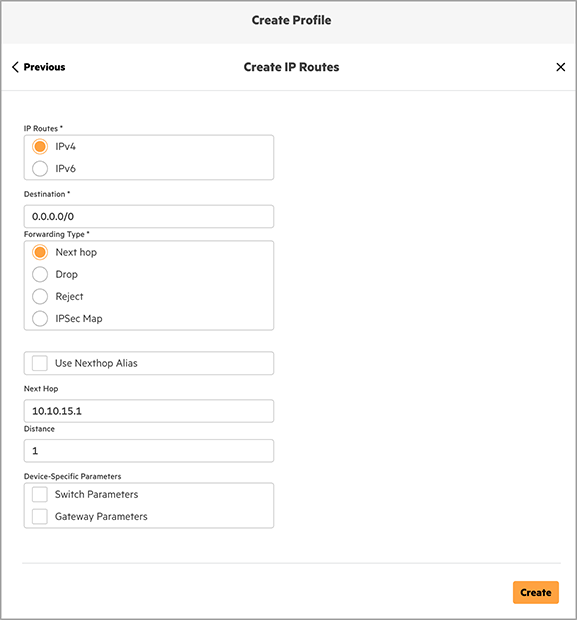
Note: After the default route profile is pushed to switches, VLAN 15 is used to communicate with Central. Verify that the default route has been pushed to all switches in the audit log and all switches are synchronized with Central before proceeding to the next steps.
Assign Source Interface
It is best practice to intentionally assign the interface used for management communication as a source interface. When loopback IPs and multiple VLAN SVIs are present, it is possible to associate different switch management functions to specific IP addresses. The following profiles specifies VLAN 15 should be used for all management traffic.
Profile Path: System > Source Interface
Device Functions: Aggregation Switch, Access Switch
Scope: Site : SMALL-CAMPUS-SITE
Configure the following non-default values:
- Name: SC-SRC-INT
- VRF: default
- L3 VLAN: 15


Set Infrastructure Trunk Native VLAN
The switchport alias previously created can be used to remove VLAN 1 from all switch trunk ports referenced in all interface profiles with a single configuration update.
Path: Named Objects > Aliases
Device Functions: Aggregation Switch, Access Switch
Scope: Site : SMALL-CAMPUS-SITE
Modify the following values of the existing SC-SWITCH-TRUNKS alias and click Update:
- Native VLAN: 998
- Allowed VLANs: 11,15,20,25,30,40,50-51,998
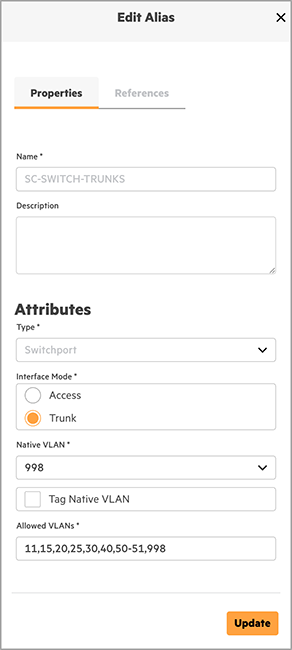
For reference, the following Port Profiles automatically update when making the change to the switchport alias above:
- SC-AG1-TO-GW1
- SC-AG1-TO-GW2
- SC-AG1-TO-AC1
- SC-AG1-TO-AC2
- SC-AC-TO-AG