Firewall Protection Profiles
Configuration > Overlays & Security > Security > Firewall Protection Profiles
Use the Firewall Protection Profiles tab to add or modify a protection profile on any appliance with a firewall, to enable baseline learning, and to manage denial of service (DoS) thresholds and corresponding response actions on designated appliances, segments, and zones.
Baseline Learning, Auto Rate Limit, and Smart Burst
When you enable baseline learning, the system establishes a baseline for network performance during normal operations. Flow baselines are established at regular intervals by analyzing network statistics and identifying new patterns based on observed data. The default interval for baseline learning is 14 days, but you can set the interval to 7-56 days. Baseline calculations are based on a snapshot of a combination of metrics and are computed in the background.
The baselines provide a way to continuously collect and aggregate data about your network. Use this data to assess network zone capacities and platform performance levels. The baselines are also used to build the graphs and charts found on Flow Baselines and Flow Baseline Trends.
You can enable baseline learning without adding any firewall protection profiles. To use the Auto rate limit or Smart burst DoS thresholds, you must enable baseline learning because baseline calculations are used to calculate targets for both. Baseline learning, Auto rate limit, and Smart burst all require either an AS (Advanced Security) license or an AAS-DTD (Dynamic Threat Defense) license.
NOTE: To disable baseline learning, you must first remove any firewall protection profiles that use Auto rate limit or Smart burst. If these are not removed before you disable baseline learning, a notification appears on the screen, and you cannot proceed with disabling the feature.
Auto Rate Limit
Auto rate limit is a DoS threshold setting that uses baseline learning to compute the minimum DoS threshold. The maximum DoS threshold is configured above the baseline minimum. Auto rate limit helps assess network zone capacities and platform performance levels; normal versus oversubscribed. It allows significant burst but limits a zone to a percentage of appliance capacity. The maximum value is not sensitive to zone trends, and flows that exceed the maximum value are “tail dropped” even if the zone or appliance has flow capacity.
Smart Burst
Smart burst is a DoS threshold setting that uses baseline learning to compute both minimum and maximum DoS thresholds and allocates extra flow capacity. It uses a triple token bucket zone-based policer schema for burst management. Smart burst does the following:
-
Optimizes the use of appliance capacity by zones.
-
Protects baseline flow capacity for all zones.
-
Automatically calculates reserve/spare flow capacity.
-
Supports two levels of bursts to mitigate tail drops and manages spare capacity of appliances to support bursts.
-
The spare capacity is distributed among all zones and is called committed burst. Committed burst is the first level of burst capacity.
-
On a per second basis, unused committed burst in zones is made available as a second level of burst capacity that is referred to as excess burst. Unused excess burst capacity goes back to the respective committed burst periodically.
-
Enable Baseline Learning
This section describes how to enable baseline learning for one EdgeConnect appliance. To enable baseline learning for multiple EdgeConnect appliances using a template, see Firewall Protection Profiles Template.
NOTE: Baseline learning, Auto rate limit, and Smart burst require either an AS (Advanced Security) license or an AAS-DTD (Dynamic Threat Defense) license.
-
Hover over the Actions column for the appliance you want to configure and click Edit.
The Firewall Protection Profile - <appliance name> dialog box opens.
-
Select the Baseline learning check box.
-
To customize the baseline learning settings, click Baseline settings.
The Baseline Settings dialog box opens.
-
Enter the following information based on your network or click Cancel to use the default settings.
Field Description Data aggregation method Technique used for data aggregation. The default is percentile. No other options exist at this time. Data aggregation limit Indicates what percentage of the sample data is used to determine baseline values. The default setting is 95%, which means the top 5% of the sample is discarded and the other 95% is considered when computing the baselines. You can enter a value between 75-100%. Computation interval Time that passes before the system computes new baselines. The default is 8 hours. For example, when using the default, the baselines are computed every 8 hours using the latest sample data collected during the Model training interval. This can be configured in 4-hour units (e.g., 4, 8, 12, and so on) up to 240 hours. Model training interval During this period, data is collected for various metrics every five minutes and is aggregated into a data file. This data is used to compute the baselines. The default is 14 days, the minimum is 7 days, and the maximum is 56 days.
NOTE: This period should include a diverse set of data that covers various types of legitimate traffic and captures the characteristics that distinguish normal traffic from malicious traffic during an attack.Baseline upper limit Upper limit for the minimum baseline. An alarm is raised when this value is reached. This setting is useful if Auto rate limit is configured without Smart burst. The setting is a percentage of the maximum baseline value, which is set manually. The default is 90%. You can enter a value between 50-100%. TCP inactivity timeout Inactivity timeout used for TCP flows created using burst support levels. Inactive flow gets deleted after this timeout. The default is 300 seconds. You can enter a value between 30-1800 seconds. Headroom for baseline plus Percentage of headroom that is added to the baseline. The default is 20%. You can enter a value between 5-100%. Per-source limit for committed burst Committed burst for a zone is available to all sources in the zone. This determines the percentage of committed burst in a zone that one source can use. The default is 50%. You can enter a value between 1-50%. Reserve flow capacity distribution Spare flow capacity is distributed among all zones by Smart burst using different methods (Proportional or Equal). The default method is Proportional. Excess burst credit interval On a per second basis, the zone is supposed to use a portion of committed burst capacity. Unused committed burst capacity of zones is made available as excess burst capacity every second. After this interval of time, unused excess burst capacity goes back to the respective committed burst. The default is 30 seconds. Enter a value between 30-100 seconds. Minimum reserve capacity limit Minimum amount of reserve flow capacity that should be available before Smart burst redistributes new reserve capacity after a baseline computation interval. Smart burst continues with previously distributed capacities if the minimum reserve capacity limit is not available. The default is 20%. You can enter a value between 10-50%. -
Click Done to close the Baseline Settings dialog box.
-
Click Save to close the Firewall Protection Profile - <appliance name> dialog box and save your changes.
SYN Cookie, Smart SYN Cookie, and Dynamic IP Reputation Management
SYN cookie is a protection feature of the EdgeConnect firewall. It mitigates distributed denial of service (DDoS) attacks that exploit the TCP three-way handshake process—specifically the initial SYN (synchronize) packet—referred to as a SYN flood attack. SYN flood attacks can exhaust system resources, including connection limits and network bandwidth, preventing legitimate connections. SYN cookie dynamically analyzes traffic patterns. It automatically activates to ensure uninterrupted availability and integrity of network services.
SYN cookie is a Max action for DoS threshold that is applicable to the Embryonic Two-Way flows (half-open connections) metric. If the SYN cookie Max action is active when an Embryonic Two-Way flow exceeds the Max value, EdgeConnect generates a SYN cookie challenge (SYN-ACK packet) for the requesting client. If the requesting client responds with a valid ACK packet (SYN cookie challenge packet), the session is allowed, flow creation in EdgeConnect starts, and the server-side session starts. The SYN cookie feature allows genuine clients to establish TCP sessions and mitigates SYN flood attacks by preventing malicious clients from creating half-open connections with the server that use server resources.
The EdgeConnect firewall confers the following flow statuses on TCP connections.
-
Embryonic Flow: The EdgeConnect has received the SYN packet from the requesting client.
-
Embryonic Two-Way Flow: The EdgeConnect has received the SYN-ACK packet from the server. If the EdgeConnect never receives the SYN-ACK packet from the server, the flow status remains as Embryonic.
-
Established Flow: The EdgeConnect has received the ACK packet from the requesting client. If the EdgeConnect never receives the ACK packet from the requesting client, the flow status remains as Embryonic Two-Way.
NOTE: Smart SYN cookie and dynamic IP reputation require either an AS (Advanced Security) license or an AAS-DTD (Dynamic Threat Defense) license.
Smart SYN Cookie
Smart SYN cookie uses smart functionality to increase the efficiency of the SYN cookie feature. You can select it as a Max action for a DoS threshold value for TCP embryonic two-way flows.
It uses dynamic IP reputation management to evaluate source IP addresses and assign a reputation score to them. The system uses this reputation score to determine how to respond to a TCP connection request. Depending on the score, it responds with a SYN cookie, generates a normal flow, or adds the source IP address to the blocklist.
Dynamic IP Reputation Management
Smart SYN cookie uses dynamic IP reputation management to assign a reputation score to source IP addresses. The system builds and continuously updates the reputation score based on the history of “good” (trusted) transactions for an IP address. The reputation score is built using the following data:
-
Internal IP Reputation: Computed by ECOS for all IP addresses using both egress and ingress flows. You must enable Internal IP Reputation for the Smart SYN cookie feature to work properly. Internal IP Reputation is applied to both egress and ingress flows.
-
External IP Reputation: Provided by BrightCloud/Webroot feed “IP Reputation”.
Enable Internal IP Reputation
This section describes how to enable Internal IP Reputation for one EdgeConnect appliance. To enable it for multiple EdgeConnect appliances using a template, see Firewall Protection Profiles Template.
NOTE: Smart SYN cookie and dynamic IP reputation require either an AS (Advanced Security) license or an AAS-DTD (Dynamic Threat Defense) license.
-
Hover over the Actions column for the appliance you want to configure and click Edit.
The Firewall Protection Profile - <appliance name> dialog box opens.
-
Select the Internal IP reputation check box.
-
To customize the reputation settings, click Reputation settings.
The Internal IP Reputation dialog box opens.
-
Enter the following information based on your network or click Cancel to use the default settings.
Field Description Successive Good Transactions (Trusted) Number of consecutive good (trusted) transactions that an IP address must incur to be considered trusted. The default is 20 transactions. You can enter a value between 5-1024. Successive Bad Transactions (Untrusted) Number of consecutive bad (untrusted) transactions that an IP address can incur before it is considered untrusted. The default is 20 transactions. You can enter a value between 5-1024. -
Click Save to close the Internal IP Reputation dialog box.
-
Click Save to close the Firewall Protection Profile - <appliance name> dialog box and save your changes.
Create a Firewall Protection Profile
-
Navigate to Configuration > Overlays & Security > Security > Firewall Protection Profiles.
-
Hover over the Actions column for the appliance you want to configure and click Edit.
The Firewall Protection Profile - <appliance name> dialog box opens.
-
In the Profiles section, click Add.
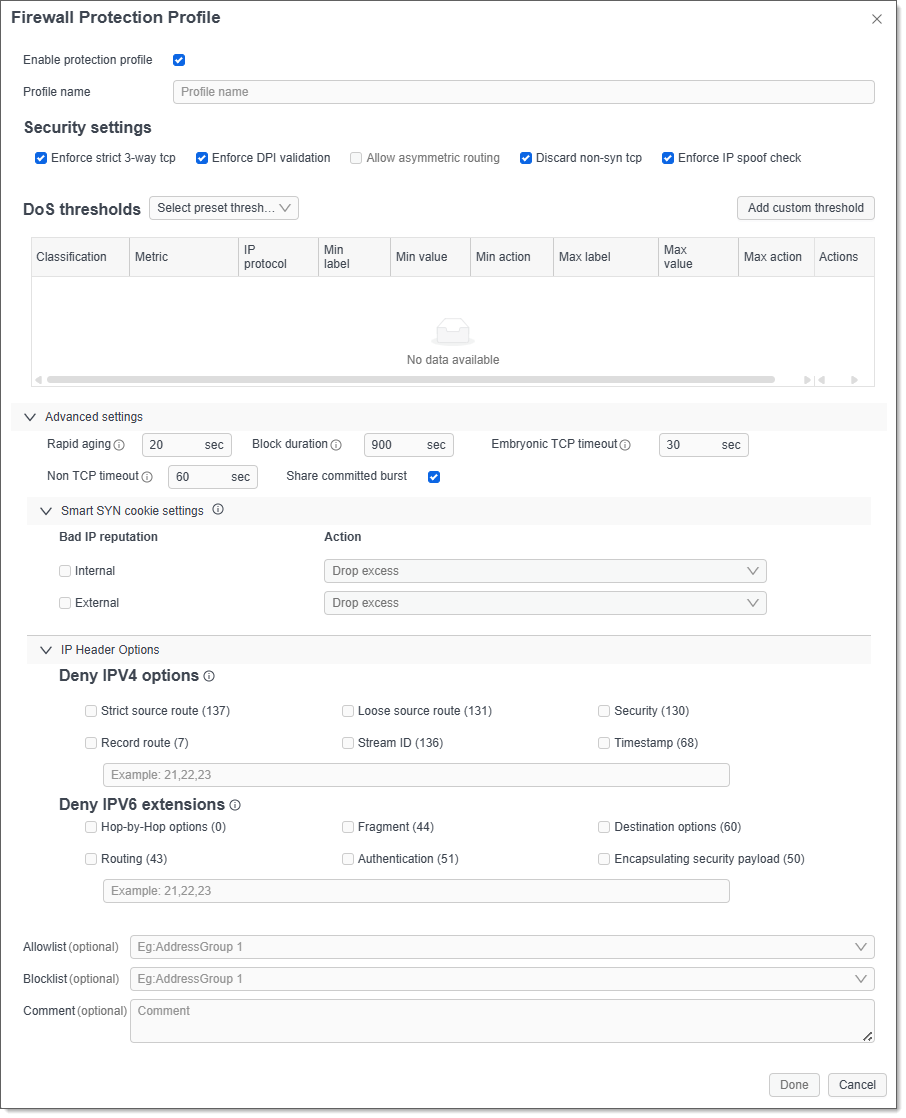
The Firewall Protection Profile dialog box opens.
-
Enter a name for the profile.
-
Select or clear any of the Security settings check boxes.
NOTE: When asymmetric routing is configured, strict three-way TCP enforcement and deep packet inspection (DPI) validation cannot be performed. To enable these settings, turn off asymmetric routing.
-
From the DoS thresholds drop-down list, select a preset threshold (Lenient, Moderate, Strict, Auto rate limit, or Smart burst).
NOTE: To clear your selection and reset the DoS thresholds table, choose Select preset threshold from the drop-down list.
NOTE: To use Auto rate limit or Smart burst, you must enable baseline learning first. These options only appear in the drop-down list after baseline learning is enabled.
-
(Optional) Add exceptions to the following fields:
Field Description Allowlist Enter an existing Address Group. Any IP address contained within the Address Group will be exempt from DoS threshold analysis. The Allowlist does not exempt flows from the options shown in the Security Settings section. Blocklist Enter an existing Address Group to explicitly block any IP address contained within the configured Address Group. -
(Optional) Click Advanced settings and set the following fields:
Field Description Rapid aging Set a threshold value (in seconds) to enforce the tearing down of TCP connections when the period of inactivity matches the configured value (for example, 30s). Block duration Enforce dynamic blocking of flows originating from a source for a specified duration (for example, 300s). Embryonic TCP timeout Set this value so that the firewall can tear down half-open TCP connections when the timeout value is reached (for example, 30s). While a TCP connection goes through the three-way handshake (SYN, ACK, SYN-ACK), an embryonic connection is a half-open connection that produces, for example, a SYN without the other two parts of the handshake. This is a popular form of denial of service (DoS) attack. Non TCP timeout Set this value so that the firewall can tear down unidirectional/half-open non-TCP connections when the timeout value is reached. Default is 60 seconds. Share committed burst Select this check box to enable unused committed burst to be shared with other zones. This check box is enabled by default. For critical zones, you can disable this option, which retains the committed burst capacity for the zone itself. Smart SYN cookie settings Bad IP Reputation
Internal: Select the check box to enable, and then select the action to take if the internal IP reputation for an IP address that is requesting a TCP connection is Untrusted (Drop excess or Block source). Default is Drop excess.
External: Select the check box to enable, and then select the action to take if the external IP reputation for an IP address that is requesting a TCP connection is Untrusted (Drop excess or Block source). Default is Drop excess.
NOTE: Smart SYN cookie settings require AS or AAS-DTD license and internal IP reputation must be enabled.Deny IPV4 options For appliances running ECOS version 9.4.0.0 or later, select the check box for any of these items to deny their inclusion in the Options field of IPv4 packet headers: Strict source route, Loose source route, Security, Record route, Stream ID, and Timestamp.
In the text box, enter any options using comma-separated format.Deny IPV6 extensions For appliances running ECOS version 9.4.0.0 or later, select the check box for any of these optional extension headers of IPv6 packets to deny their inclusion: Hop-by-Hop options, Fragment, Destination options, Routing, Authentication, and Encapsulating security payload.
In the text box, enter any extension options using comma-separated format. -
Click Done to close the Firewall Protection Profile dialog box.
-
Click Save to close the Firewall Protection Profile - <appliance name> dialog box and save your changes.
Set Firewall Protection Profile Thresholds
To view the threshold settings on an existing firewall protection profile, click the link in the Thresholds count, Min thresholds, or Max thresholds columns of the Firewall Protection Profiles table.
NOTE: You can use both preset and custom thresholds.
To set or edit the threshold settings:
-
Hover over the Actions column for the appliance you want to configure and click Edit.
The Firewall Protection Profile - <appliance name> dialog box opens.
-
Hover over the Actions column for the profile you want to edit and click Edit.
The Firewall Protection Profile dialog box opens.
-
Either select a preset threshold from the DoS thresholds drop-down list, or click Add custom threshold.
The DoS Threshold dialog box opens.
NOTE: To edit the settings for an existing preset or custom threshold, hover over the Actions column for the threshold and click Edit.
-
Set the following parameters.
NOTE: To return preset threshold settings to their defaults, click Reset to default, and then click Reset to confirm the change. This does not impact custom thresholds.
Field Description Classification Classify flows in two ways:
Zone-level: Flows originating from multiple endpoints that are part of a single firewall zone.
Source-level: All flows originating from a single endpoint or source device.Metric DoS thresholds can be configured with any or all of the four metrics available in a firewall protection profile:
Flows per second: Rate of flow (fps). A single flow is a unidirectional set of packets containing common attributes (source and destination IP, ports, protocols).
Concurrent flows: Number of flows that are active at a given point in time.
Embryonic flows: An incomplete TCP connection where only the first step in the three-way handshake has been completed; the EdgeConnect has received the SYN packet from the requesting client. For other protocols, such as UDP or ICMP or other, this indicates uni-directional traffic and the flow is called Embryonic.
Embryonic Two-Way flows: A half-open TCP connection occurs when only the SYN and SYN-ACK packets of the three-way handshake are completed. In this state, EdgeConnect has received the SYN-ACK from the server, but it has not received the final ACK from the Client.IP Protocol Select an IP protocol (TCP, UDP, ICMP, Others, or All) for use in threshold settings. Min Label Select the method used to determine the min value:
Baseline: If selected, the min value is determined by the system using baseline learning, and the corresponding Value field shows “Dynamic”. This option is available only if Baseline Learning is enabled.
Custom: If selected, you configure the min value by entering a percentage in the corresponding Value field.Value Minimum threshold value as a percentage of target appliance flow capacity. When this value is breached, the protection profile takes a corresponding minimum action. If Baseline is selected as the Min Label, the system determines this value, and it cannot be configured. Action Action to take when the min value is breached (Log, Rapid aging, Drop excess, Block source, or SYN cookie). Because this corresponds to the min value, a less intensive action can be configured. Max Label Select the method used to determine the max value:
Custom: If selected, you configure the max value by entering a percentage in the corresponding Value field.
Baseline plus: A buffer of 20% is added to the computed baseline when determining flow capacity. If selected, the max value is determined by the system using baseline learning and the corresponding Value field shows “Dynamic”.
Committed burst: Reserve flow capacity is divided equally or proportionally among all zones configured for Smart burst. If selected, the max value is determined by the system using baseline learning and the corresponding Value field shows “Dynamic”.
Excess burst: Continuously, on a per second basis, unused committed burst (distributed reserve flow capacity) is collected from all zones and shared as a second level of support for all zones. If selected, the max value is determined by the system using baseline learning and the corresponding Value field shows “Dynamic”.Value Maximum threshold value as a percentage of target appliance flow capacity. When this value is breached, the protection profile takes a corresponding maximum action. If Baseline plus, Committed burst, or Excess burst are selected as the Max Label, the system determines this value, and it cannot be configured. Action Action to take when the max value is breached (Log, Rapid aging, Drop excess, Block source, SYN cookie, or Smart SYN cookie). Because this corresponds to the max value, a more intensive action can be configured. -
Click Done to close the Firewall Protection Profile dialog box.
-
Click Save to close the Firewall Protection Profile - <appliance name> dialog box and save your changes.
Add Profile Mappings
After you create a profile, you can map it to a segment and zone of your firewall to achieve the expected behavior.
To map a profile to a segment:
-
In the Profile Mappings section, click Add.
-
From the Segment drop-down list, select the segment you want to map to your profile. To search for a segment in the list, type the segment name.
-
From the Zone drop-down list, select the zone you want to assign to your profile. To search for a zone in the list, type the zone name.
-
From the Profile drop-down list, select the profile you created earlier. To search for the profile in the list, type the profile name.
-
Click Done to close the Profile Mapping dialog box.
-
Click Save to close the Firewall Protection Profile - <appliance name> dialog box and save your changes.
Add Firewall Protection Profile to a Template Group
-
Navigate to Configuration > Templates.
-
Select a template group to add the firewall protection profile to, and then click Add/Edit.
Firewall Protection Profiles appears as a template under Active Templates > Policies.
View DoS Threshold Alarms
To view a list of alarms triggered when a DoS threshold is breached, navigate to Monitoring > Summary > Alarms, and then search for “DoS” in the search bar. For more information, see Alarms.